
Notes, Calendar, Countdown or Timetable?
Choose the starting point that fits your work, then connect the views you need.
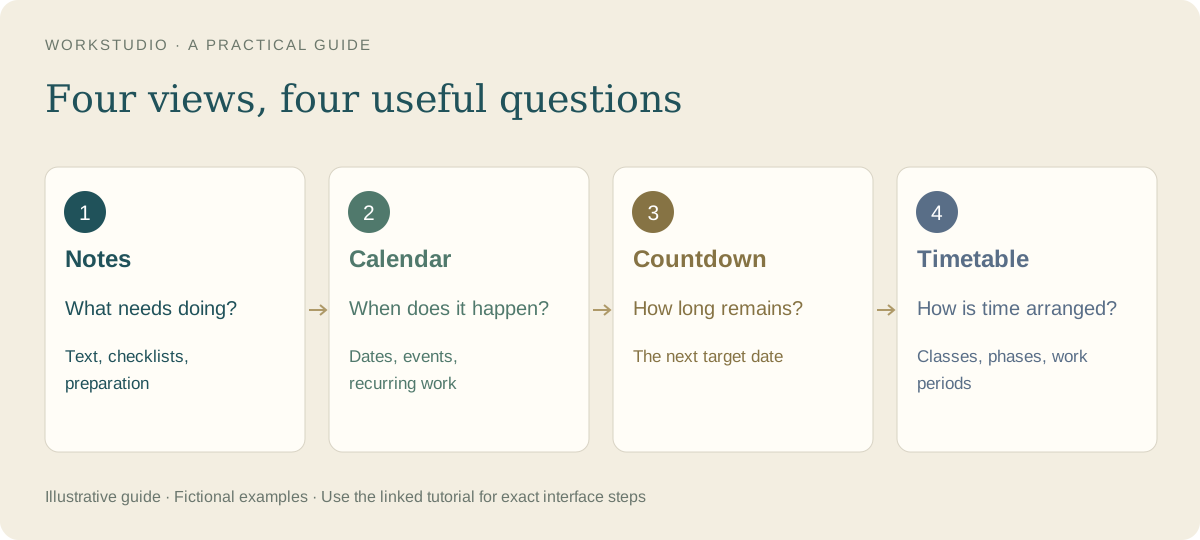
You do not have to enter the same plan four times. Start with the information you need to keep. Then use the supported links and visibility settings to show it where it is useful.
Choose a starting point
- Notes: explanations, preparation, checklists and tasks. A dated section can keep the work for one day together.
- Calendar: what happens on a date or during a period. Use it to inspect events, recurring work and dated Note items.
- Countdown: how much time remains until a target. Use a standalone Countdown or enable the Countdown view for an eligible dated item.
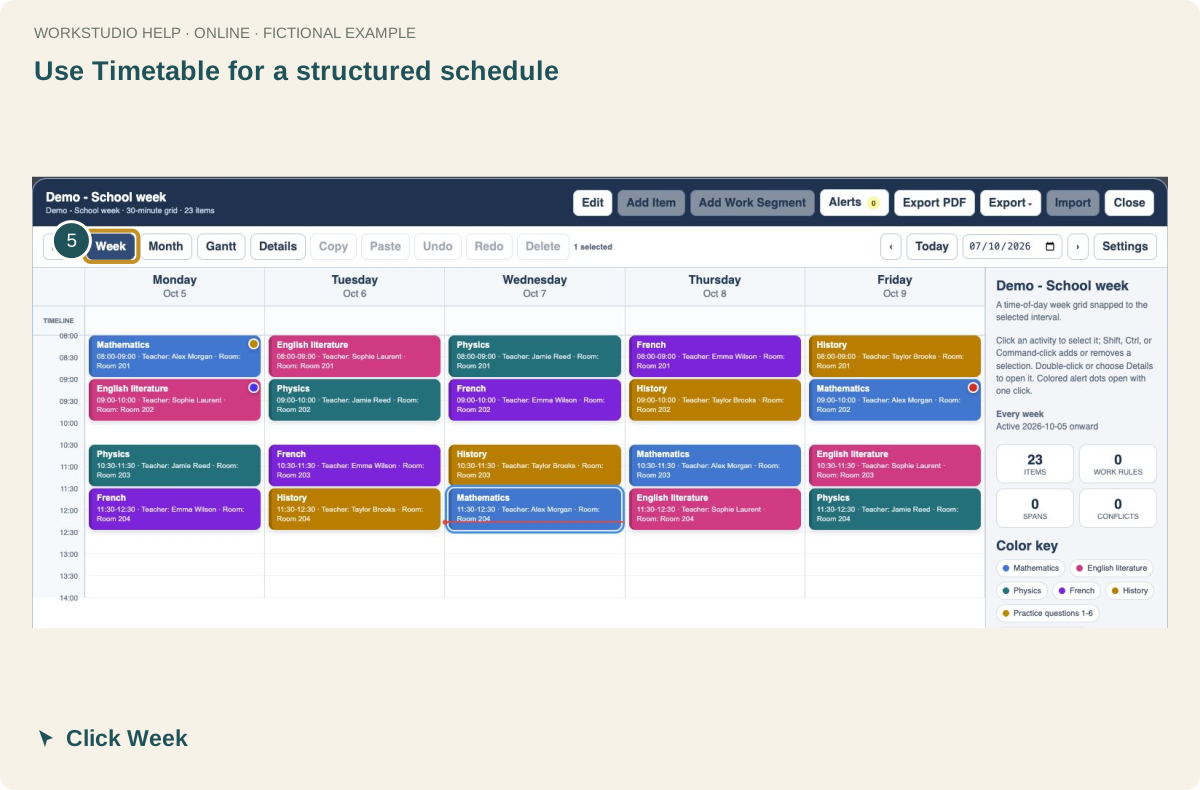
- Timetable: a structured school week, working calendar or presentation timeline. Classes, working periods and phases have different purposes; choose the appropriate timetable type.
Three everyday examples
A monthly company report: write the preparation checklist in a Note, place the reporting deadline in Calendar and enable its Countdown. Keep the checklist and the submission event clearly named.
A school week: start with a Timetable. Attach homework or a test to the relevant class. Use Notes for longer study material.
A project presentation: use a presentation timeline for phases and milestones. Use a Note for preparation and a Countdown for the submission date.
Which app runs where?
The web Records app contains these record types and views. The Mac Countdown companion displays selected countdowns; dates, styles and other settings are managed online in WorkStudio Catalog. The companion supports free accounts. Native Notes and Timetables on iPhone can hold local information and can connect to selected online collections. Their controls and supported exports differ from the web app.
A local item does not become shared merely because you signed in. Check what you selected for import or synchronization and read the save status before changing devices.
Continue with One item across several views or Create your first daily task list.
In the example Catalog
Fictional example used to explain the workflow.
Enable JavaScript to use reading progress and usefulness ratings.