
Choose the right online view
Follow the marked screenshots, or watch the online walkthrough at your own pace.
Where: WorkStudio online → Records. Use a saved example Catalog; our screenshots show Help examples - Planning.
The gold outline marks the control or result to look at. Read the instruction, make the change, then continue. Dates are fictional and will differ from your own.
Choose the right online view
Guided screen walkthrough using real online screens and click highlights. Screens are held for reading; this is not a continuous recording. All names, dates and tasks are fictional examples. Any resemblance to real people or events is coincidental.
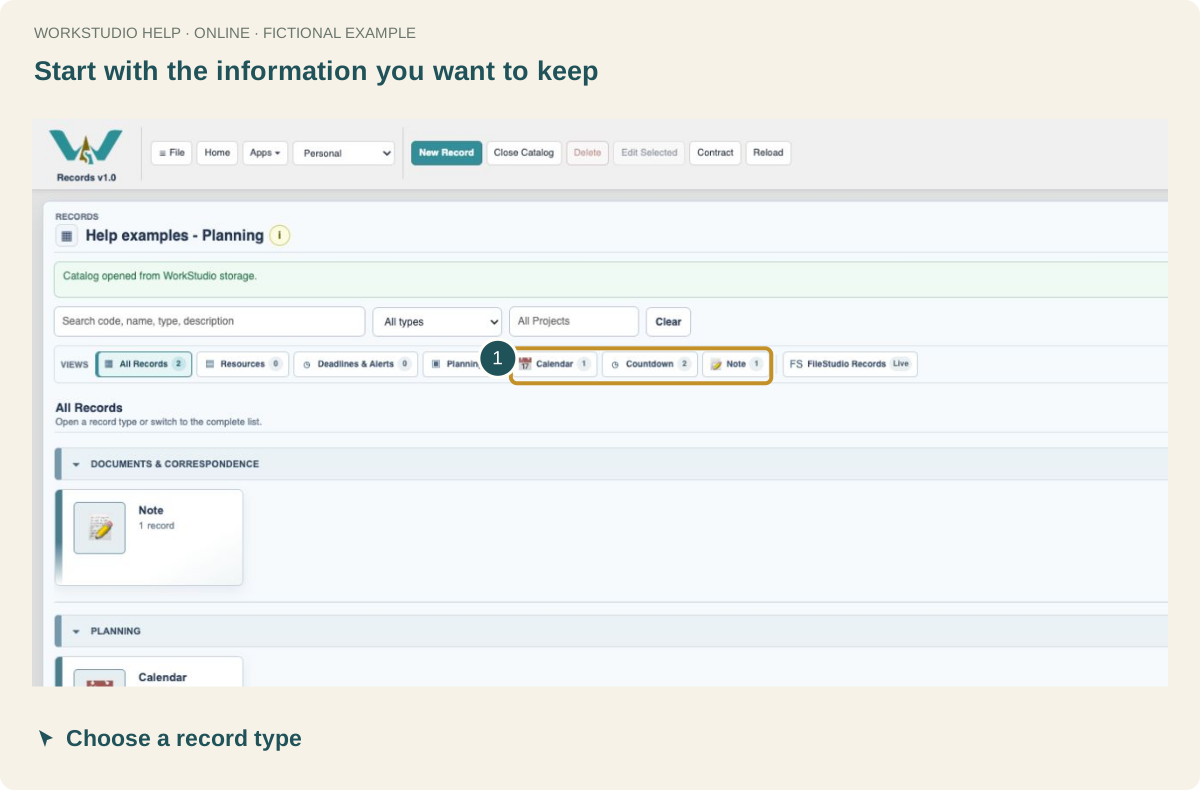
Start with the information you want to keep
In Records, choose the type that matches your purpose. Our example has a Note and a Calendar in one saved Catalog.
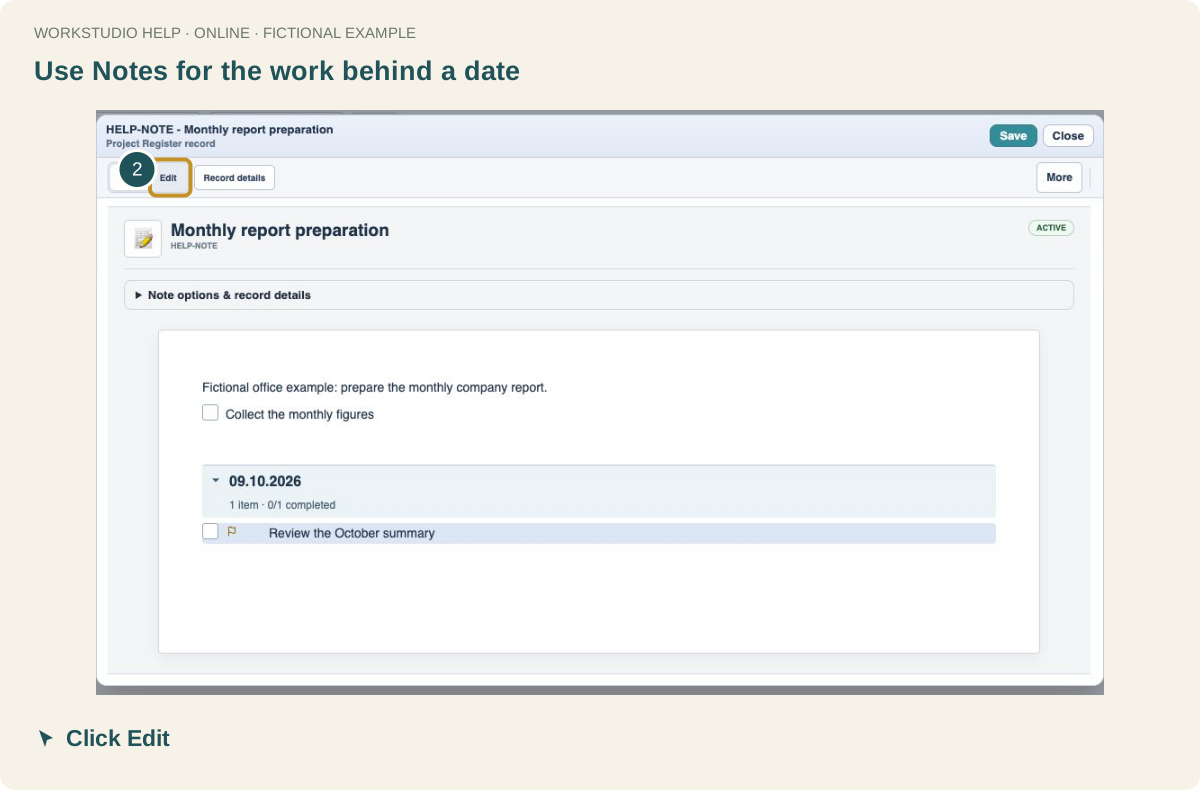
Use Notes for the work behind a date
Open the Note to read its checklist. Click Edit when you want to change the text or check off work.
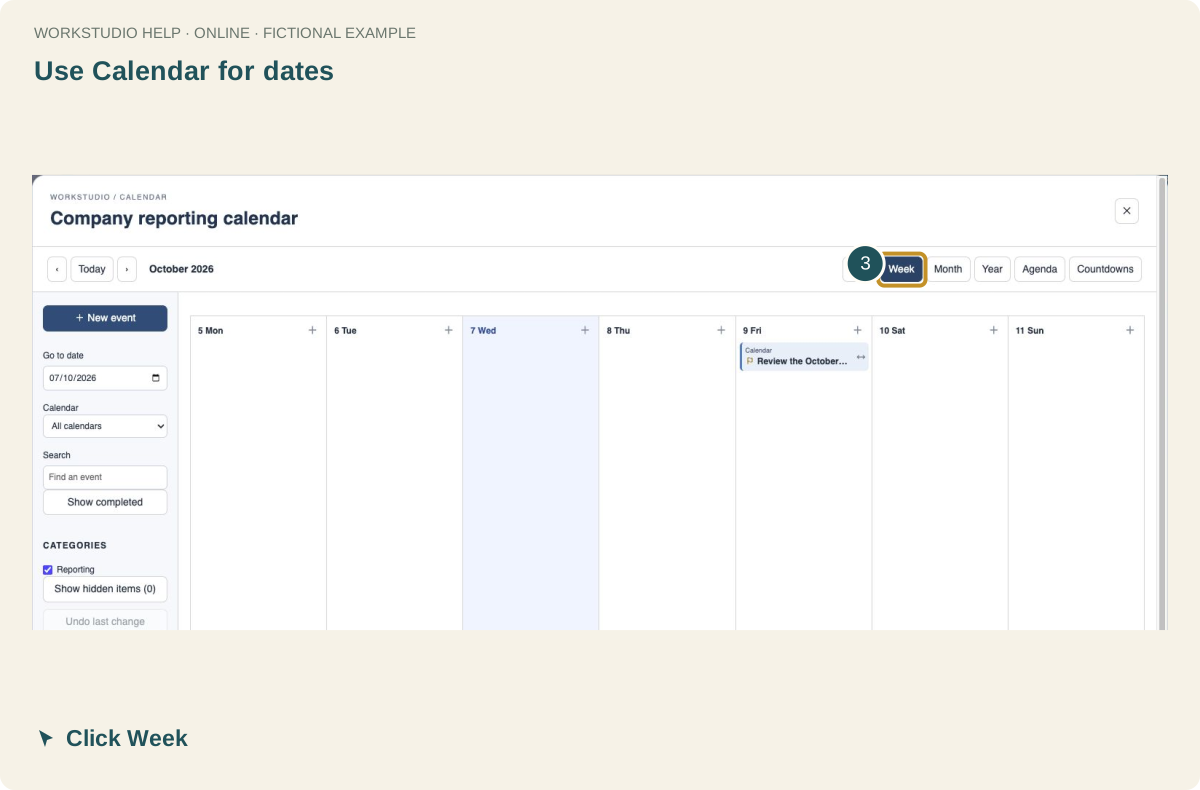
Use Calendar for dates
Open your Calendar and click Week to see this week’s dated work. Day, Month, Year and Agenda offer other ways to review it.
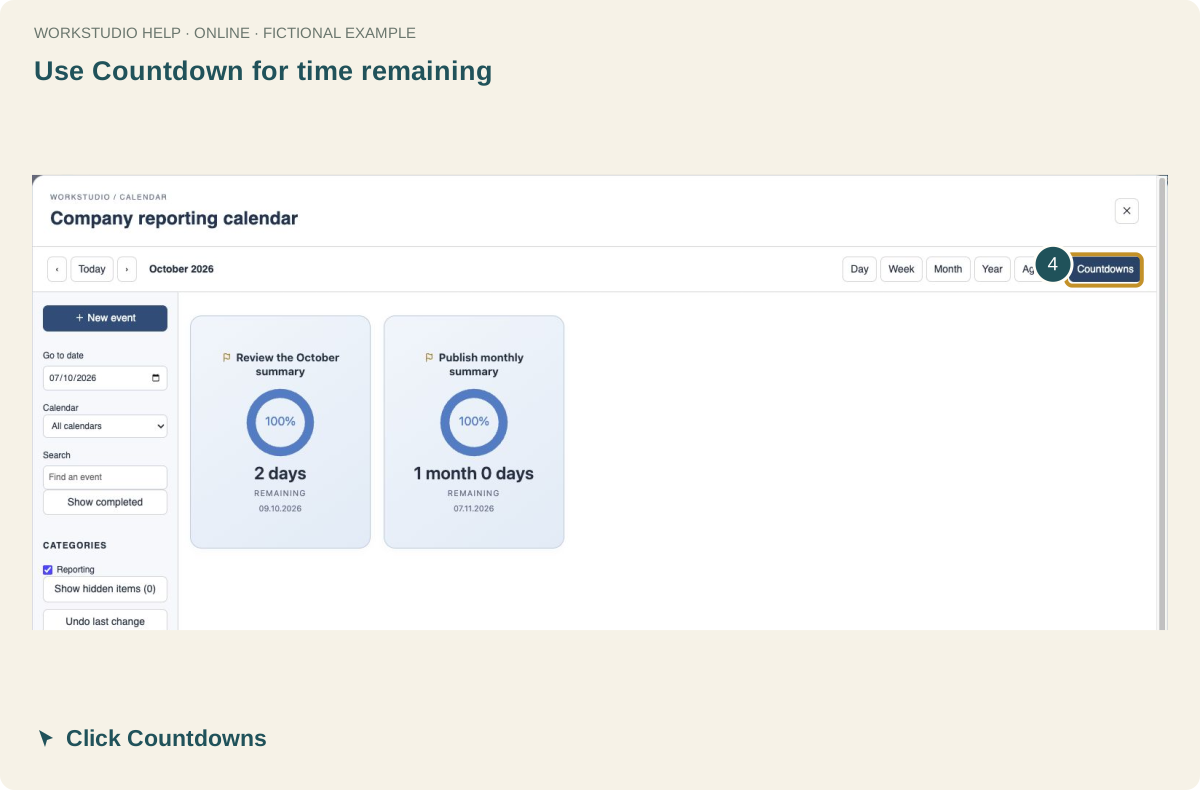
Use Countdown for time remaining
In Calendar, click Countdowns. Eligible events with Countdown enabled appear as cards with their next target date.
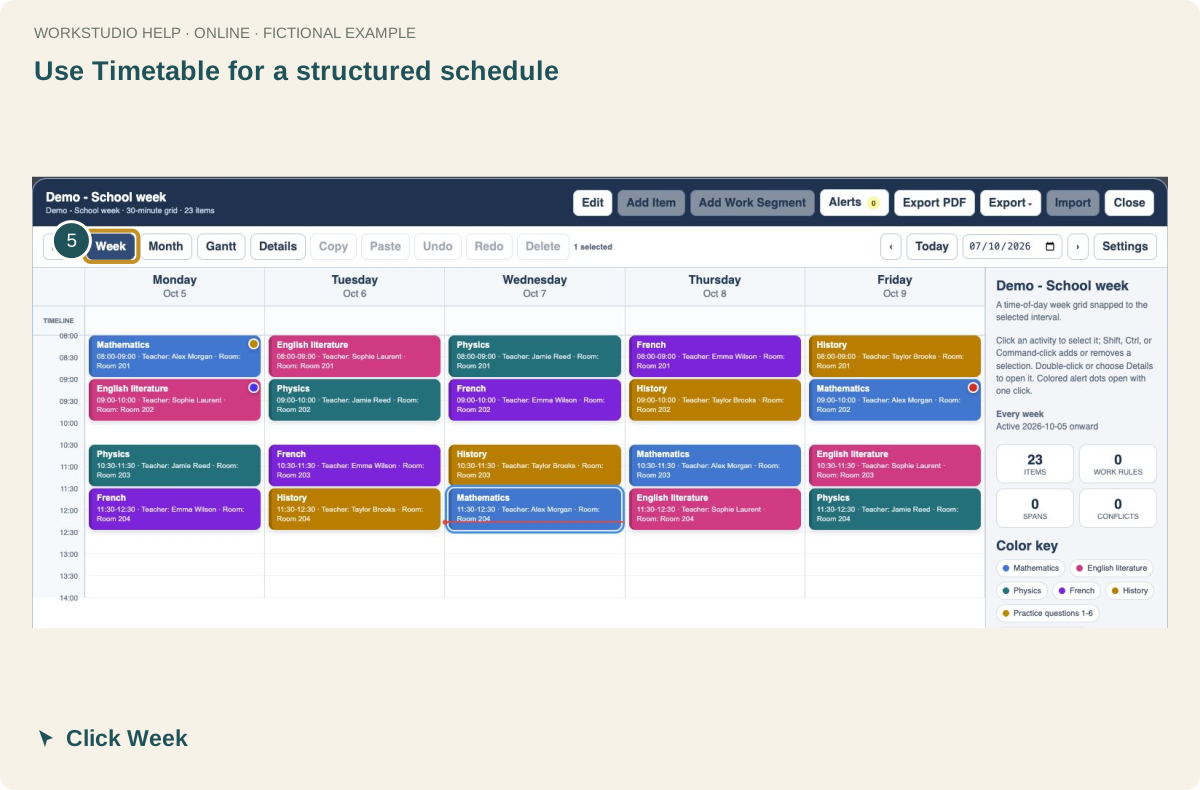
Use Timetable for a structured schedule
Open a Timetable / Schedule record and its designer. Click Week to inspect lessons, rooms and attached homework markers.
Enable JavaScript to use reading progress and usefulness ratings.