
Organize costs with folders, tags and nested budgets
Use organization to find costs quickly, and nesting to combine plans.
These guides use fictional practice data and generic EUR amounts. The screenshots show the October 2026 interface. Adapt example dates and planning periods if practicing later. Recording bills and payments does not transfer money.
Start with Create a cost and your first Budget or Handle a variable bill.
Folders and tags have different jobs
Folders group related records, such as Household and Online services. Tags can cross those groups, such as Personal, Business or Essential. Assign them through Organize in a record’s edit view. The cost picker reads the folders and tags on the cost records, not just those on the estimate.
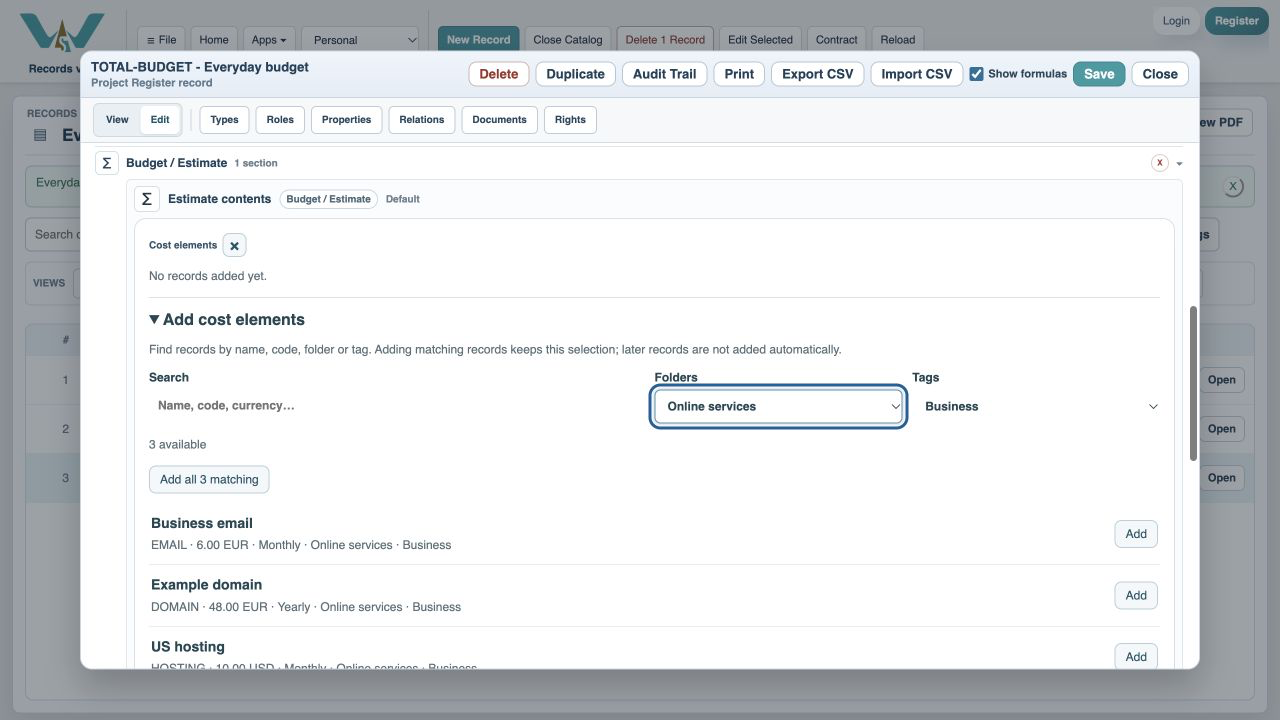
Pick the current matches
In the estimate editor, combine Search, Folders and Tags to find the relevant records. Add matching records to the selection. The selected rows remain visible independently of the candidate filters. Later changes to the folder contents do not silently change your saved selection; revisit the picker to add new costs.
Combine smaller budgets
Add existing estimates under Included estimates. For example, Everyday budget can include Household budget and Online services budget. Do not add a second copy of the same cost merely to make it appear in the parent. The calculation counts a reused cost once. Circular references are rejected; an estimate must not include itself through another estimate.
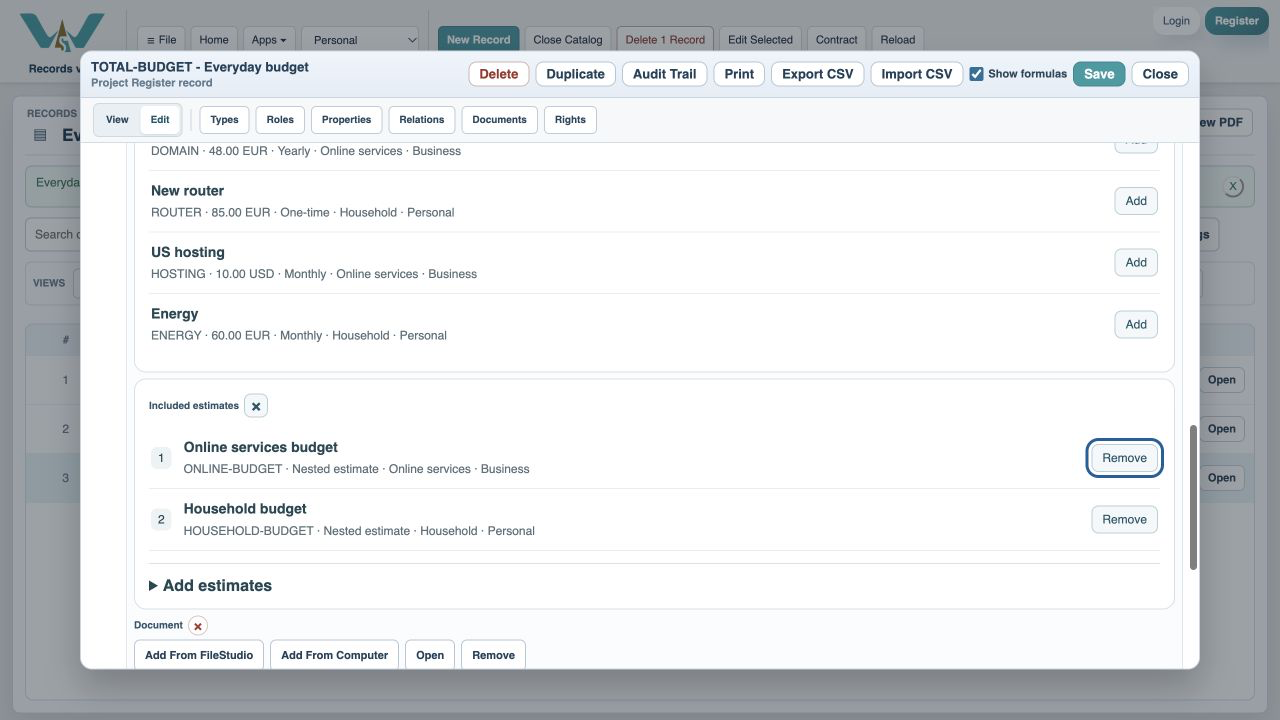
Filter a report without changing its contents
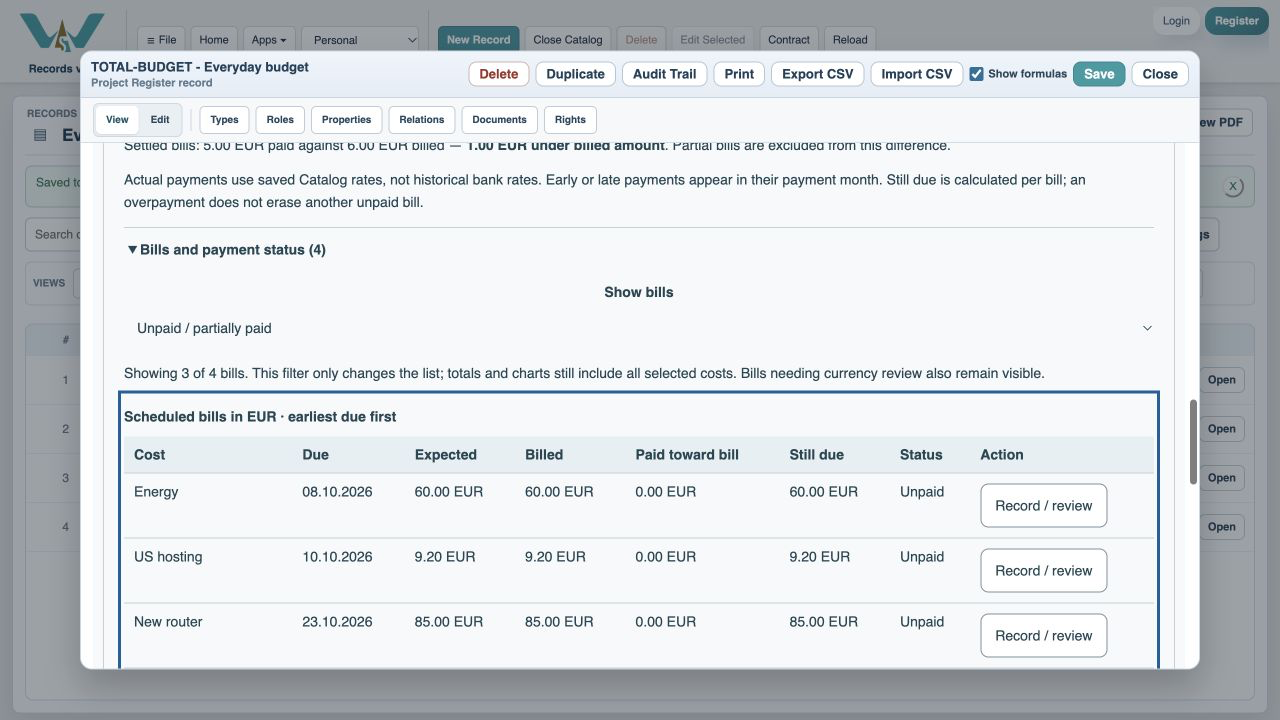
Use Filter costs and planning assumptions in the overview to temporarily narrow the calculation by cost folder or tag. This changes the report, not the saved membership. Bills and payment status has its own unpaid filter that changes only the bill list. Keep these two kinds of filtering distinct when comparing totals.
Enable JavaScript to use reading progress and usefulness ratings.