
Create your first cost element
Give a cost a clear name and a price you can reuse.
These guides use fictional practice data and generic EUR amounts. The screenshots show the October 2026 interface. Adapt example dates and planning periods if practicing later. Recording bills and payments does not transfer money.
Start with Create a cost and your first Budget or Handle a variable bill.
Choose the record type
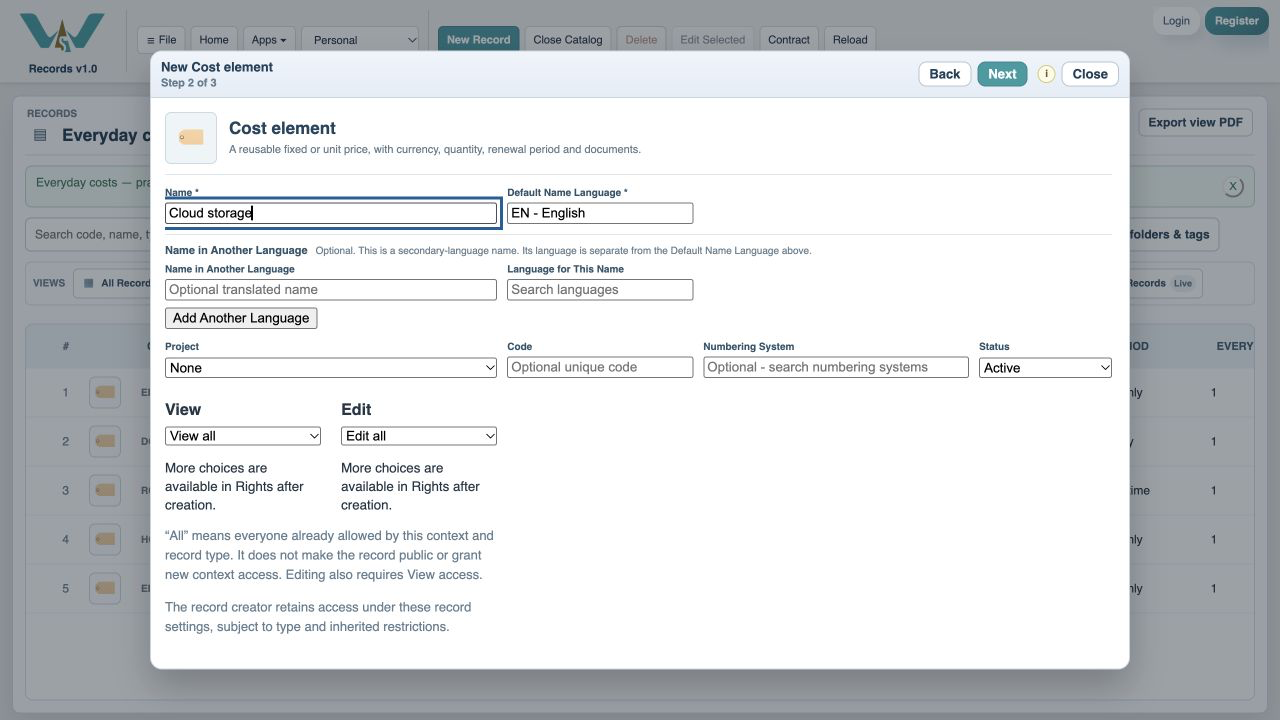
In Records, select New Record and choose Cost element. Choose Create New to enter your own record, then give it a meaningful name such as Cloud storage. An optional code helps distinguish similar costs. Continue to the cost fields, or open the full record editor when you need more detail.
Choose the right price type
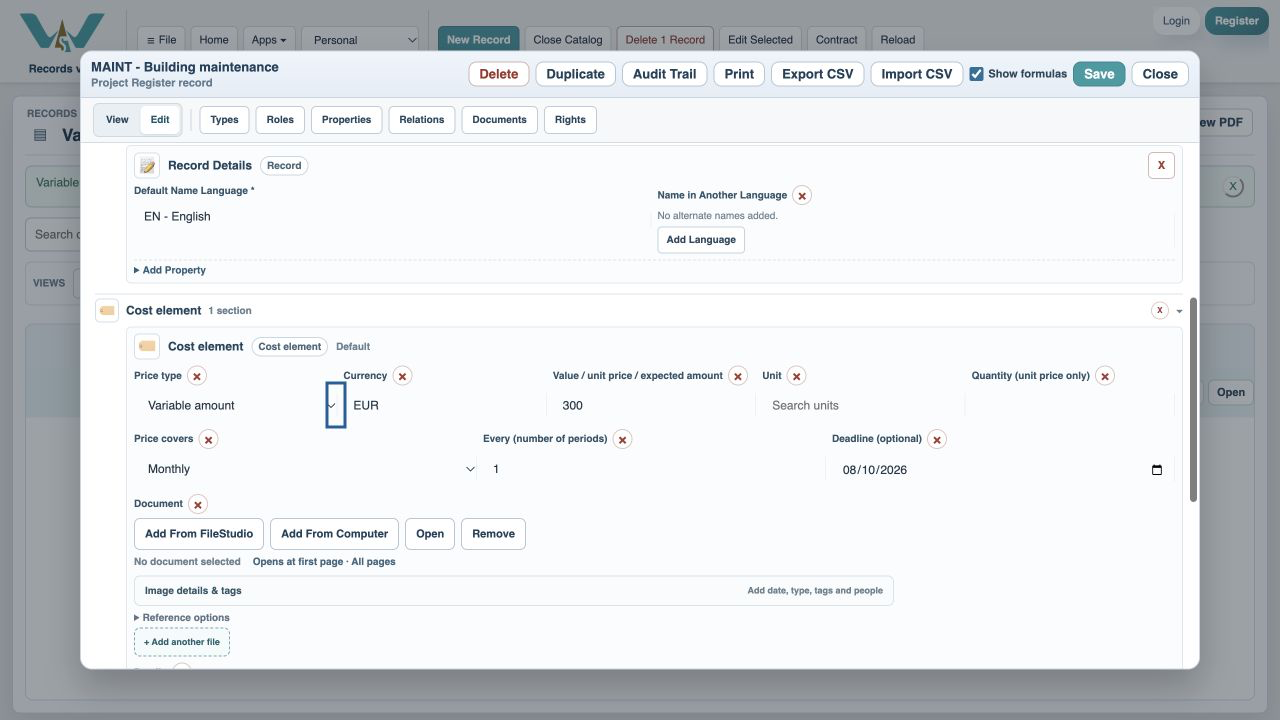
Fixed suits a known total. Unit price multiplies value by quantity; also choose a unit. Variable amount uses the value as the expected total per occurrence. For a phone bill that changes each month, enter a reasonable expected amount now, then record the actual invoice later. Quantity applies to Unit price, not Variable amount.
Currency, timing and evidence
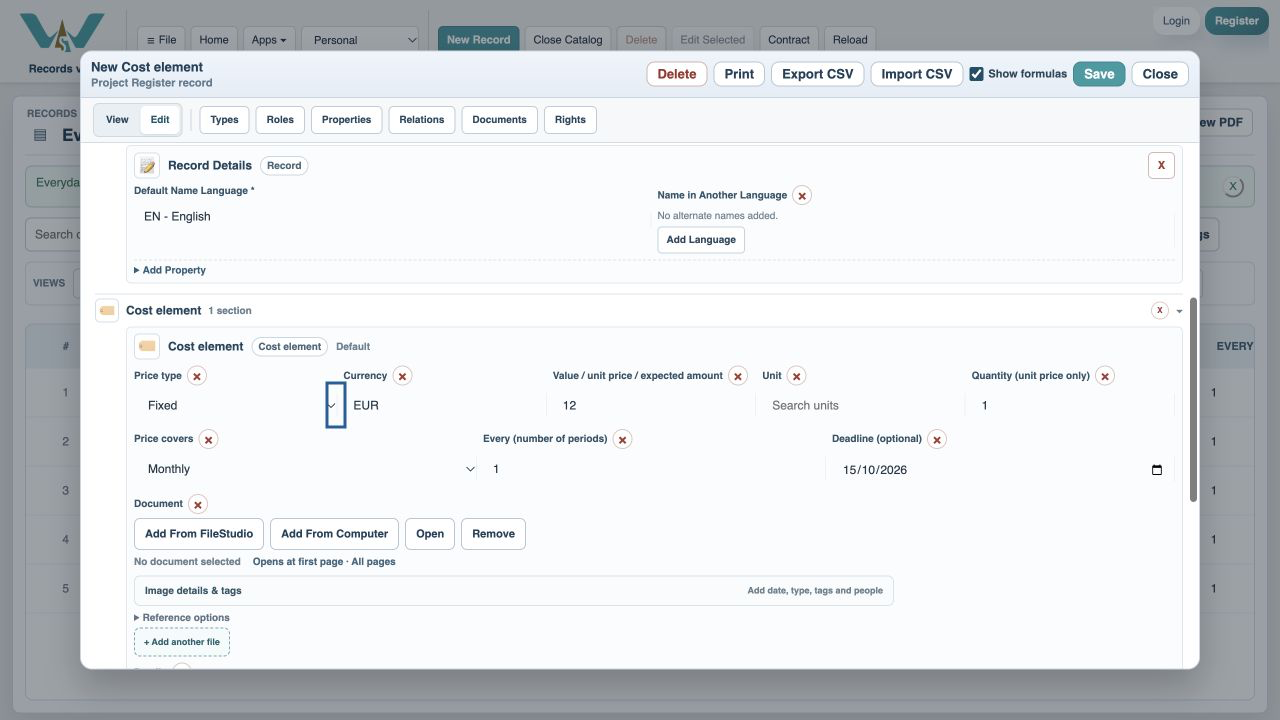
Search the currency field and choose a currency from the currency Catalog. Enter a non-negative value using the number format accepted by the field. Select One-time, Monthly, Quarterly or Yearly, then Every for the number of periods. Add a deadline when you want the cost to appear on the billing timeline. For a new recurring cost, set Billing starts on to its first bill date to exclude earlier bills. Details can explain what is included, and Document can hold supporting material.
Check the saved record
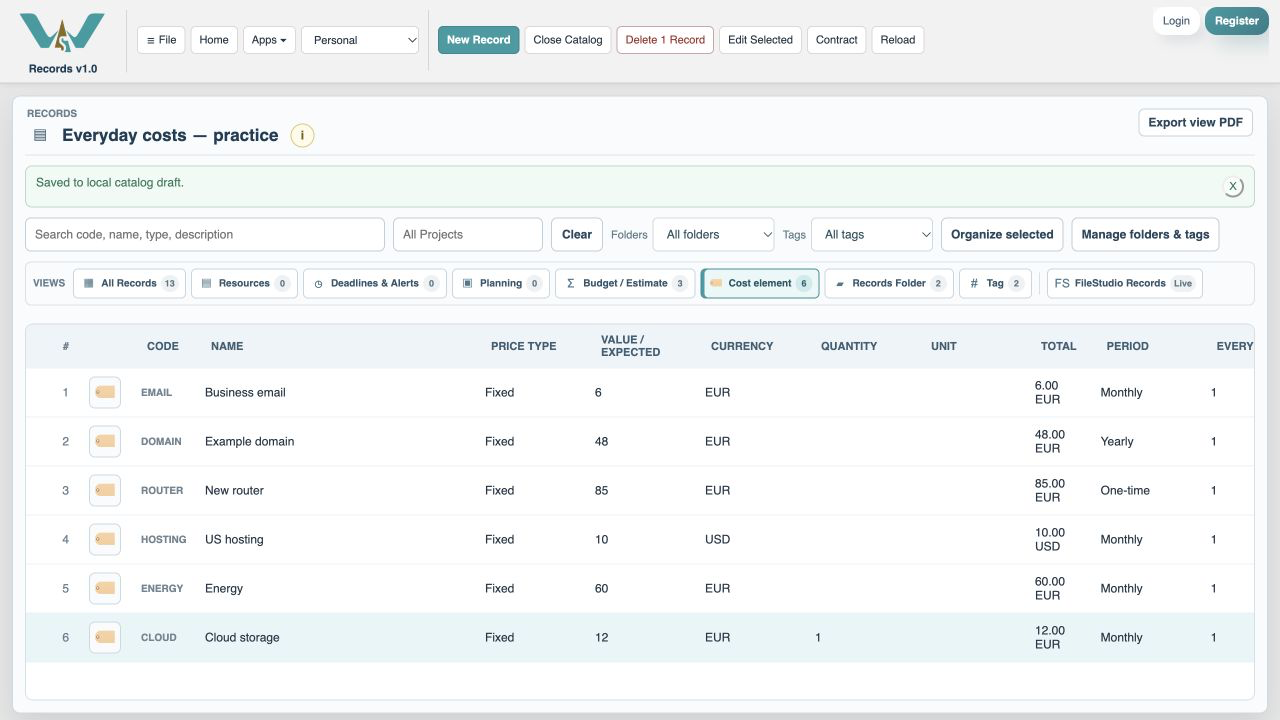
Save the record and inspect the cost-element list. Confirm its currency, expected or fixed value, period and deadline. Then save the Catalog. If a cost is missing from an estimate, adding the record alone is not enough: open the estimate and add it to Cost elements.
Enable JavaScript to use reading progress and usefulness ratings.