
Cost elements and Budgets: start here
Build a useful picture of your costs without creating an accounting system.
These guides use fictional practice data and generic EUR amounts. The screenshots show the October 2026 interface. Adapt example dates and planning periods if practicing later. Recording bills and payments does not transfer money.
Start with Create a cost and your first Budget or Handle a variable bill.
Variable bills without surprises
A silent, paced screen presentation using real Catalog captures and fictional EUR examples. Outlines and Click / Type / Look here arrows identify the action. The decorative title artwork is AI-generated. Open the full guide for the illustrated transcript.
One cost, many views
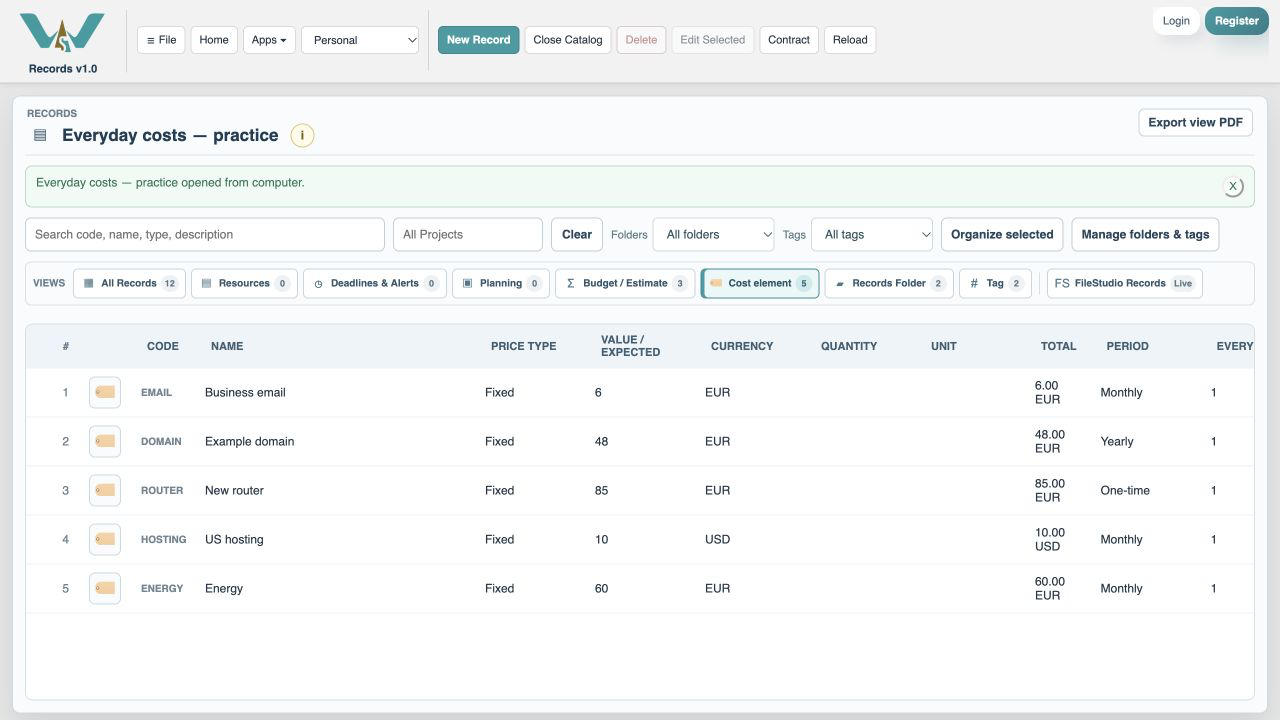
A Cost element describes something you expect to spend money on: a subscription, a domain renewal, a phone bill or a purchase. It has a name, currency, amount and optional deadline. Reuse the same cost in several budgets instead of copying it. Recording a payment is a record-keeping action; WorkStudio does not send money.
Your Budget / Estimate record
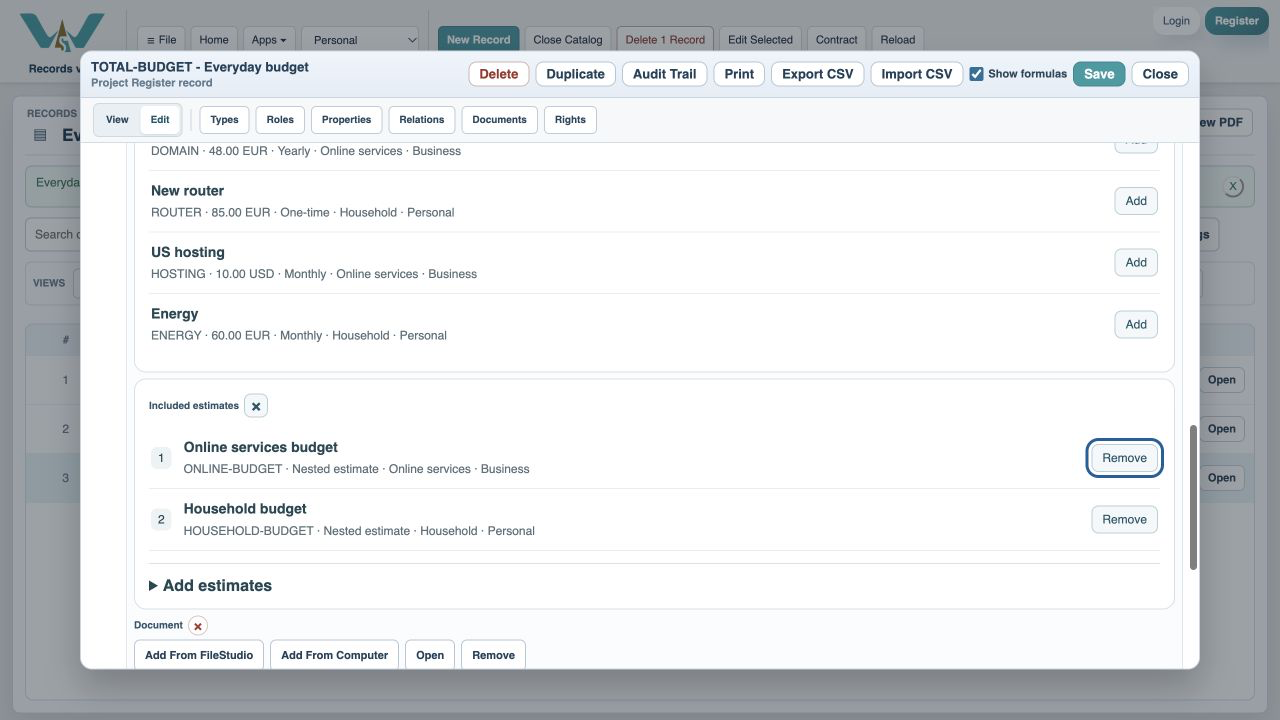
Choose Budget / Estimate to collect costs. Both Budget and Estimate work in search. Add cost elements individually, or include existing budgets such as Household budget and Online services budget. A combined budget counts each linked cost once, even if several included budgets reference it.
Expected, billed and paid
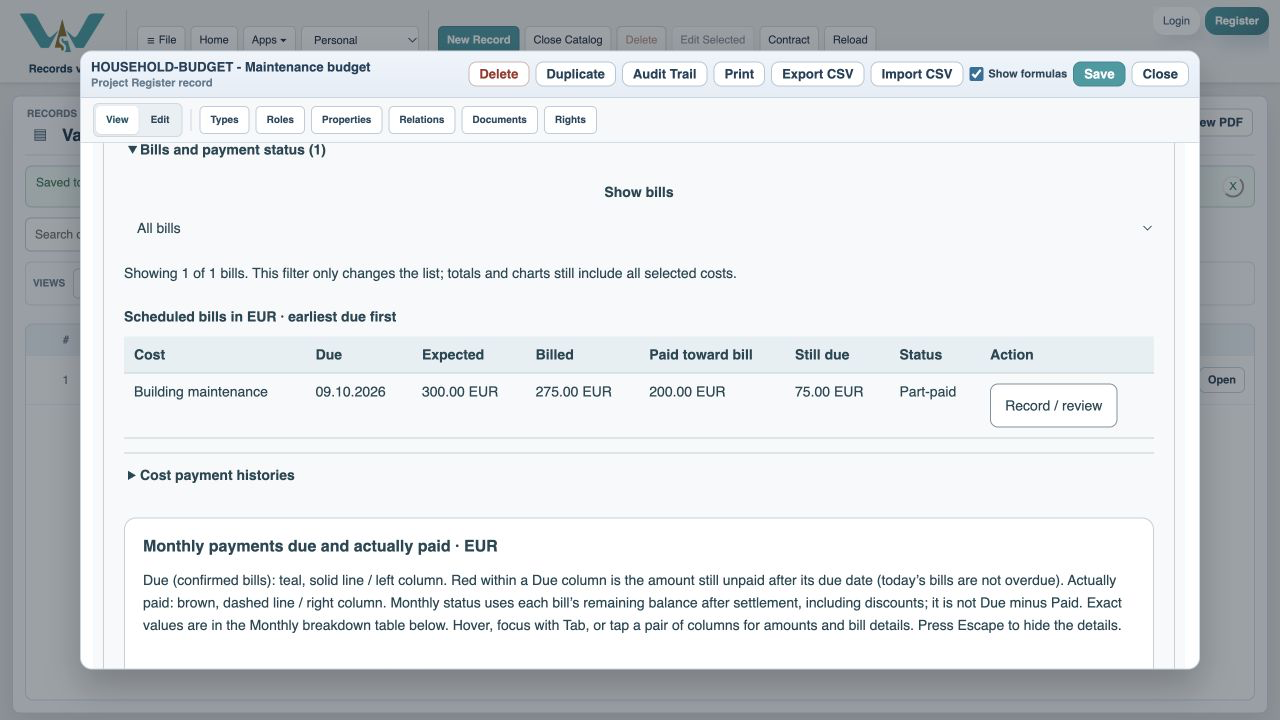
Expected is your planning amount. Billed is the confirmed amount due. Paid is money you have recorded paying. Fixed costs use their configured price as the scheduled bill amount. Variable costs contribute their expected amount to Due to pay while awaiting a bill. The actual bill replaces that estimate when entered. A 300 EUR expected charge with a 275 EUR bill and 200 EUR payment has 75 EUR left to pay; it is also 25 EUR below budget. That budget saving is not an invoice discount.
Start small and save deliberately
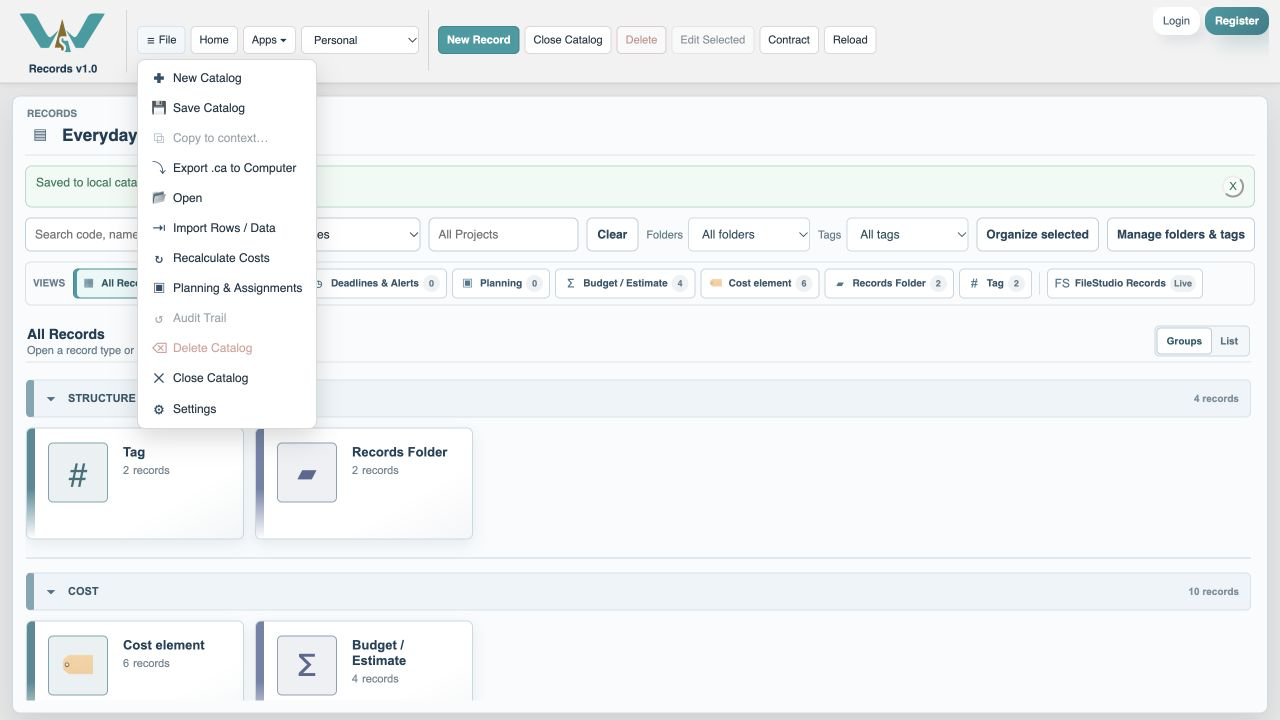
Begin with two recurring costs and one one-time purchase. Choose a period, check the currency and record a payment you have already made. Saving a record updates the Catalog draft. Use File → Save Catalog to keep it online. For a computer-only practice file, use All Records → File → Export .ca to Computer to keep the whole example. The screenshots use fictional data and dates in October 2026.
Enable JavaScript to use reading progress and usefulness ratings.