
Make a PDF usable: structure, reading order and real checks
Create readable, structured PDFs and smaller delivery files. Compare real before-and-after documents, compression sizes and image detail.
A PDF can look polished while reading in the wrong order, hiding its headings from assistive technology or presenting a table as unrelated numbers. Accessibility depends on the document's structure and interaction as well as its appearance.
The most efficient place to improve a recurring report is usually its source template. Repairing each exported file individually leaves the next month's report with the same problems.
Searchable text is only a starting point
A scanned page may contain only an image. Optical character recognition, or OCR, can add searchable text, but it can misread characters and does not by itself establish headings, table relationships or a sensible reading order. A scan with OCR is therefore not automatically an accessible document.
A tagged PDF carries structural information about its content. Tags still need to be correct: marking every paragraph as a heading or using one giant image tag does not create a usable structure. PDF/A concerns preservation requirements; it is not, by itself, proof of accessibility.
A worked example: a two-column inspection report
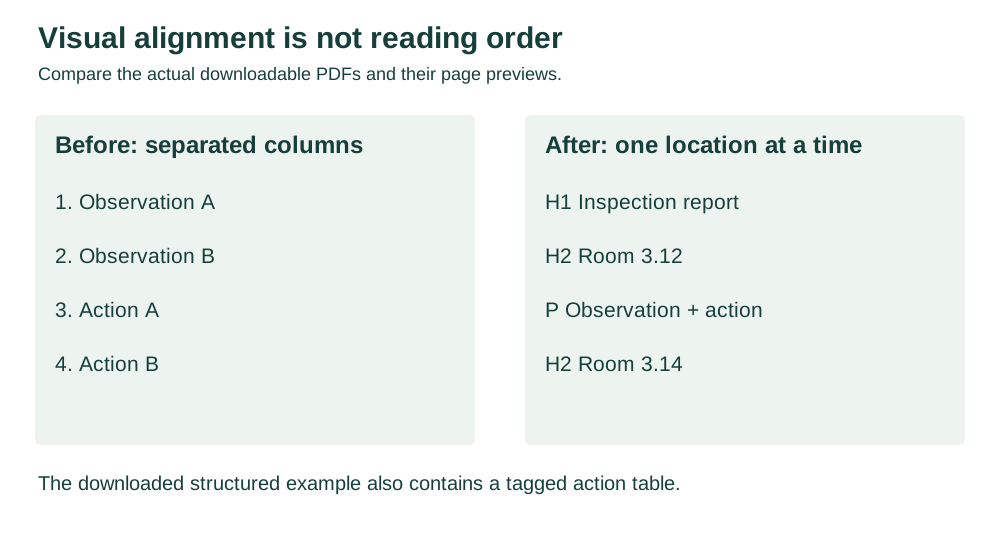
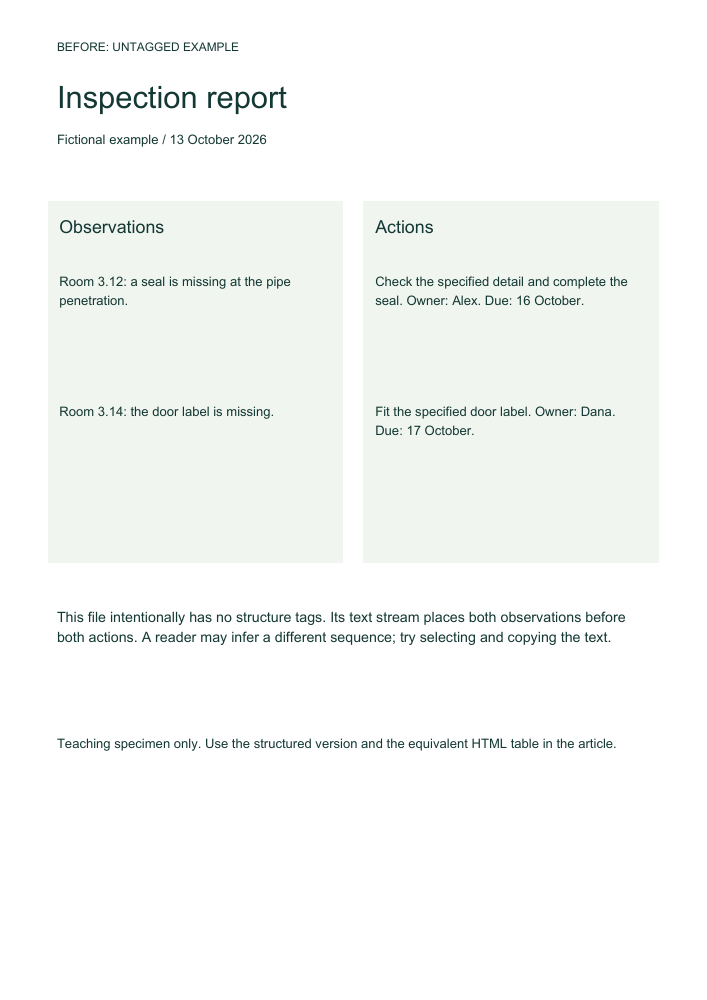
Imagine a fictional report with observations on the left and required actions on the right. Visually, each action lines up with an observation. When text is read in an unsuitable order, all observations may come first and all actions afterwards, losing the pairing.
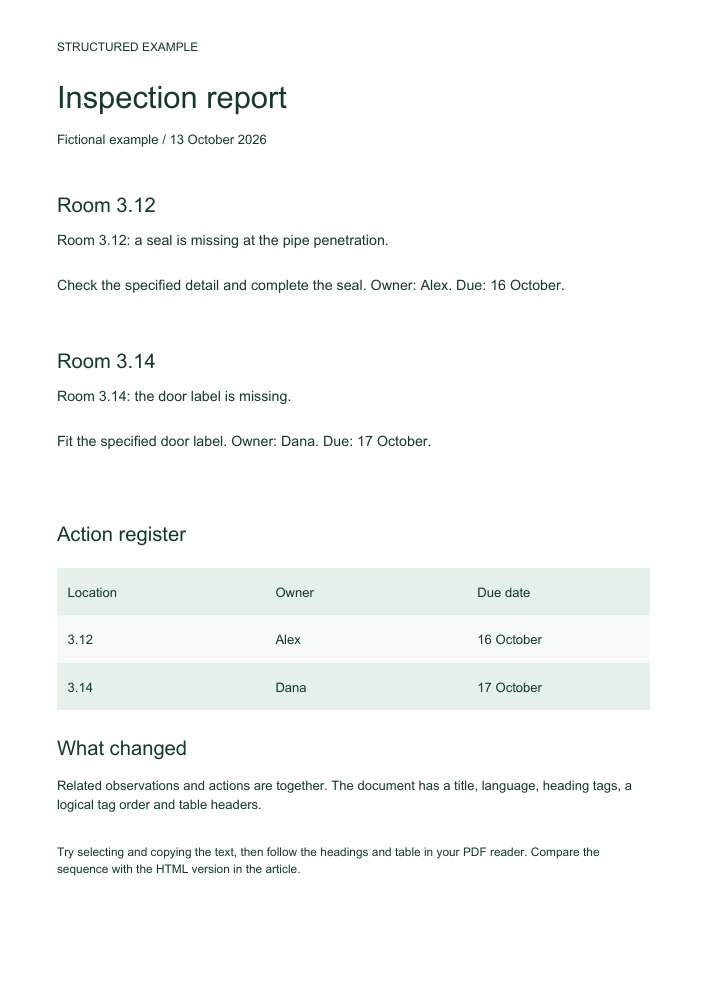
For a short report, a simpler source layout may work better: one heading per location, followed by observation, required action, owner and due date. This keeps related content together when read aloud, magnified or copied into another tool.
If columns are genuinely needed, inspect the exported tag order rather than assuming visual alignment controls reading. W3C's PDF3 technique addresses logical reading and tab order. W3C PDF3.
Open the actual before and after files
Before: untagged two-column PDF · After: structured, tagged PDF
Both contain the same two fictional inspection findings. In the first file, the underlying text sequence places both observations before both actions. A particular reader may infer another order. In the second, observations and actions are grouped by location; the file includes an embedded Unicode font, document title and language, H1/H2/P structure, and a Table/TR/TH/TD action register with row and column scopes.
| Room | Observation | Action | Owner / deadline |
|---|---|---|---|
| 3.12 | A seal is missing at the pipe penetration. | Check the specified detail and complete the seal. | Alex / 16 October |
| 3.14 | The door label is missing. | Fit the specified door label. | Dana / 17 October |
Try selecting and copying text, searching for “3.12”, inspecting the tags and navigating headings and the action table in your PDF reader with a screen reader. The HTML version preserves the findings if the PDF reader is unsuitable.
Build meaning into the source
Use the editor's heading styles in a logical hierarchy, rather than simulating headings with bold text and larger fonts. Give the document a meaningful title and set its language; mark substantial passages in another language where the authoring tool supports it. W3C's PDF9 describes heading tags that allow structure to be recognised. W3C PDF9.
Use descriptive link text, such as “Inspection photographs for room 3.12”, rather than several indistinguishable “click here” links. Explain meaningful images in context. For a graph, state the conclusion and the information needed to understand it; a filename is not an alternative description.
Decorative images and repeated visual furniture should not interrupt the reading sequence. Important information should not depend on colour alone: write “Overdue” as well as using a coloured marker.
Give tables and forms explicit relationships
For a small inspection table, identify the column headers and use a simple structure. A reader reaching “14 October” should be able to determine whether it is the inspection date or the action deadline. Merged cells and complex multi-level headers deserve particular checking. W3C PDF6 describes table structures and verification of their relationships. W3C PDF6.
A form also needs meaningful field names, a logical keyboard order, clear required-field instructions and usable error feedback. A blank line labelled only by nearby visual text may not function as an accessible input. Test the actual completed and saved form, not only its empty appearance.
Export, then inspect the delivered file
Choose an export path that preserves document structure where supported. A generic print-to-PDF route may discard information that the source editor could have exported. The correct choice depends on the application and its export options; check the result rather than relying on a checkbox alone.
Open the delivered PDF in the readers your audience uses. Try keyboard navigation, zoom, heading navigation with a screen reader, a representative table and every form control. Check that text remains readable and that important content is not clipped. Verify OCR against the original, especially names, dates and quantities.
Automated validation can identify some defects, but it cannot judge whether an image description is useful or every reading sequence makes sense. Record the actual tool, version, platform, checks and remaining limitations. Do not call an automated pass a screen-reader test.
A practical compression comparison: how much smaller can a PDF become?
A PDF can be large because it contains unnecessarily large images, uncompressed image streams or repeated resources. Start by finding what occupies the space. A text report and a scan of the same report need different treatment: retaining real text and vector lines usually produces a clearer, smaller document than turning every page into an image.
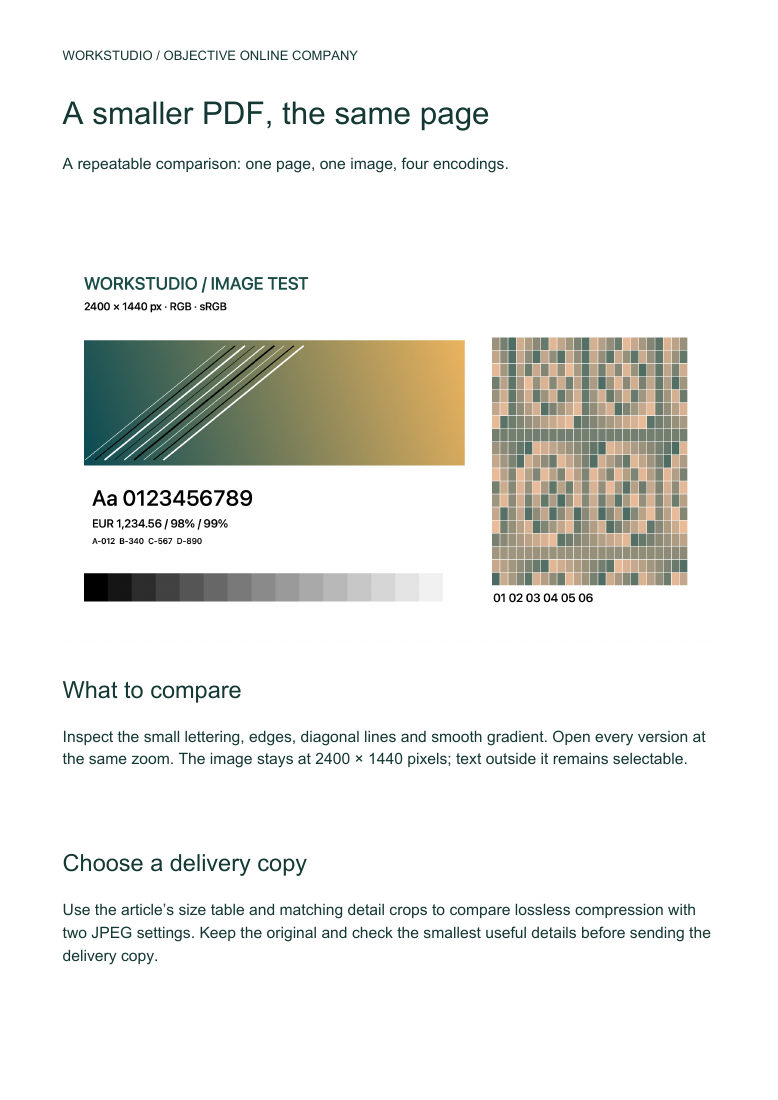
The four downloads below use the same A4 page, selectable text, embedded font, structure tags and one original 2400 × 1440-pixel illustration. Only the illustration’s encoding changes. The reference deliberately stores its RGB pixels without compression. This makes the effect measurable: lossless compression reduces the complete file by 90.37%, with identical rendered pixels, while the higher-quality JPEG version reduces it by 92.65%. These are measured results for this page; an already optimised PDF has less room to shrink.
| Version | Exact bytes | Size (MiB) | Reduction | What to inspect |
|---|---|---|---|---|
| Uncompressed image | 10,797,380 | 10.30 | 0.00% | Reference: 2400 × 1440 RGB pixels |
| Lossless compression | 1,039,535 | 0.99 | 90.37% | Identical rendered pixels to the reference |
| JPEG, quality 0.90 | 793,205 | 0.76 | 92.65% | Smaller; compare lettering and fine edges |
| JPEG, quality 0.20 | 563,212 | 0.54 | 94.78% | Smallest JPEG here; inspect visible artefacts |
Sizes include the whole PDF, including its embedded font. One MiB is 1,048,576 bytes. The quality values are settings of the ImageIO encoder used for these files. Every version retains the same image dimensions; none uses downsampling.
Compare the same detail
These crops come from the actual PDF pages rendered at the same 300 dpi. Each shows the same location and area. Open the PDFs and increase the zoom to inspect the small lettering, coloured edges and diagonal lines. At ordinary reading size the higher-quality copy can look very similar while taking much less space; the stronger compression makes the compromise easier to see.



A useful compression workflow
- Keep the original and save an optimised delivery copy. Check the page count, current size and the smallest information the recipient needs to read.
- Identify the heavy content. For a report with photographs, image compression and sensible resolution are often useful. For drawings and sharp screenshots, try lossless compression first and retain vector geometry and text.
- Change one setting at a time. Try lossless image compression, then a moderate JPEG setting for suitable images. Downsample only when the source resolution exceeds the intended reading or printing need.
- Inspect the output at the intended size and at a closer zoom. Check small dimensions, faint handwriting, fine lines, colour boundaries and any barcode or QR code by actually reading or scanning it.
- Check function as well as appearance: search and copy text, follow links and bookmarks, inspect the heading and reading order, and try any form fields. Preserve embedded fonts and needed annotations or attachments.
- Send the smallest version that passes those checks. Record the chosen settings if the same document type is produced regularly.
Adobe’s optimisation controls distinguish image compression and downsampling from font, transparency, object and user-data removal. Choose those controls deliberately: deleting comments, flattening forms or removing needed fonts can change the document’s usefulness even when the pages look similar. Adobe: advanced PDF size reduction.
A signed PDF should retain its original signed bytes; make a separately named delivery derivative when needed. Keep a preservation master for material that will be reused or printed in detail. Use a tool approved for the information in the file. See image-format choices and long-term file preservation for choosing the original and exchange copies.
Make the next document better
Keep an issue log tied to the source template. Fix recurring causes, export again and repeat the affected checks. If a complex PDF remains difficult to use, provide an accessible HTML or other suitable alternative alongside it, preserving equivalent information and keeping both versions current.
The goal is that a reader can find, understand and act on the information. Visual inspection, structural checks and real interaction tests each contribute different evidence.
Enable JavaScript to use reading progress and usefulness ratings.