
Store and Export Invoices from Invoice Manager
Use File Settings, export the current list to TableStudio, prepare a PDF bundle, and review the linked FileStudio storage.
Use this walkthrough when you want to move from invoice review to storage and export.
It follows the normal path from File Settings to TableStudio export and then to the linked FileStudio storage structure.
Related: Invoice Manager: Storage and Exports, TableStudio, FileStudio.
Open File Settings
Start in File Settings so you can review column visibility, date format, exchange rates, and the export actions.
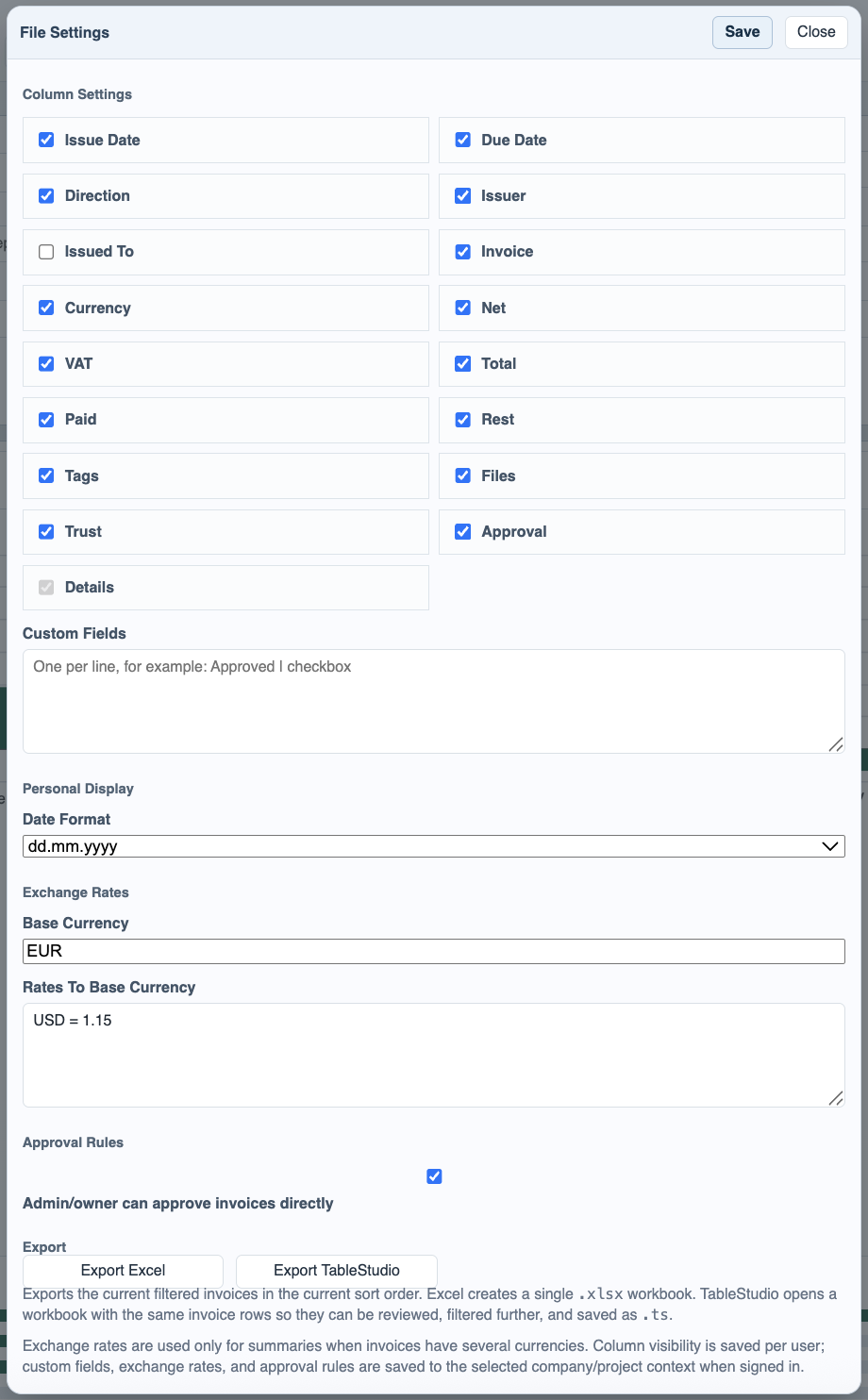
Export the current rows to TableStudio
Use Export TableStudio to open the current filtered invoice rows in a workbook that can be reviewed or saved further.

Prepare a combined PDF bundle
From invoice details, choose Export PDF and decide whether the invoice PDF, embedded files, support files, trail, page numbers, and index should be included.
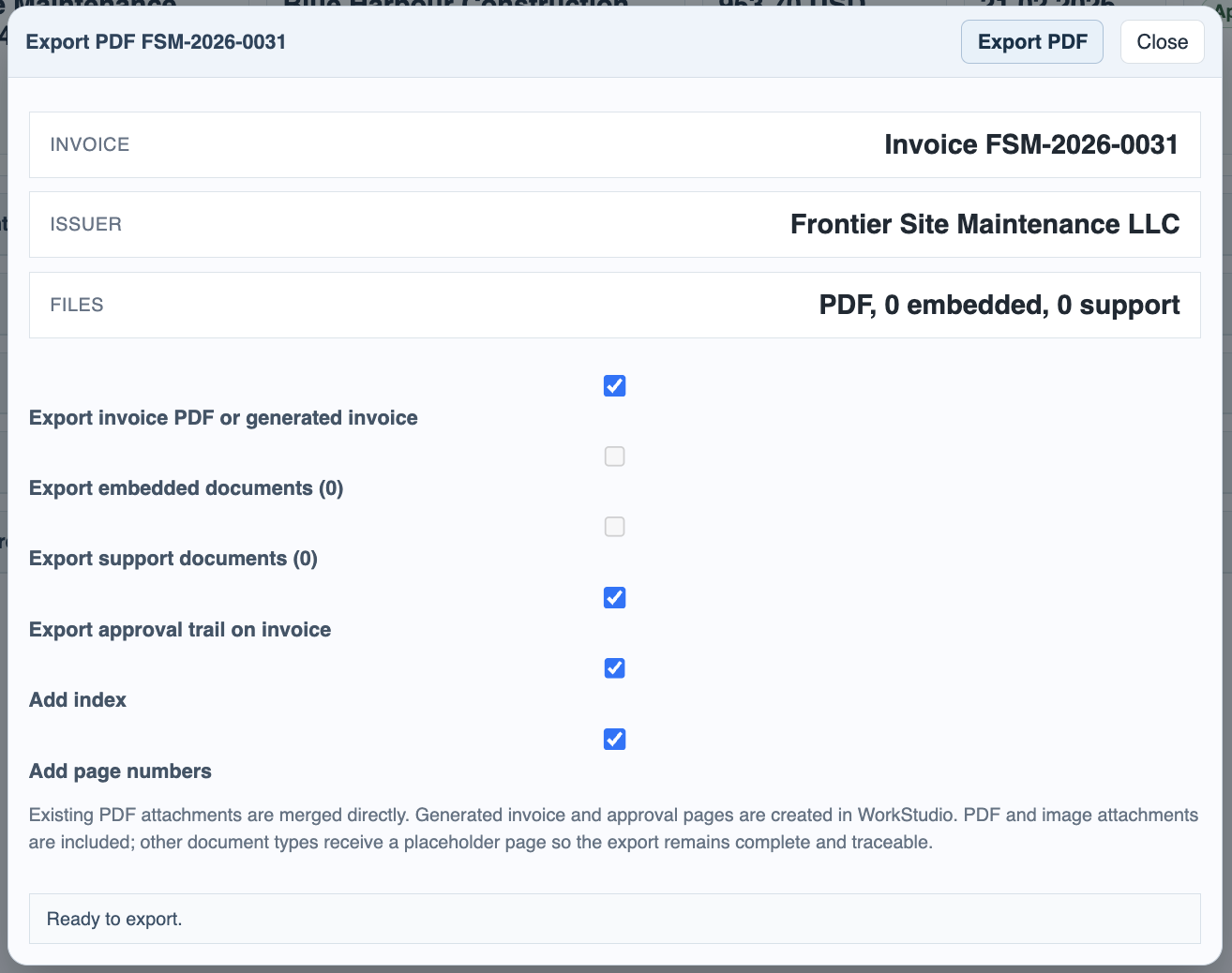
Open the FileStudio catalog
Move to FileStudio and open the Invoice Manager catalog that stores the linked invoice packages.

Open an issuer record
Inside the catalog, each issuer has its own record that anchors its invoice annexes.
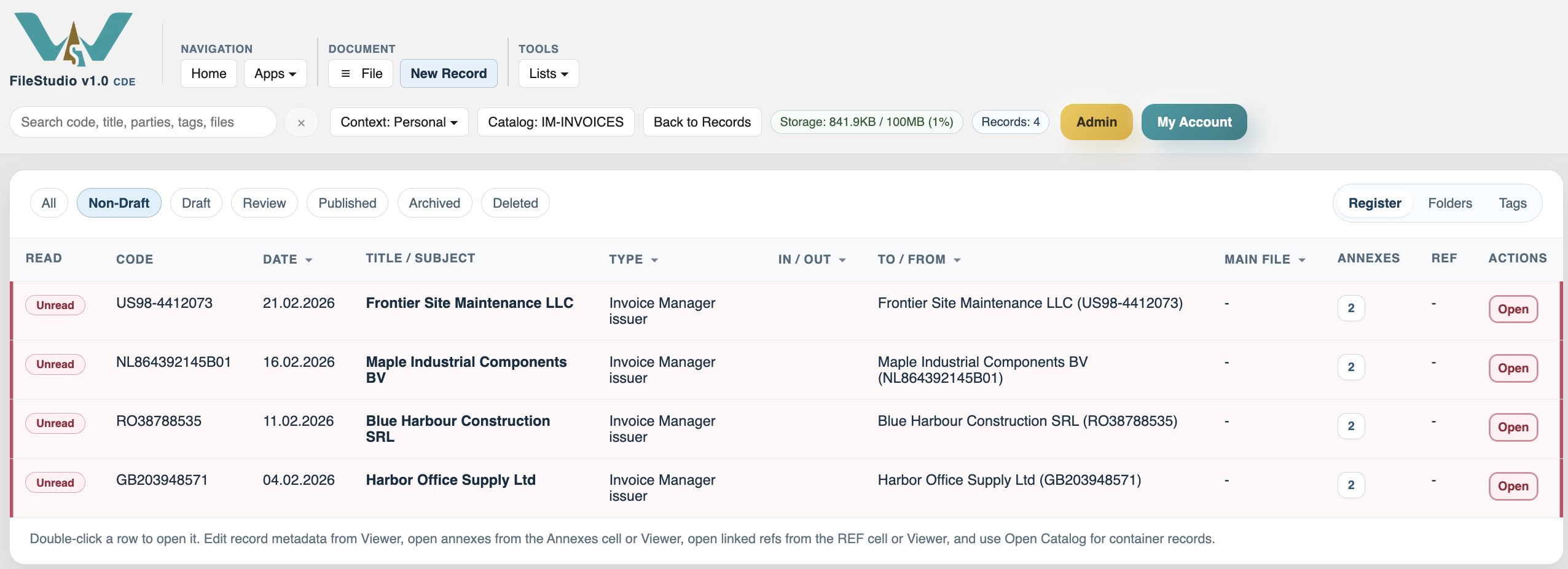
Review the annex grouping
Open the issuer record and review the supplier, issue-date, and invoice-code grouping before the ZIP, PDF, and support files.
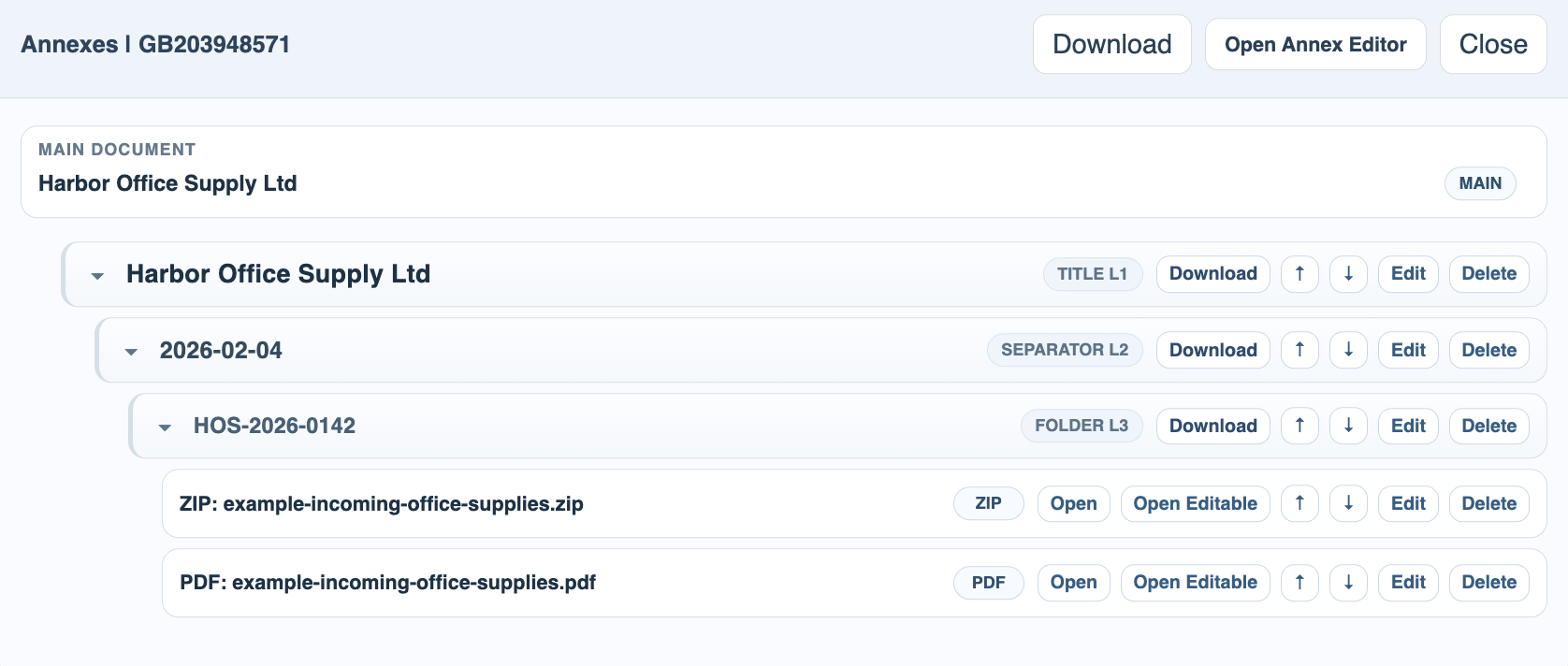
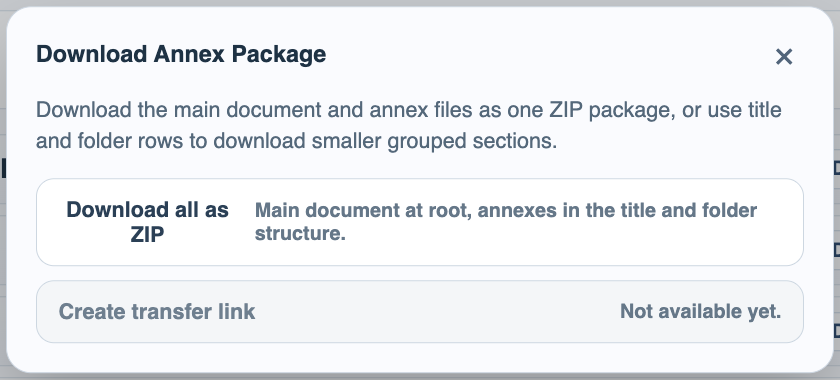
Download one grouped package
Use FileStudio when you want the grouped invoice package as one download instead of opening each file one by one.
Enable JavaScript to use reading progress and usefulness ratings.