
Z Levels and Selection Reports in CADStudio
How current Z, object Z bottom/top, visible-at-any-Z, named Z levels, tags/materials, and selection reports work in CADStudio.
CADStudio is currently a top-view X/Y drafting canvas, but objects can already carry Z information.
Each object can have Z bottom and Z top. Z size is calculated from those two values.
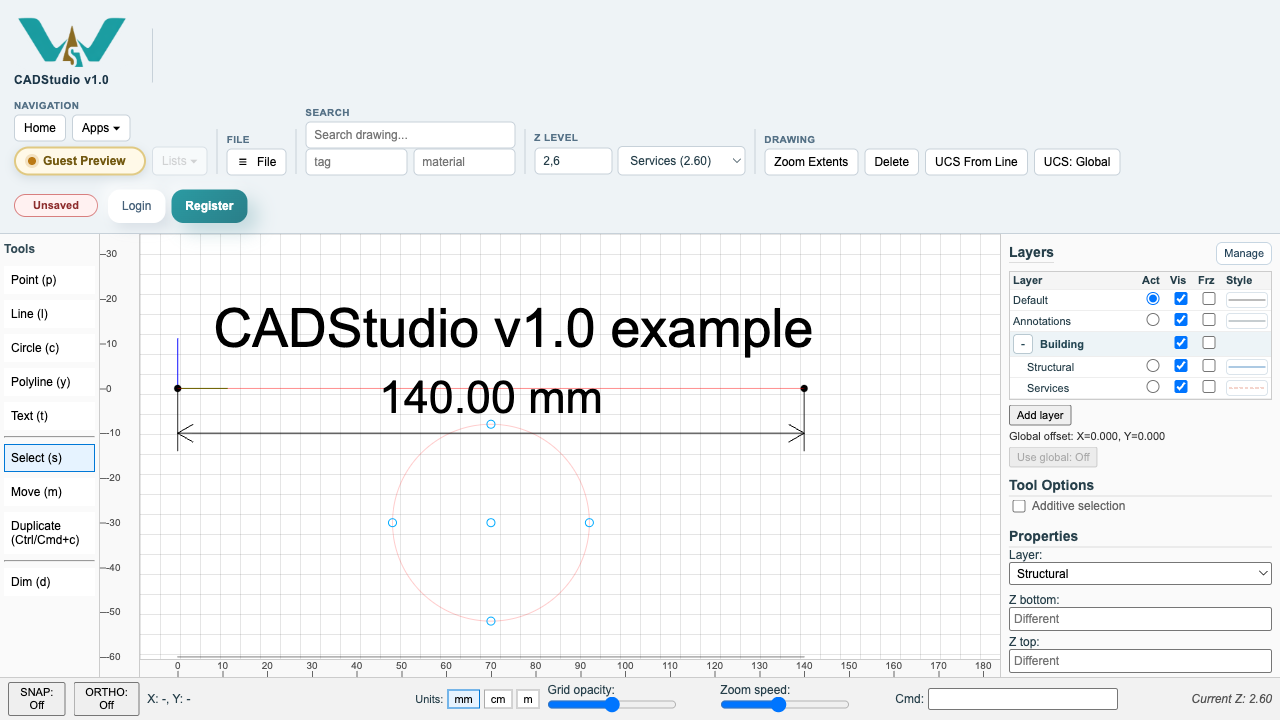
The top toolbar has the current Z control. When you change current Z, objects outside that Z range are hidden unless they are marked Visible at any Z.
Use File > File Settings to define named Z levels. A named level can then be selected from the Z Level control in the toolbar.
File Settings also stores drawing-level tags and materials. Objects can carry their own notes, tags, and materials.
The top toolbar search can search drawing text, notes, tags, materials, dimensions, and geometry values. The tag/material filters support multiple selected values.
When several objects are selected, Properties shows a selection report with object count, type count, total line length, total closed area, total volume, and grouped length/area/volume by tag and by material.
Related: CADStudio, Layers in CADStudio, CADStudio Drawing Tools.
CADStudio File Settings
File Settings holds drawing name, decimals, named Z levels, defined tags, and materials used for object metadata and reports.
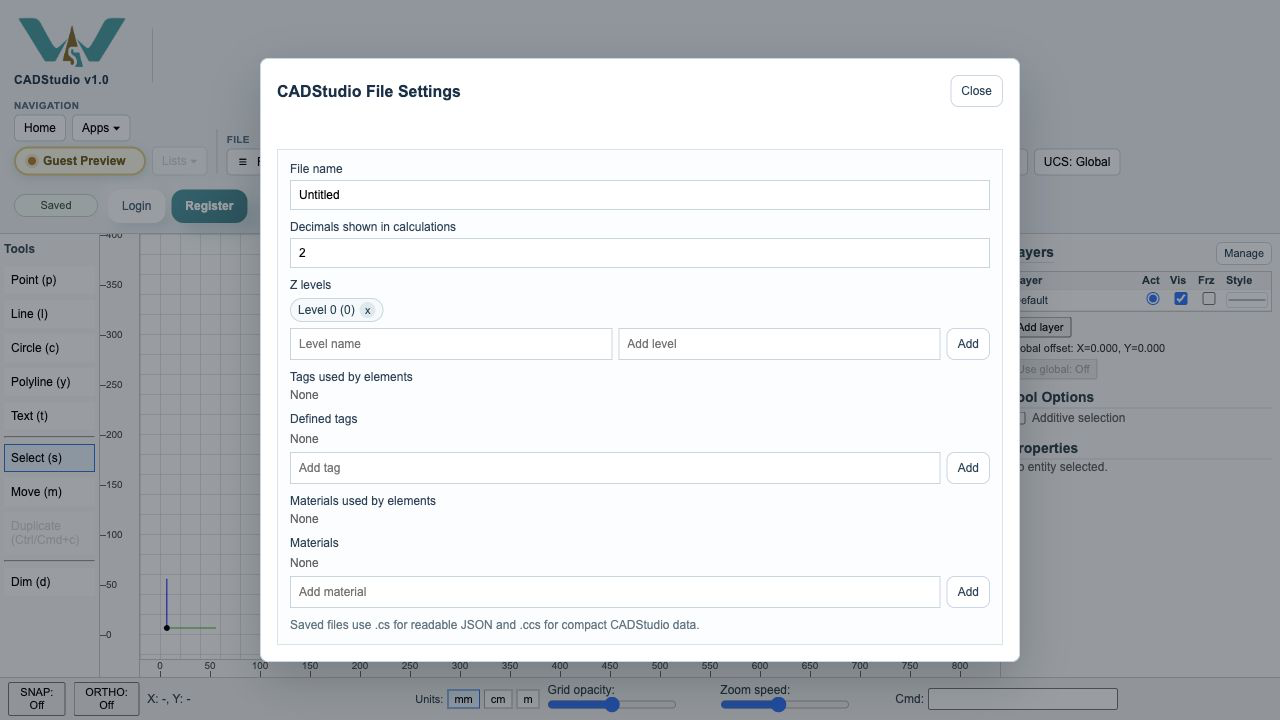
Tags, materials, and named levels
File Settings keeps defined tags, materials, and named Z levels alphabetized so they can be reused on objects and in toolbar filters.
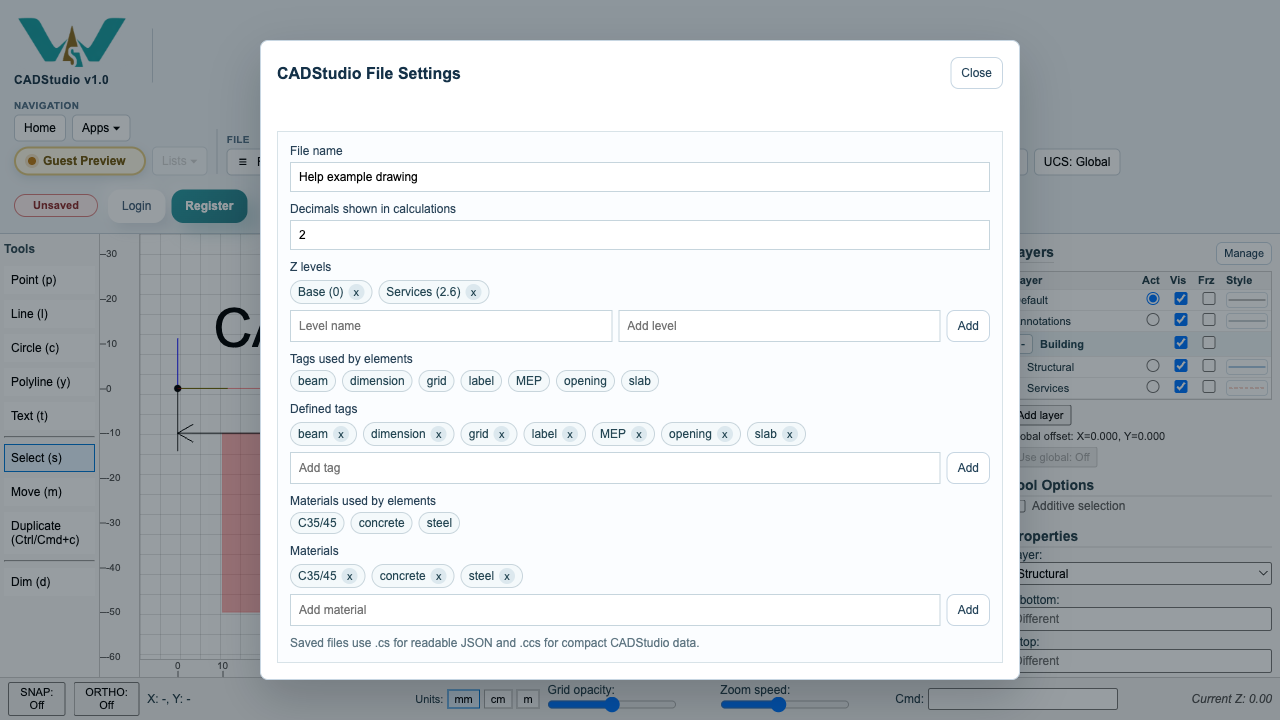
Z level and metadata filters
Current Z, search, tag filters, and material filters work together to narrow the visible drawing while keeping always-visible objects available.
Enable JavaScript to use reading progress and usefulness ratings.