
CADStudio Drawing Tools
The first guide to the CADStudio toolbars: drawing points, lines, circles, arcs, polylines, text, dimensions, moving objects, duplicating, snapping, and selecting.
Most CADStudio work starts from the left toolbar.
Use Point for marker points. Points can stay screen-scaled so they remain visible at any zoom, or behave like normal geometry.
Use Line for straight geometry and Polyline for connected runs. Closed polylines can report area and can carry Z bottom and Z top values. Use Close Object in the right toolbar after selecting two or more line/arc pieces. If the selected pieces contain only lines, CADStudio creates a closed polyline. If the selected pieces contain arcs, CADStudio creates a closed object that keeps the arc segments. If the selected pieces are not all touching, CADStudio opens a dialog before adding connector segments and can delete the initial selected objects after creating the new object.
Use Circle for circular geometry and Arc for partial circular geometry. Arc angles are measured clockwise from top in degrees.
Use Text for drawing labels. All objects also have Notes, Tags, and Materials, so you can store object-level information without drawing extra text.
Use Select to pick objects. Hold Ctrl, Cmd, or Shift to add to the current selection.
Use Move to reposition selected objects. Use Duplicate to copy selected objects with X/Y offsets; when text or notes contain detected numbers, duplicate can keep text or increment/decrement detected numbers.
Use Dim for linear dimensions.
Snap and ortho controls are in the bottom toolbar. Snap considers common drawing points and circle intersections when snap is on.
Related: CADStudio, Layers in CADStudio, Z Levels and Selection Reports in CADStudio.
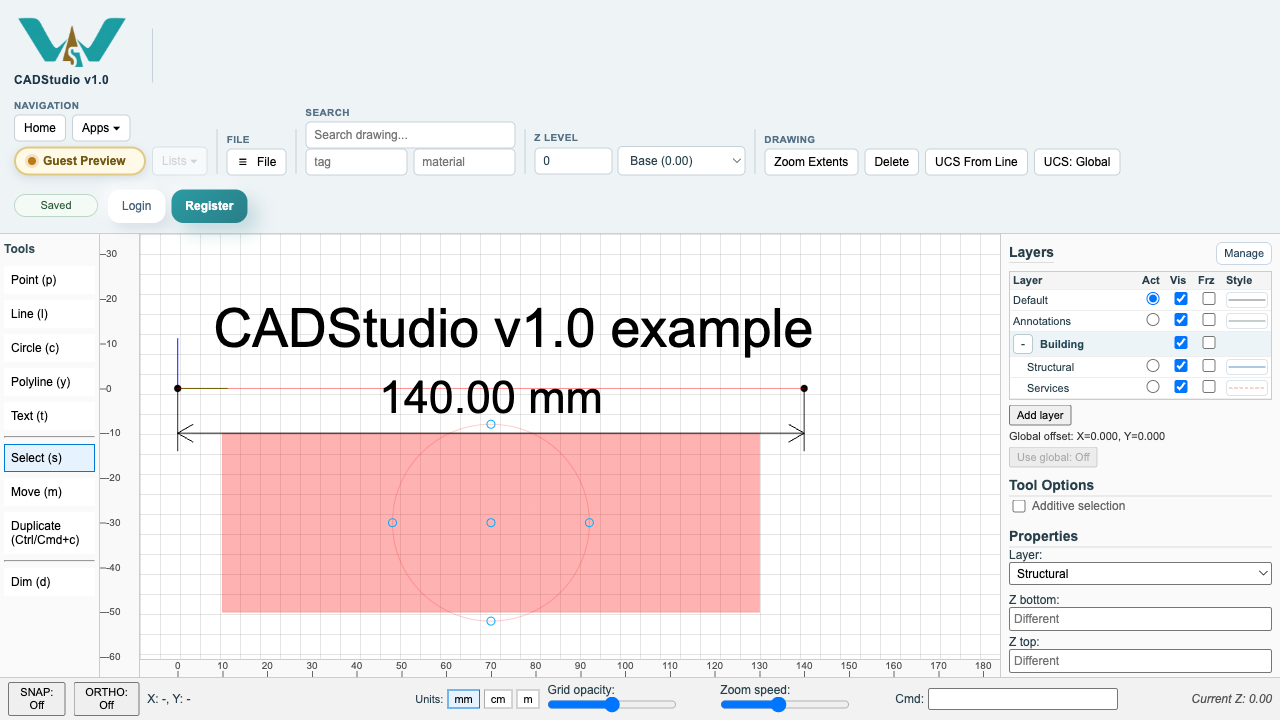
Drawing tools and properties
The left toolbar creates geometry and annotations, while the right panel updates with layers, object properties, notes, tags, materials, and selection totals.
Enable JavaScript to use reading progress and usefulness ratings.