
Search and Filters in CADStudio
Use the top toolbar search, tag filters, material filters, and current Z level to narrow what is visible in a CADStudio drawing.
The CADStudio top toolbar can filter the drawing without deleting anything.
Use the search box for drawing text, notes, tags, materials, dimensions, and geometry values.
Use the tag and material inputs to add one or more filter pills. Each pill can be removed with its small x button.
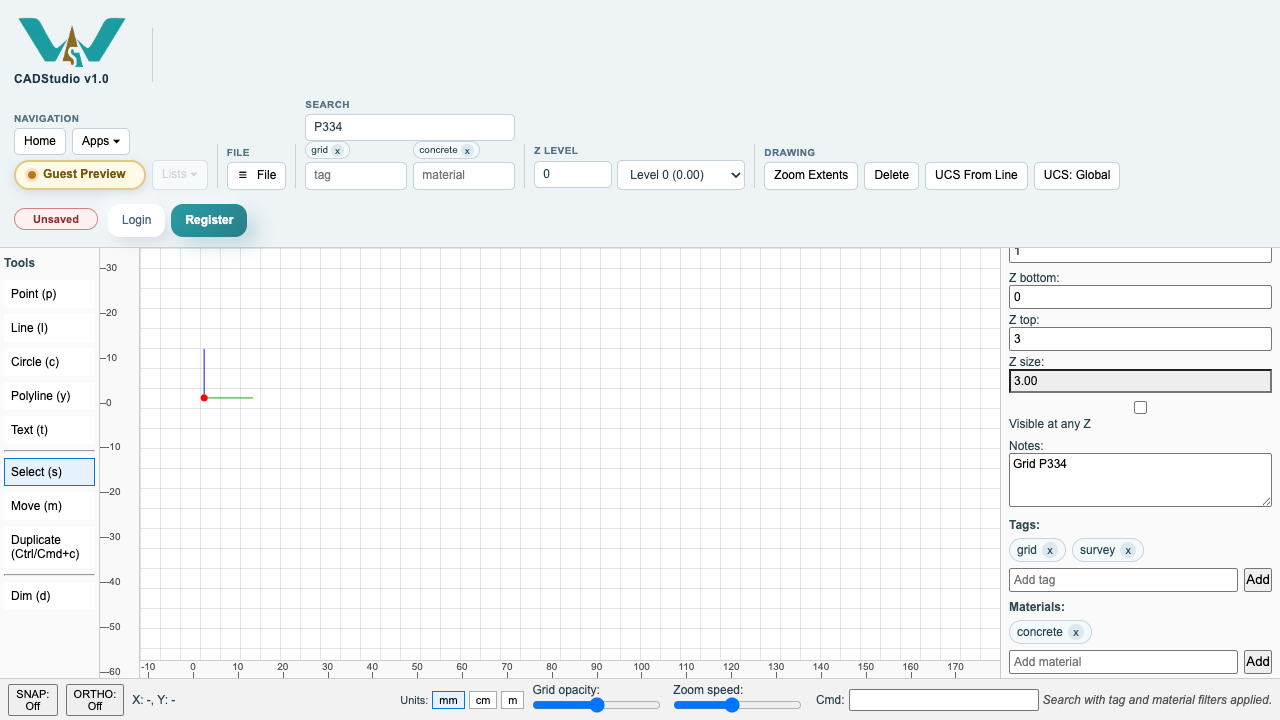
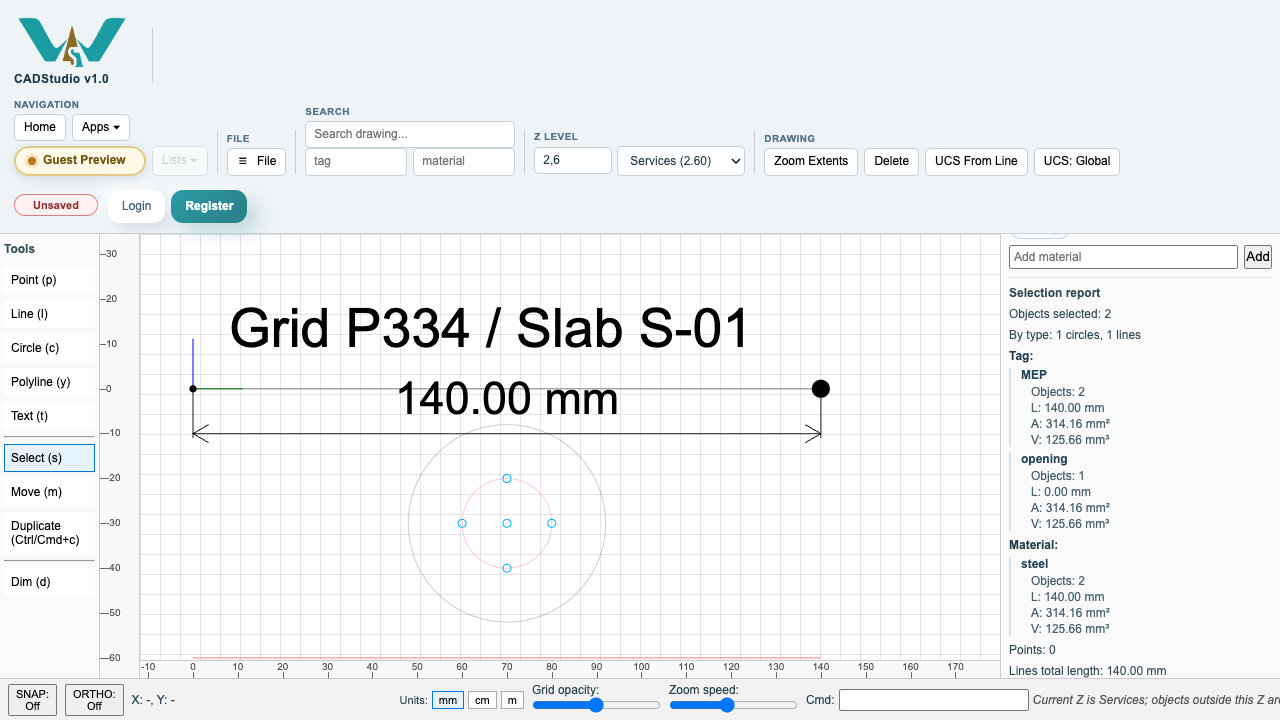
Search filters and Z level filters work together. For example, you can show only objects tagged grid and made of concrete, or switch to the Services Z level and show only objects that exist at that height.
Objects marked Visible at any Z remain visible while you move through levels, which is useful for labels, axes, and reference dimensions.
Related: Selection, Properties, Notes, Tags, and Materials in CADStudio, Z Levels and Selection Reports in CADStudio, CADStudio File Settings.
Search with tag and material pills
The toolbar can combine text search with multiple tag and material pills.
Current Z set to Services
Changing current Z changes the visible objects while always-visible annotations can remain on screen.
Enable JavaScript to use reading progress and usefulness ratings.