
Saving and Loading in CADStudio
How CADStudio save, load, and import works: local files, account storage, context-aware remote save, tags, folders, STL/3MF import, and `.cs` / `.ccs` formats.
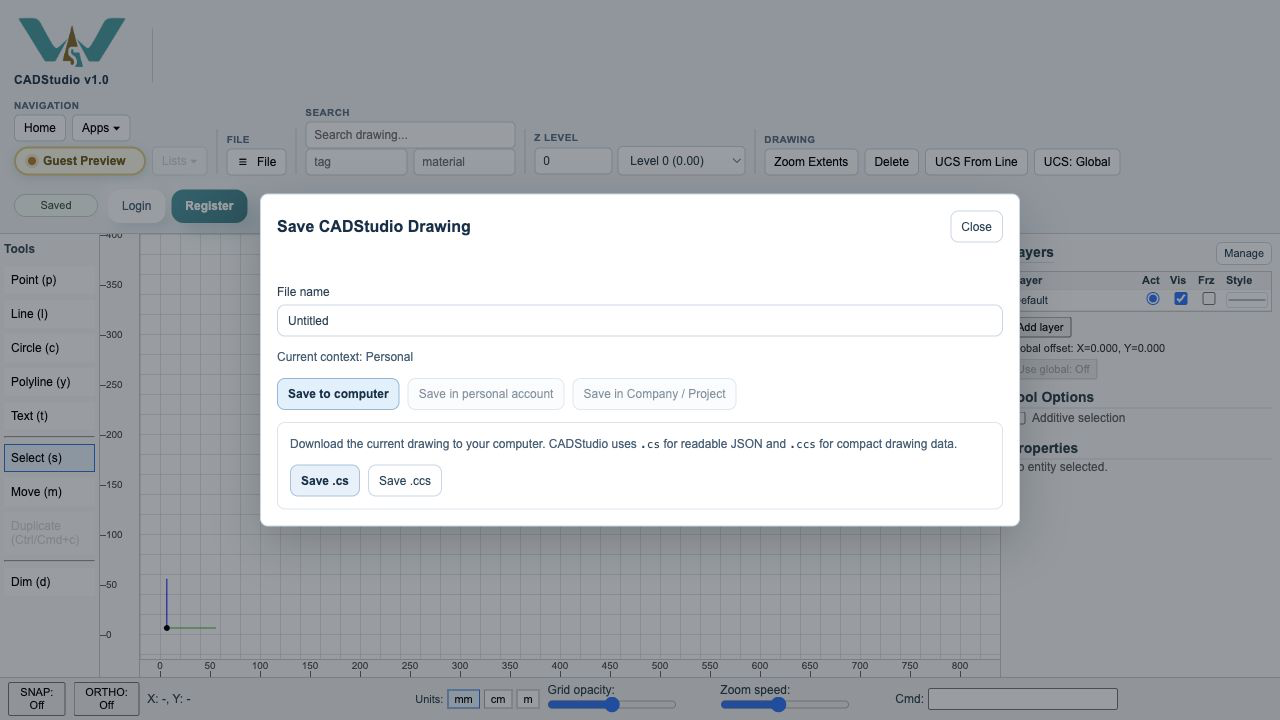
Use File > Save to save a CADStudio drawing.
Save to computer downloads a local CADStudio file. Choose .cs when you want readable JSON. Choose .ccs when you want compact CADStudio drawing data.
Signed-in users can also save CADStudio drawings to personal account storage or to the current company/project context when that context is available.
Before saving remotely, check Context in the top toolbar. Context tells you whether you are working in personal, company, or project space.
The Save dialog includes file name, save target, and selectable tags/folders for account storage.
Use File > Load to reopen drawings from your computer or from available account/context storage.
Use File > Import for DXF linework and for STL or 3MF triangle meshes. Imported meshes save inside normal CADStudio .cs and .ccs files.
CADStudio saves drawing entities, layers and layer groups, notes, tags, materials, current Z, zoom, pan, UCS, grid opacity, and zoom speed so the drawing reopens close to how it was left.
Related: CADStudio, WorkStudio Context, Saving in WorkStudio.
Save CADStudio drawing
The save dialog supports local .cs and .ccs downloads and context-aware account save options.
Enable JavaScript to use reading progress and usefulness ratings.