
Add Notes, Tags, Materials, and Z Levels in CADStudio
Add object metadata, define reusable tags/materials/levels, filter by metadata, switch current Z, and read grouped totals.
Use this walkthrough when the drawing should carry information, not only geometry.
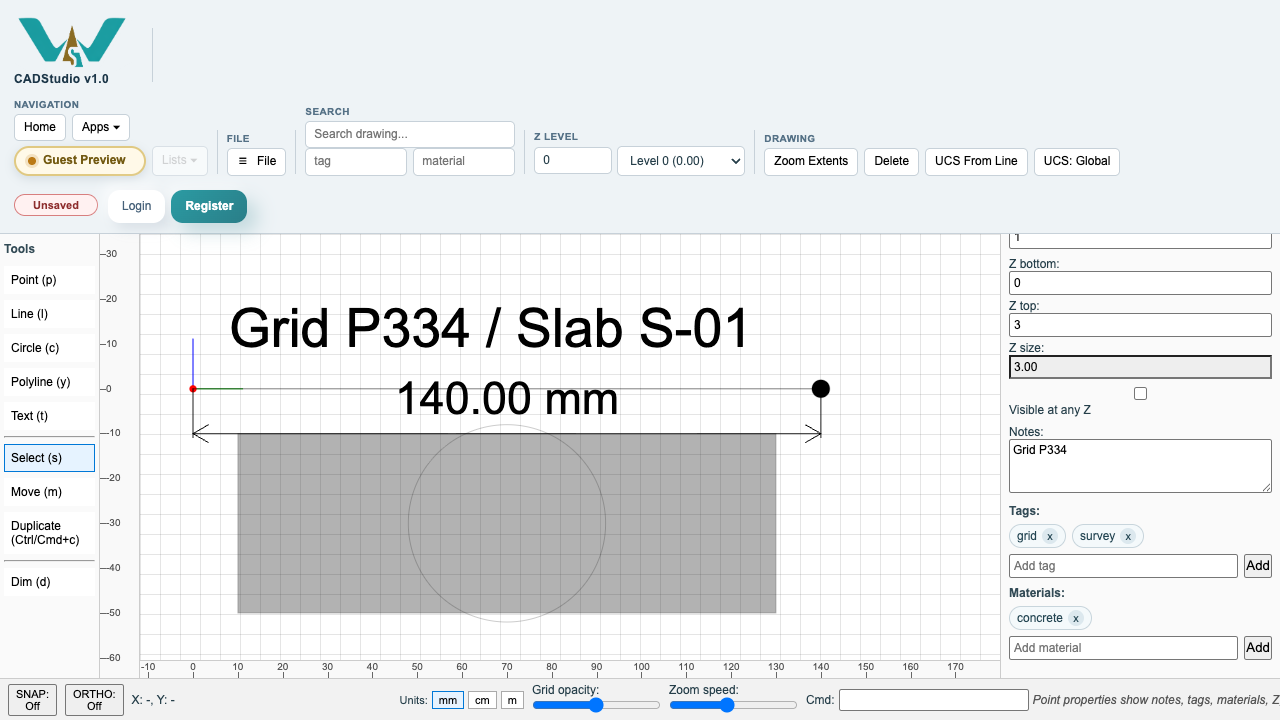
CADStudio objects can store notes, multiple tags, multiple materials, Z bottom, Z top, and a Visible at any Z option.
Related: Selection, Properties, Notes, Tags, and Materials in CADStudio, Search and Filters in CADStudio, Z Levels and Selection Reports in CADStudio.
Edit object metadata
Select one object and scroll the Properties panel to the Z, Notes, Tags, and Materials fields. Tags and materials are edited as pills.
Define reusable lists in File Settings
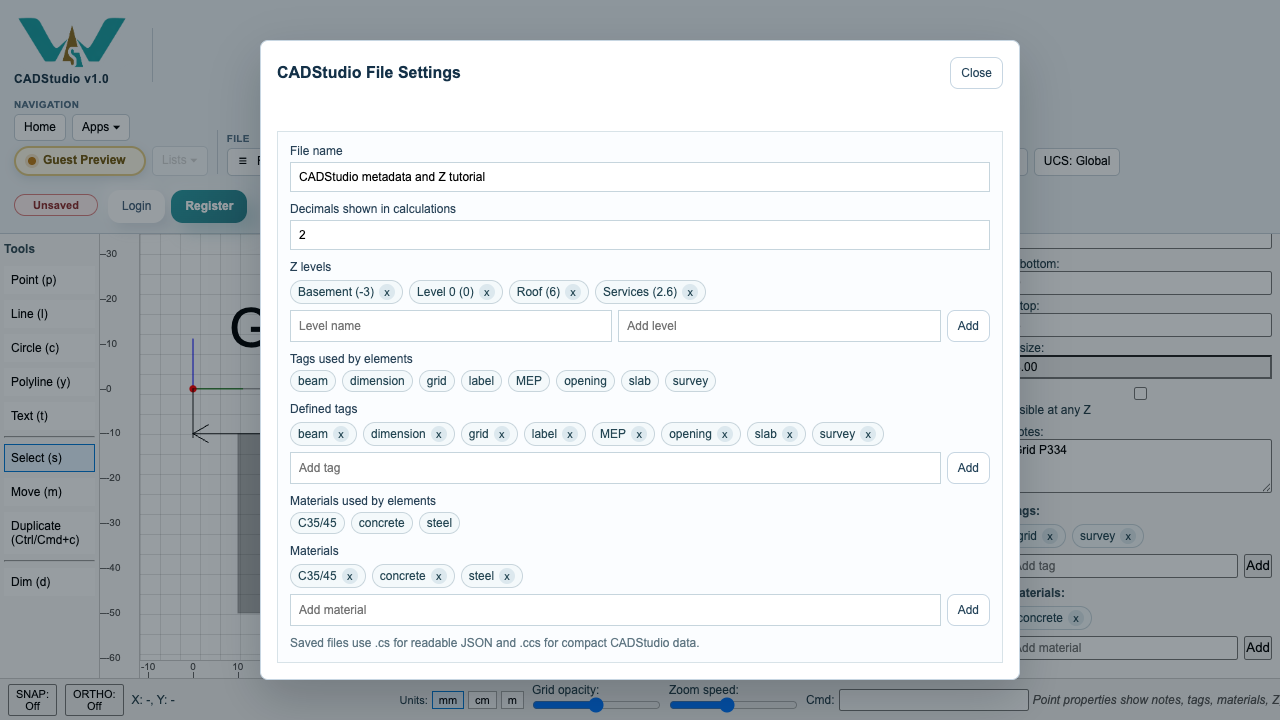
Open File > File Settings to define named Z levels, suggested tags, suggested materials, and calculation decimals.
Filter by search, tag, and material
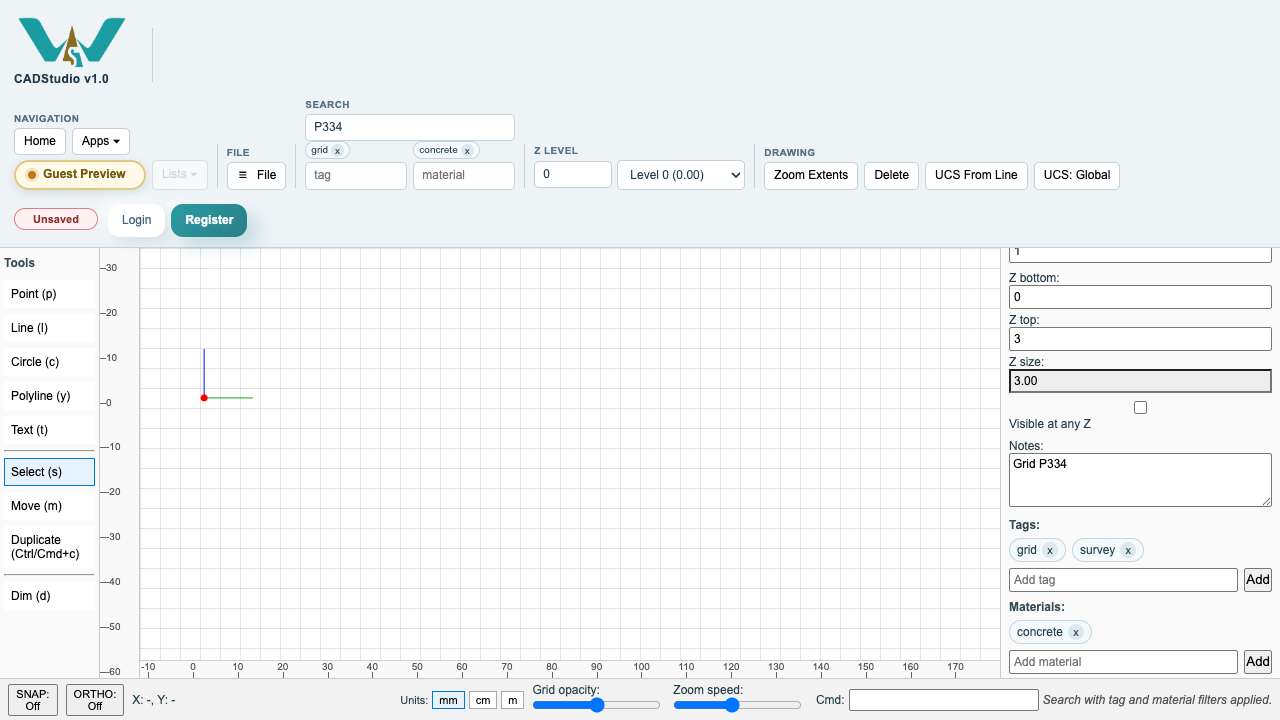
Use the top toolbar search plus one or more tag and material pills to narrow the visible drawing.
View Level 0
Set current Z to Level 0 to show objects whose Z range includes that level, plus objects marked visible at any Z.
Switch to Services
Choose a named level such as Services. Objects outside that Z range are hidden unless they are always visible.
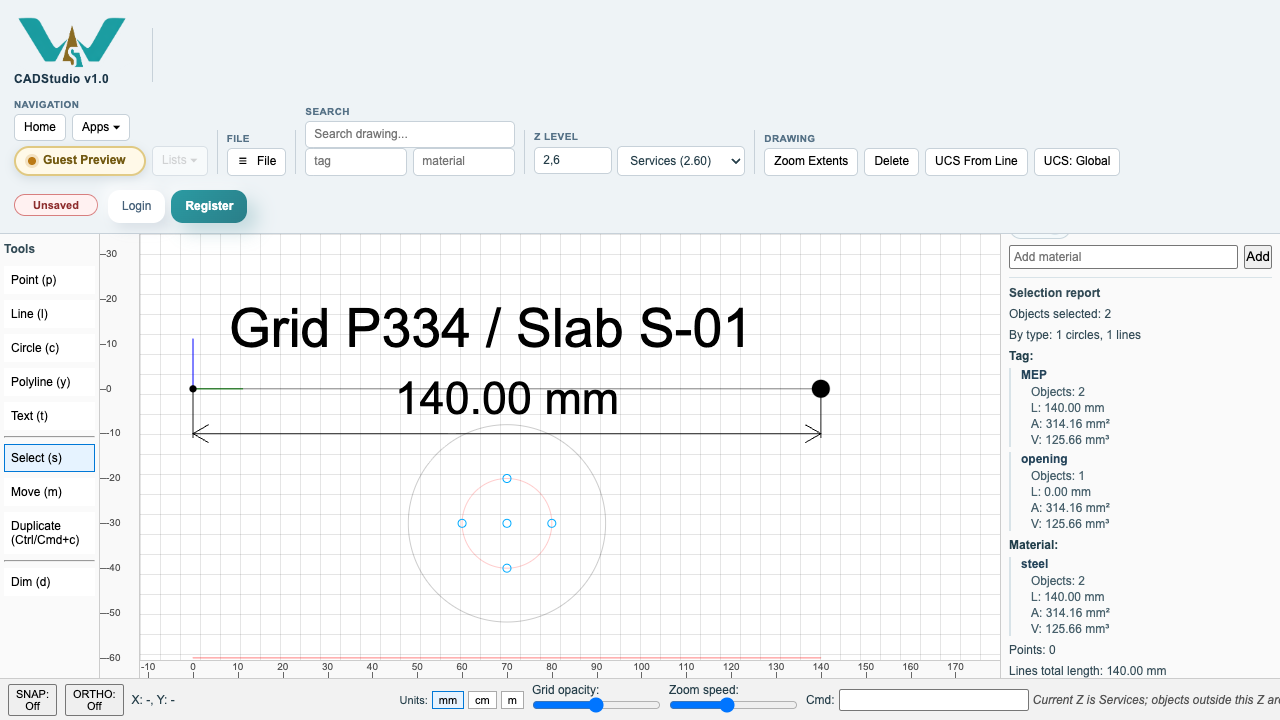
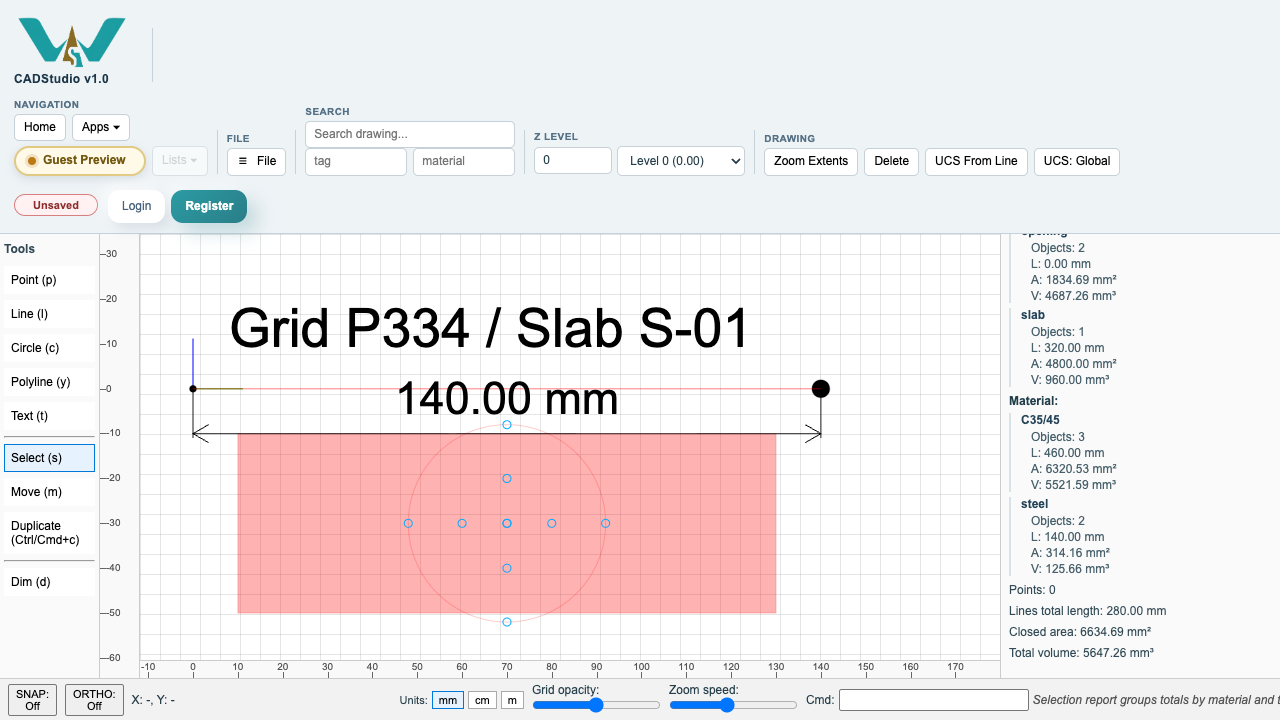
Read grouped totals
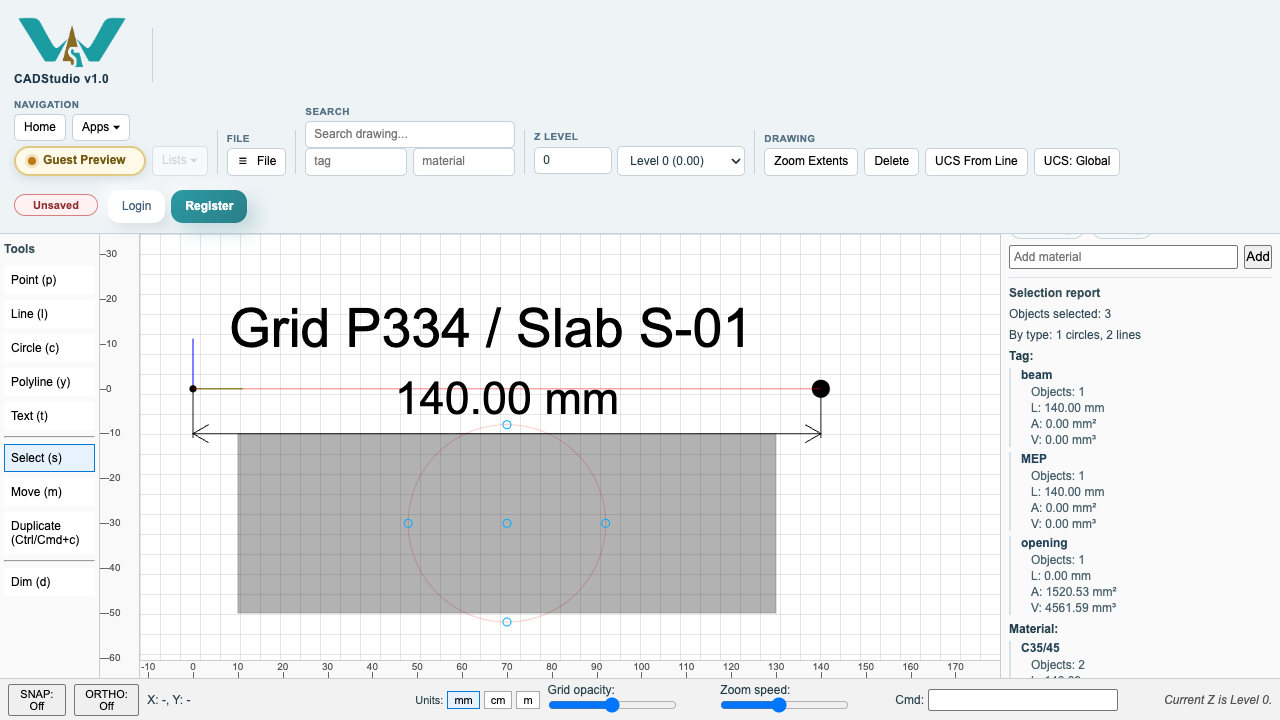
Select several objects and scroll to the report. CADStudio groups length, area, and volume by tag and material.
Enable JavaScript to use reading progress and usefulness ratings.