
Duplicate Numbered Objects and Save a CADStudio Drawing
Duplicate selected objects, adjust detected numbers in text and notes, then review save, load, and restored drawing behavior.
Use this tutorial when you need repeated objects with numbered labels or notes.
The same flow also shows the local save/load path and the .cs / .ccs save choices.
Related: Duplicate Objects and Numbered Notes in CADStudio, Saving and Loading in CADStudio, CADStudio File Settings.
Select numbered objects
Select the objects that should be copied. When text or notes contain numbers, Duplicate can adjust those detected numbers.
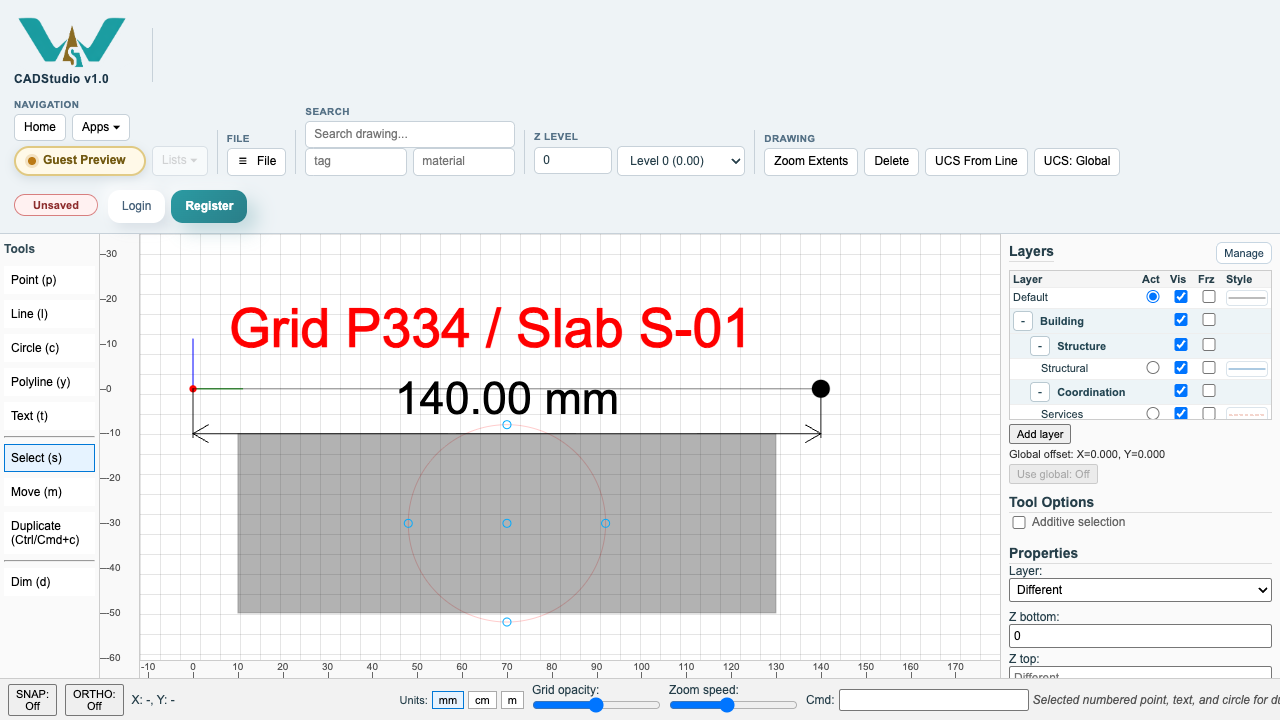
Open Duplicate
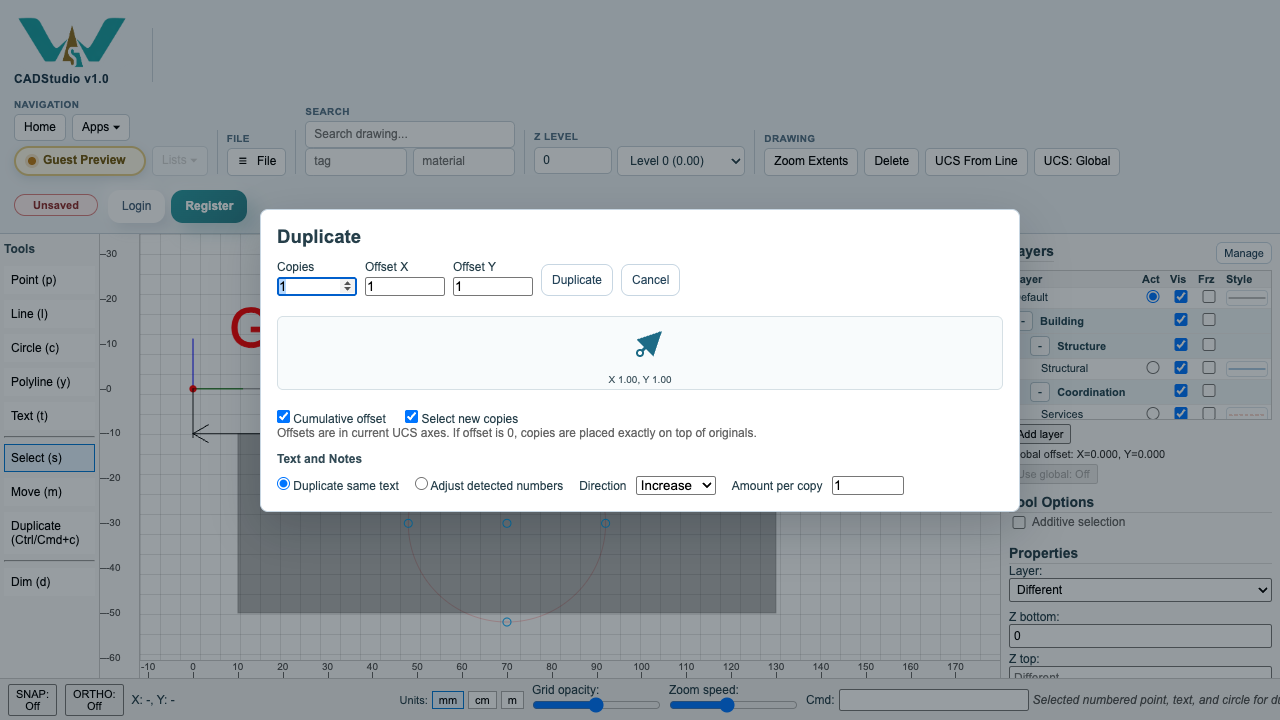
Choose Duplicate. The dialog starts with offset X 1 and offset Y 1, and the arrow shows the copy direction.
Adjust detected numbers
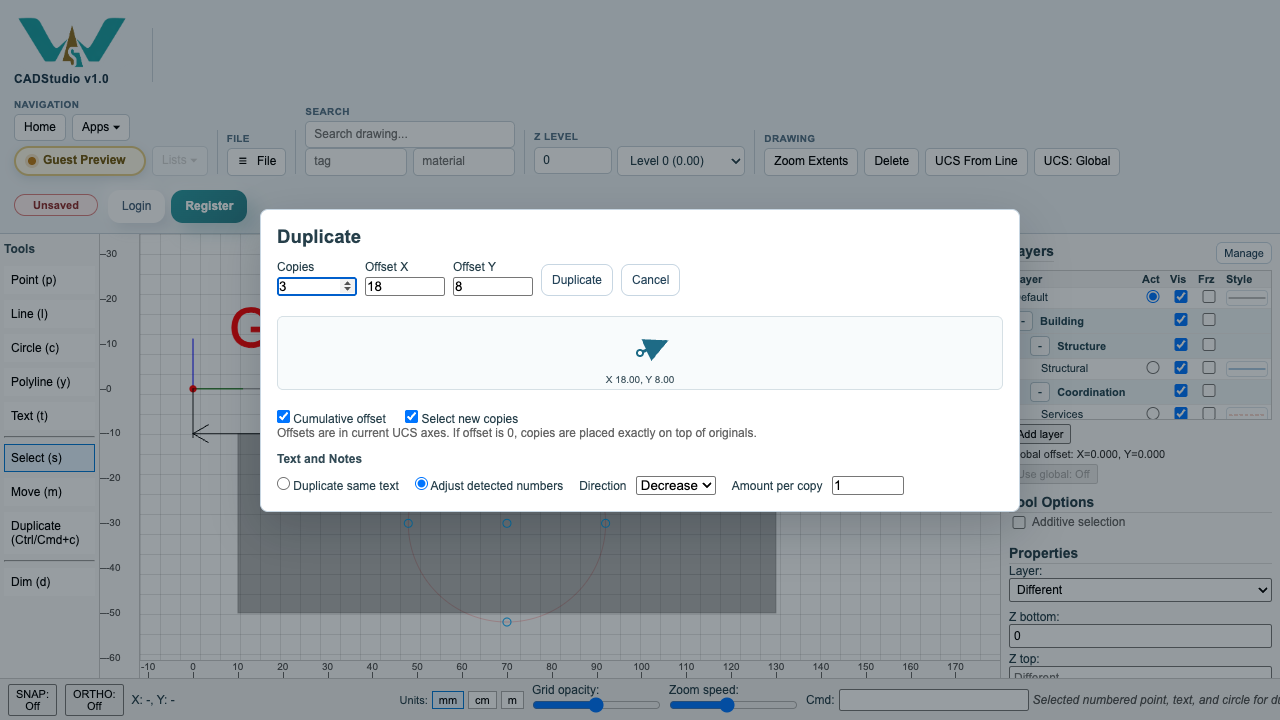
Choose Adjust detected numbers, then set Increase or Decrease and the amount per copy. The X/Y arrow continues to update as you edit offsets.
Review duplicated results
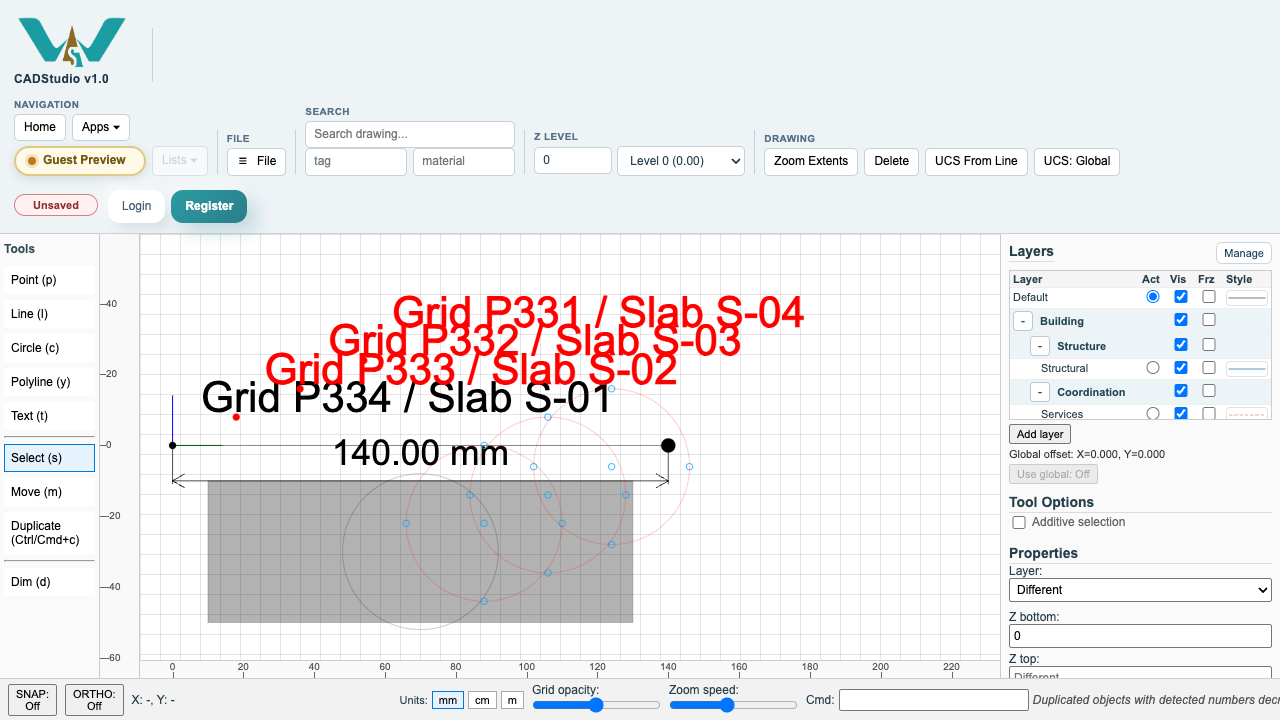
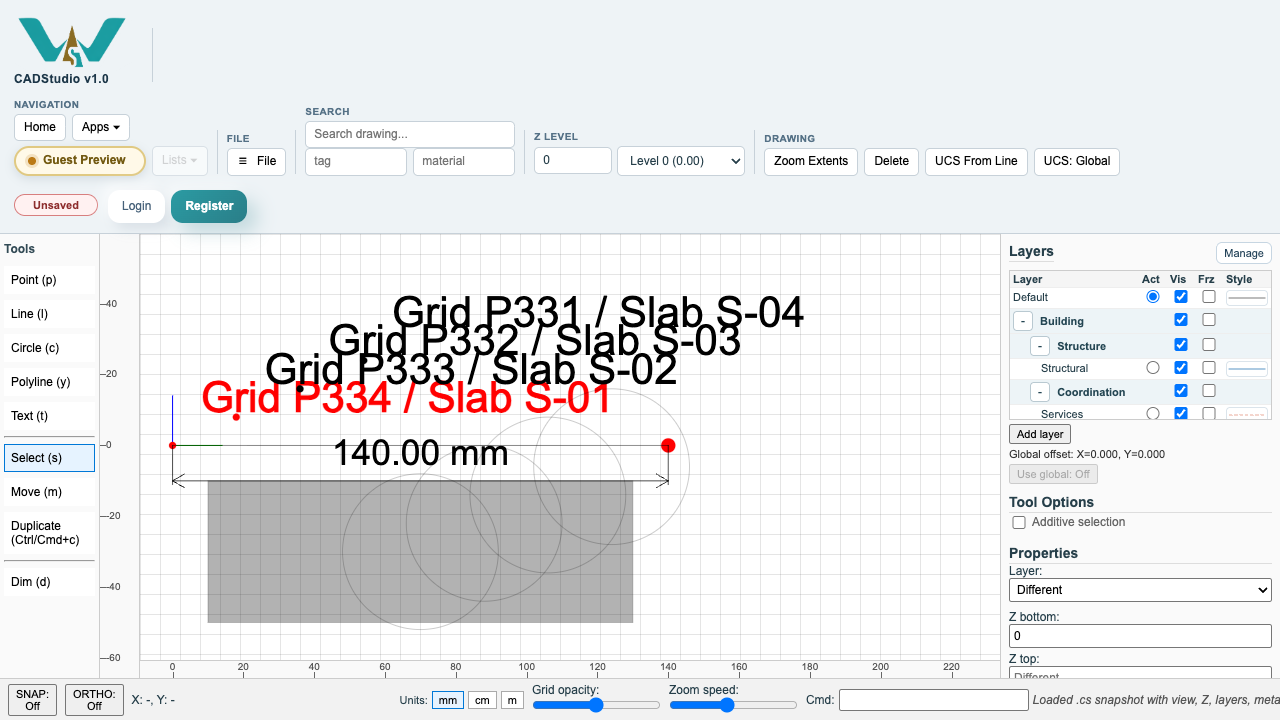
After duplication, review the new labels and notes. In this example the numbered values decrease for each copy.
Open Save
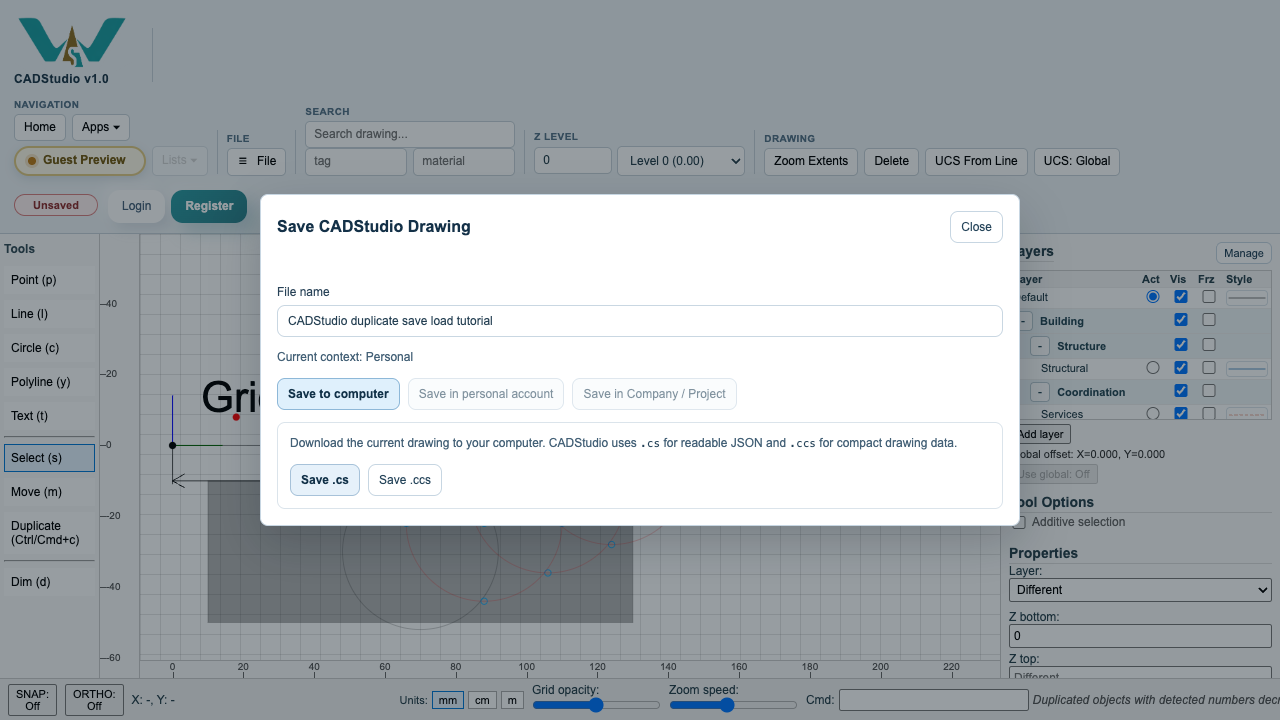
Use File > Save. Save .cs creates readable JSON. Save .ccs creates compact CADStudio drawing data.
Open Load
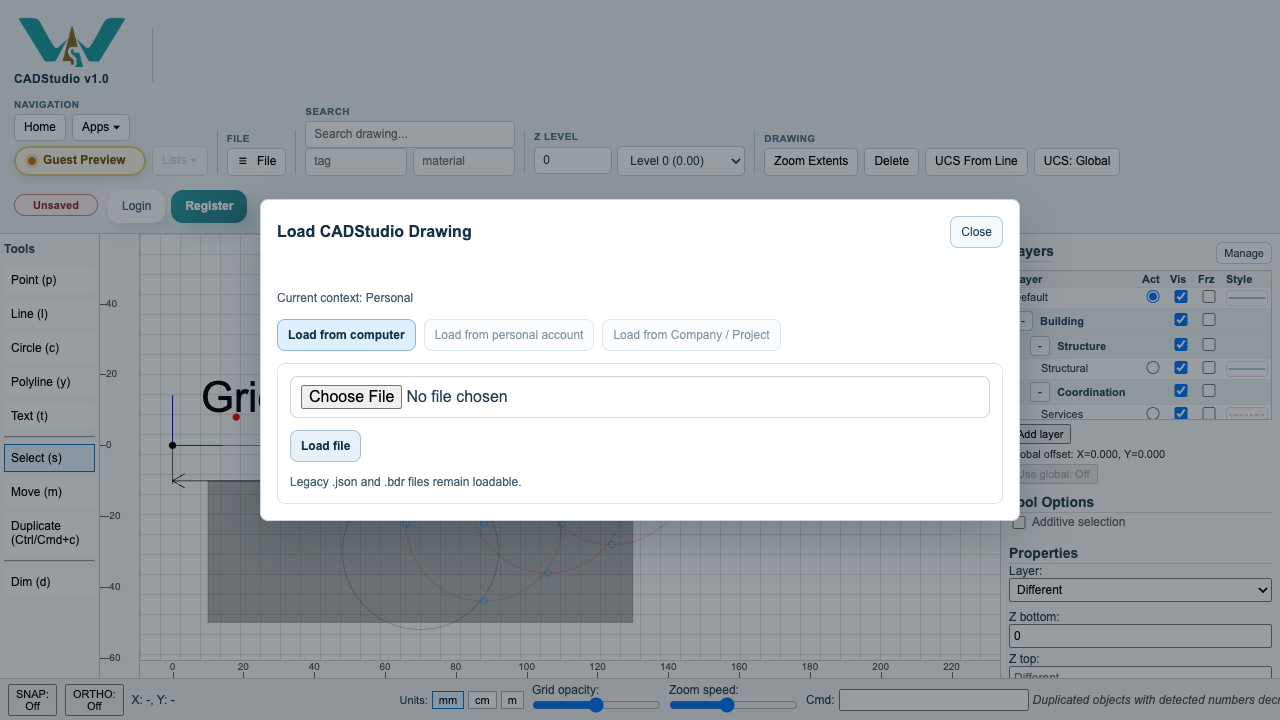
Use File > Load to reopen a .cs or .ccs drawing from the computer, or account storage when signed in.
Confirm restored drawing state
A loaded drawing restores entities, layers, layer groups, metadata, Z settings, and the saved view state.
Enable JavaScript to use reading progress and usefulness ratings.