
Verify and trust a WSO signature in Adobe Acrobat
Check your PDF on WSO, trust the certificate in Acrobat and validate again — with screenshots for each step.
You can check an original WSO PDF on the WorkStudio website, then trust its certificate in Adobe Acrobat. After this one-time setup, Acrobat can recognise other PDFs signed with the same WSO certificate on this computer.
Use the desktop version of Adobe Acrobat or Acrobat Reader. The steps below apply when Acrobat reports an unknown signer or an identity it does not yet trust.
1. Check your PDF on WSO
- Open the verification link supplied in the original PDF. Check that the address is on www.workstudio.online and opens the WorkStudio document-verification page.
- Choose the same PDF using Choose the PDF to verify. The file stays on your device; the check runs in your browser.
- Wait for Exact match to the file issued by WorkStudio. The file is unchanged. You can then continue with that PDF in Acrobat.
The page performs the comparison for you. You do not need to open Technical details or compare any codes. Opening the verification link alone does not check your copy: you must select the PDF. If the file does not match or the check cannot be completed, obtain the original from WSO before adding trust.
You can practise with the WSO services brochure, using the verification link inside the downloaded PDF.
2. Open the WSO signature in Acrobat
- Open that verified PDF in Acrobat and click Signature Panel, or open Signatures in the side panel.
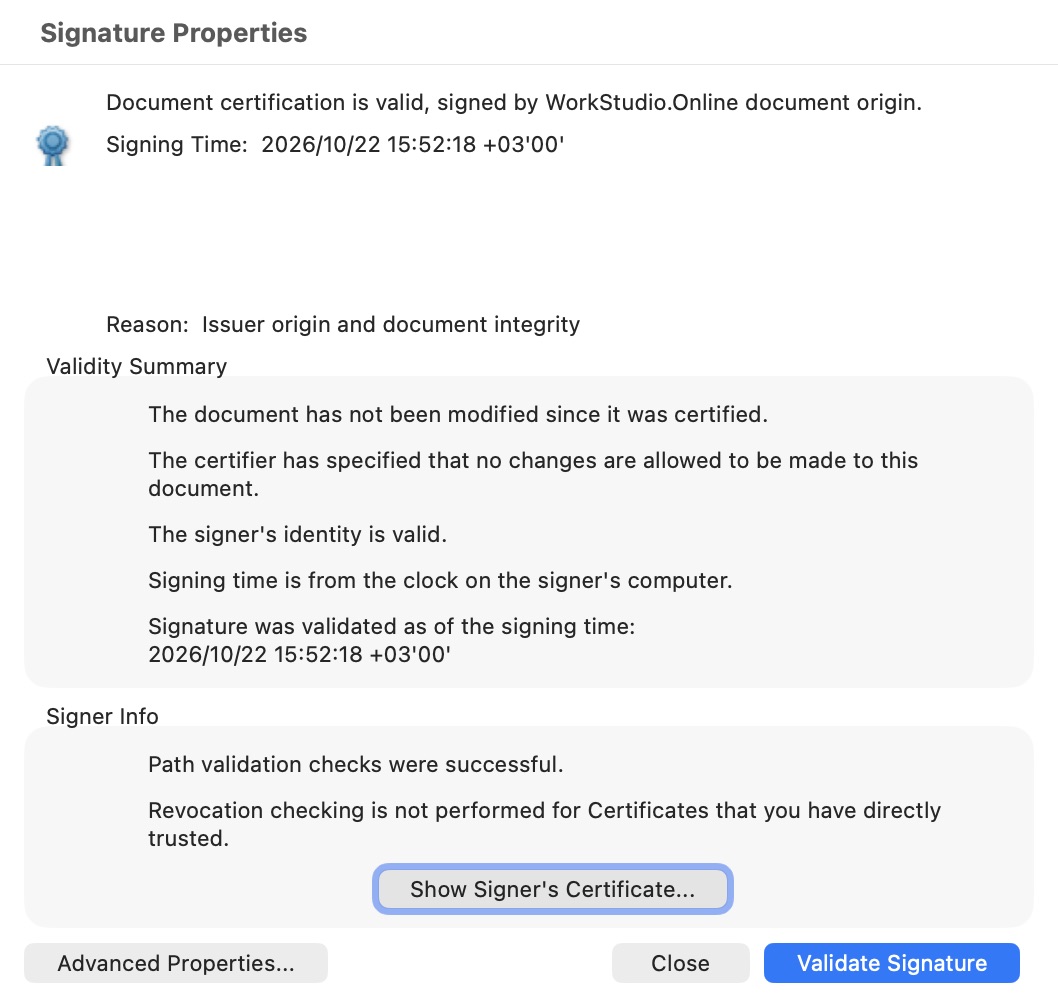
- Select the WSO signature and choose Show Signature Properties.
- Click Show Signer’s Certificate.
3. Trust the WSO certificate
- Open the Trust tab and click Add to Trusted Certificates. Accept Acrobat’s confirmation for this WSO certificate.
- In the trust settings, select Use this certificate as a trusted root and allow Signed documents or data and Certified documents, where these options are shown.
- Leave Dynamic content, Embedded high privilege JavaScript and Privileged system operations unchecked.
- Click OK to save, then close the certificate window.
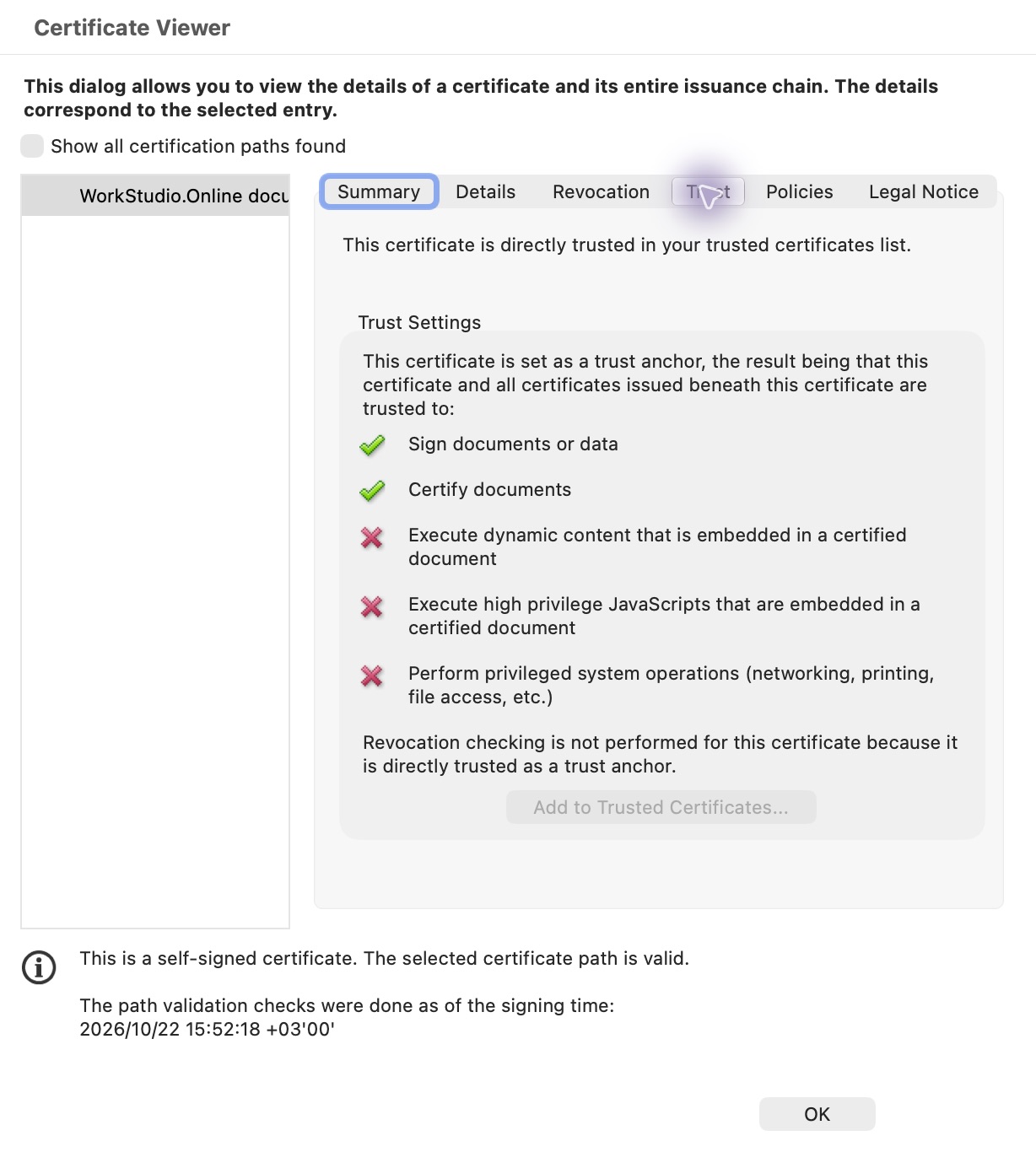
This setting trusts the WSO certificate in your Acrobat installation, including for future documents signed with that certificate. On an organisation-managed computer, your IT policy may control this setting.
4. Validate again and check the result
Click Validate Signature in Signature Properties, or choose All tools → Use a certificate → Validate all signatures. For a valid WSO-certified PDF, Acrobat should now show the certification result illustrated below.

You normally do this once for each WSO certificate on each Acrobat installation. If WSO renews or replaces its certificate, you may need to repeat the process with a newly verified original PDF.
If Acrobat still reports a problem
- Already trusted: the Add to Trusted Certificates button may be disabled, as in the screenshot. Close the certificate window and validate again.
- Invalid signature or changes after signing: obtain the original PDF. Trusting a certificate cannot repair a modified document.
- Another warning: open Signature Properties and read the stated reason. Do not disable other checks to remove it.
You can review or remove this trust later under Preferences → Signatures → Identities & Trusted Certificates → More → Trusted Certificates.
The certification result concerns document origin and integrity. It does not make the WSO certificate a qualified electronic-signature certificate. For more context, see what the WSO PDF signature proves.
Sources: Adobe — certificate trust settings · Adobe — validating signatures.
Enable JavaScript to use reading progress and usefulness ratings.