
Formula Help Pane in TableStudio
When a formula starts with =, TableStudio shows contextual help, argument explanations, examples, and live validation near the active cell.
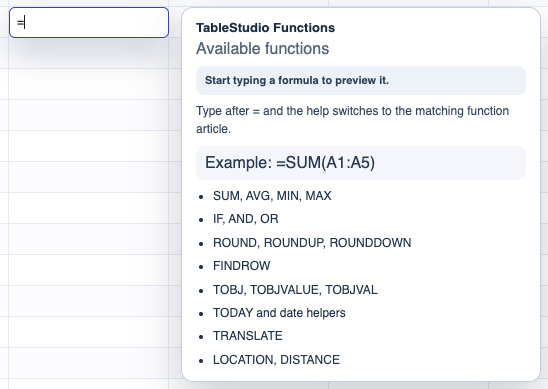
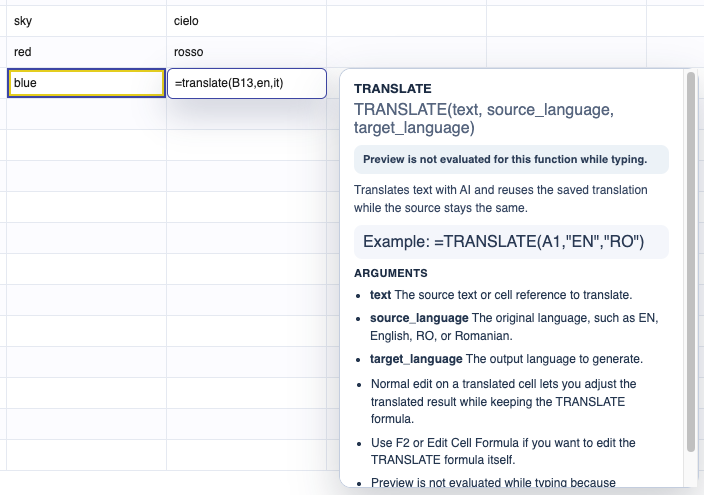
When you start editing a cell with =, TableStudio opens the formula help pane next to the active cell.
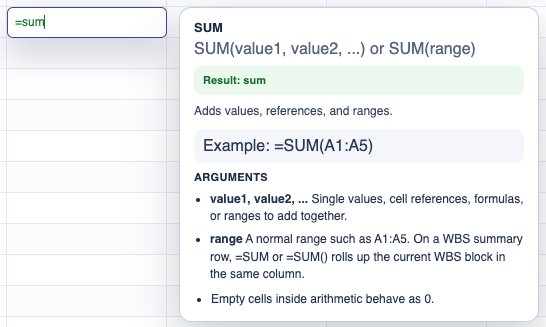
At first, the pane shows the main function index. As you type a function name, it switches to the matching article. For example, =SUM( opens SUM help and date helper names open date help.
The help pane explains the function signature, the meaning of each argument, examples, and the expected result.
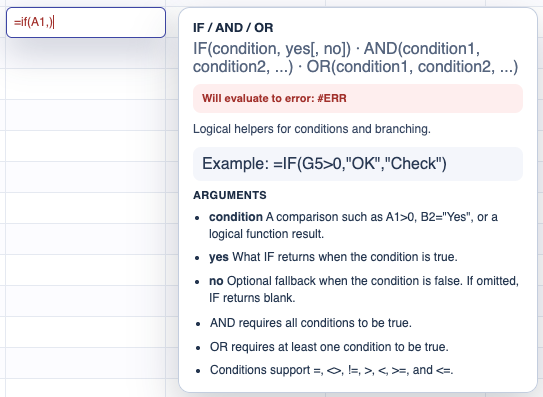
Formula text turns green when the expression can be evaluated safely. It turns red when the expression is invalid. Some non-numeric states such as N/A are not treated as formula errors.
If a formula contains nested functions, the help pane tries to follow the function around the caret. For example, inside a ROUND(SUM(...),2) expression, the pane can show SUM help when the caret is in the SUM part and ROUND help when the caret is in the ROUND part.
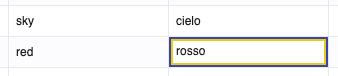
For AI translation formulas, editing the displayed translated text updates the saved translation override while keeping the original formula.
Related: TableStudio Functions, SUM, ROUND / ROUNDUP / ROUNDDOWN, Date Formulas, TRANSLATE.
SUM help
The pane switches to the matching function as you type.
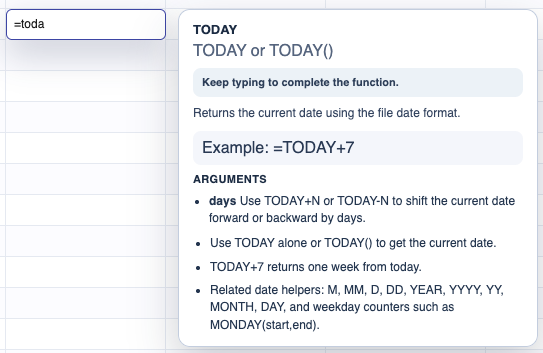
Date helper help
Date helpers explain month, day, year, weekday, and TODAY formulas.
Formula error explanation
Invalid formulas show a clear error state and explanation.
Translate formula editing
TRANSLATE formulas can keep the formula while allowing the saved translated text to be edited.
Edited translation value
Manual edits affect the translated value, not the source formula.
Enable JavaScript to use reading progress and usefulness ratings.