
Create a School Timetable
Build a reusable weekly lesson schedule with teachers, rooms, recurrence, school terms, and exception dates.
A Timetable record keeps the schedule and its presentation settings together. A separate Calendar Exception Set is useful when several timetables share the same terms and holidays.
Related: Timetable Records and Calendar Exceptions, Save Records and Control Access.
Create the Timetable record
Select New Record, choose Timetable, give it a clear name and default language, and open the new record in Week view.
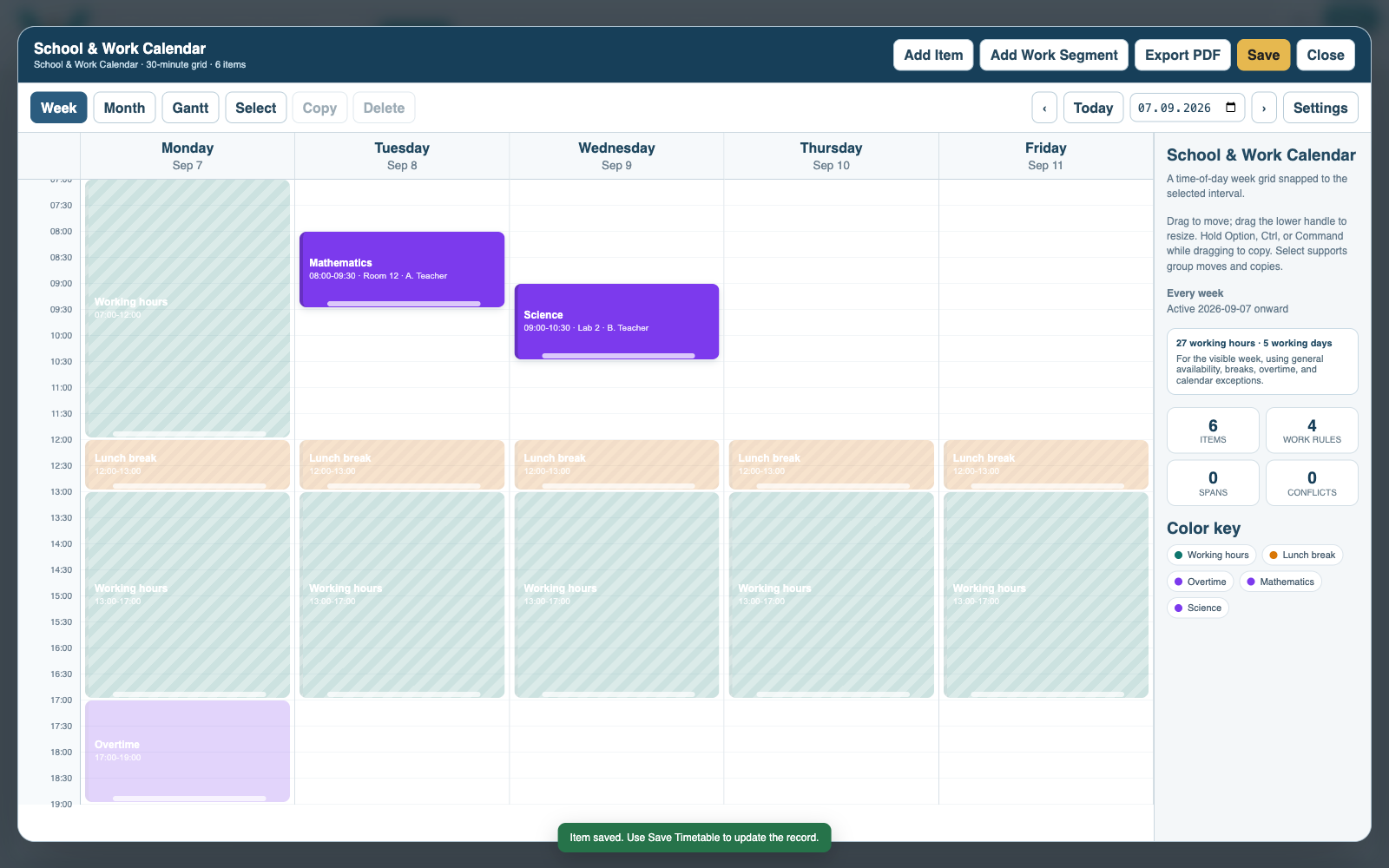
Set the school week
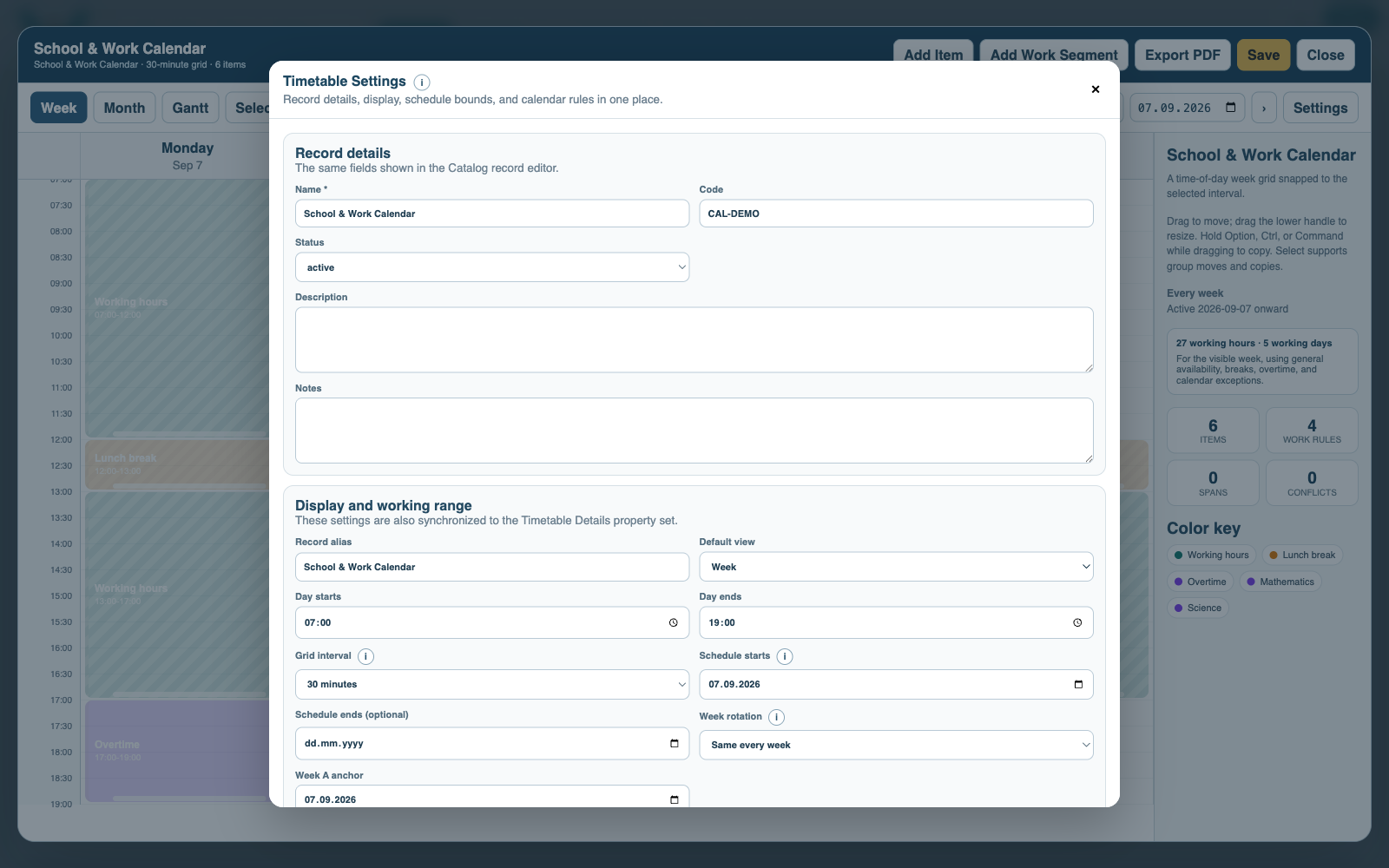
Open Timetable Settings. Set active days, daily time range, slot size, default view, and Same every week or alternating Week A / Week B.
Add each lesson
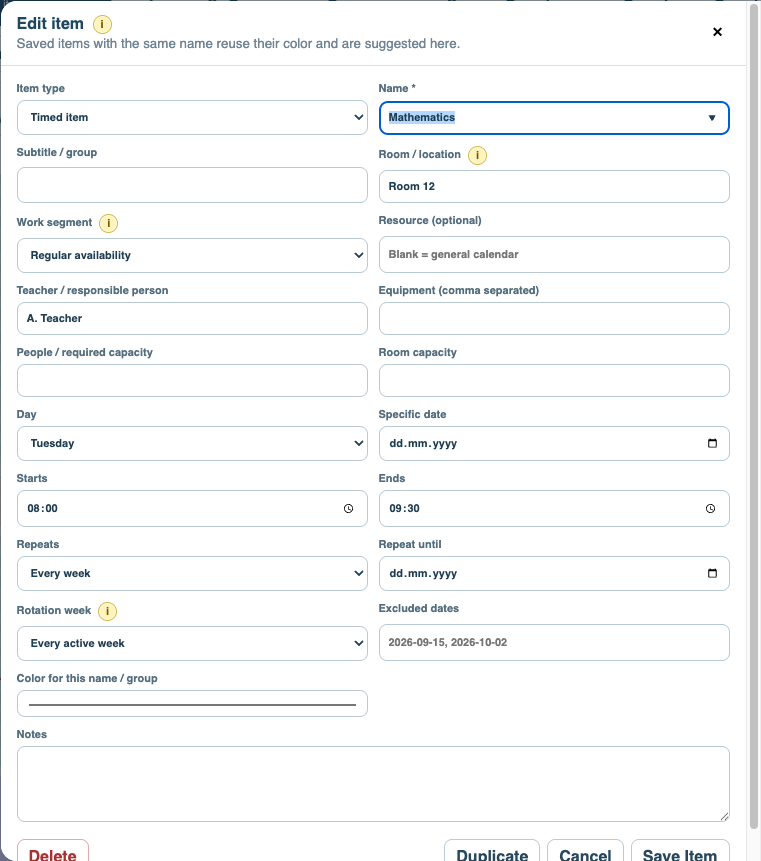
Choose Add Item. Enter the subject, day, start and end time, recurrence, teacher, room, student group, and color.
Add terms and holidays
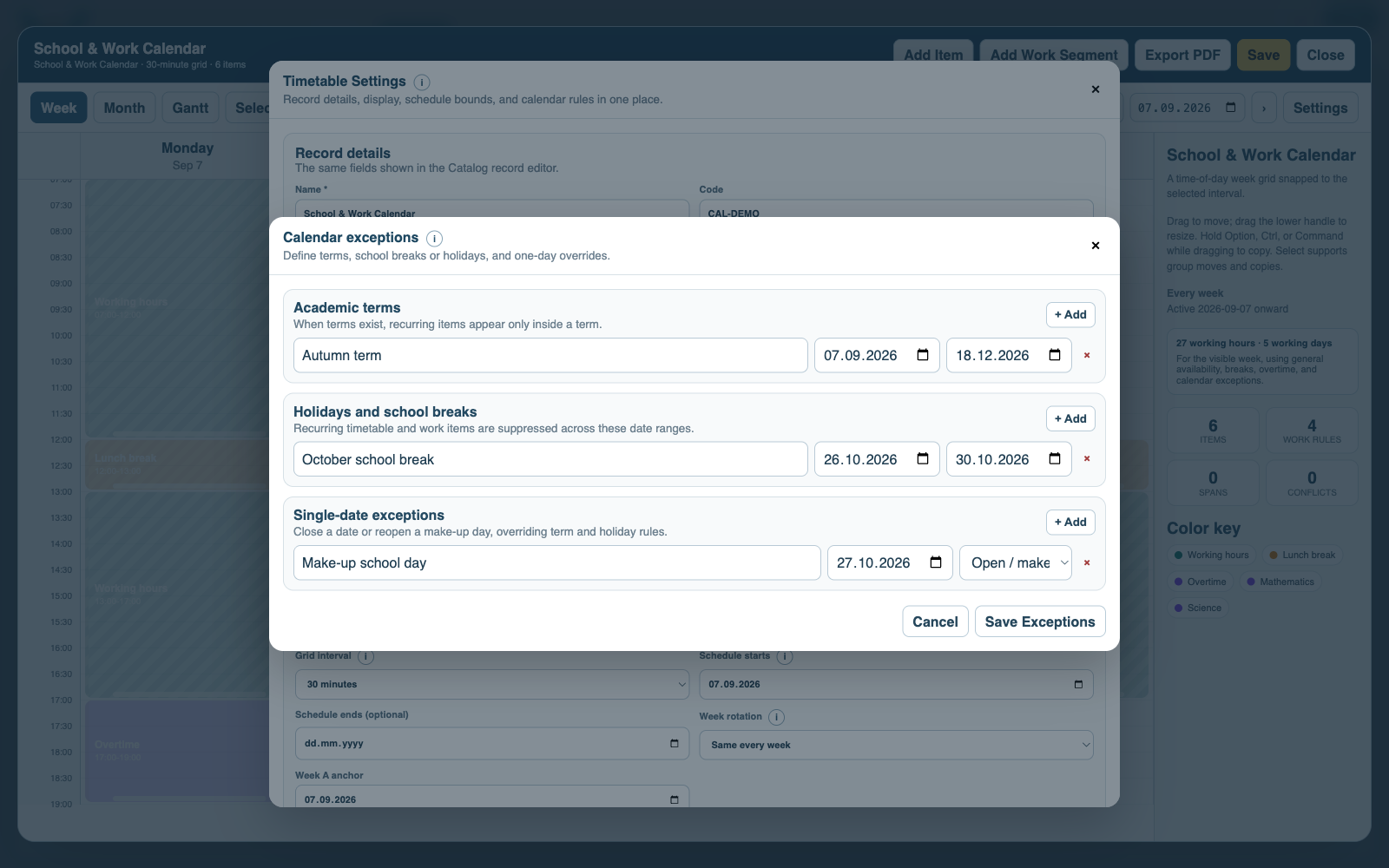
Create or select a Calendar Exception Set for school terms, holidays, closures, and one-off date changes, then link it in Timetable Settings.
Choose an export
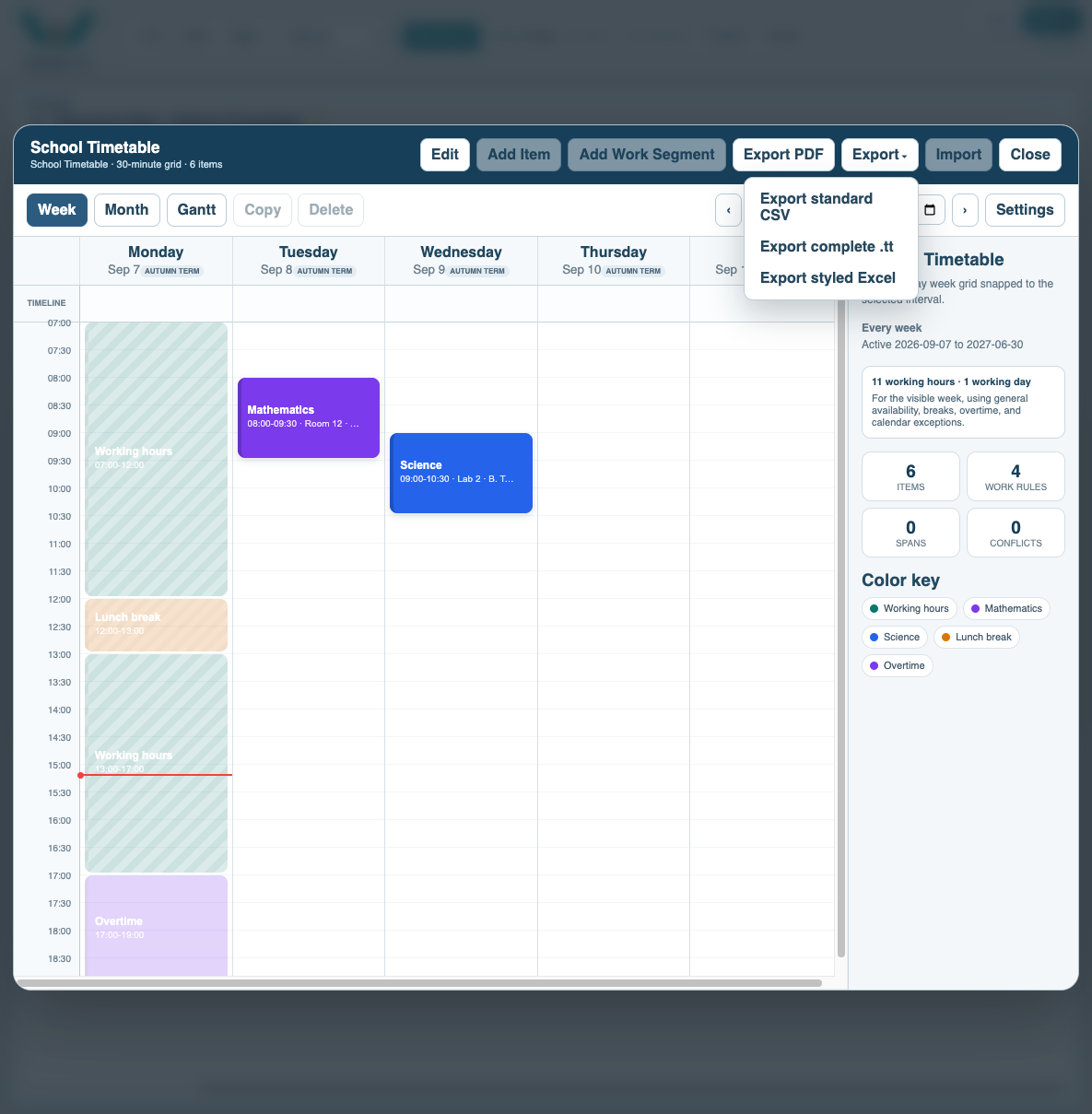
Review conflicts in Week view, then open Export. Choose PDF for a printable schedule, styled Excel for an editable workbook, or .tt for complete exchange.
Review the exported PDF
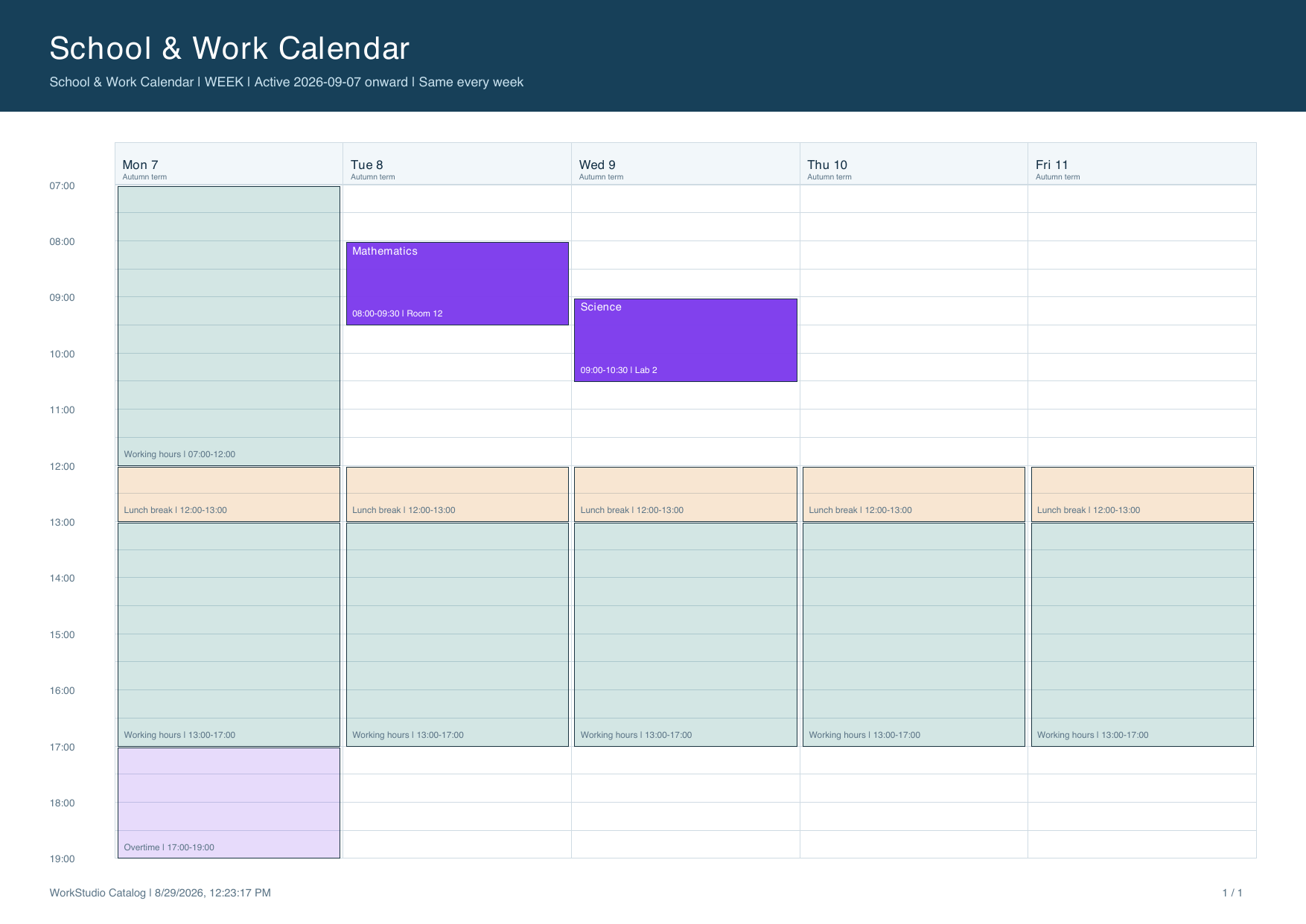
Check the exported timetable layout, labels, colors, and time range before sharing it. Save the Timetable and then save the Records collection.
Enable JavaScript to use reading progress and usefulness ratings.