
Save a Catalog and Review Its Access
Check context, distinguish saving from exporting, inspect rights and verify the saved result.
Use your practice collection. This walkthrough reviews saving and the meaning of the access controls; it does not ask you to invite users or broaden anyone's rights.
A successful record save and a successful Catalog save are separate checkpoints. Follow the visible status messages, particularly if you make more edits while a save is running.
The gold outlines show where to look. Rights options depend on the context and your permission to manage the record. If a control is unavailable, ask the relevant Owner or Admin rather than changing another setting to work around it.
Read Where Is My Information Saved, and Who Can See It? for the explanations and Open Records in the Right Context for the navigation.
All people, companies, dates, documents and project details in this example are fictional. Any resemblance to real people or organizations is coincidental.
Save a Catalog and Review Its Access
Guided walkthrough using actual online screenshots with click and result highlights. Each screen is held for reading; this is a paced screen presentation. All people, companies, dates and documents are fictional examples. Any resemblance to real people or organizations is coincidental.
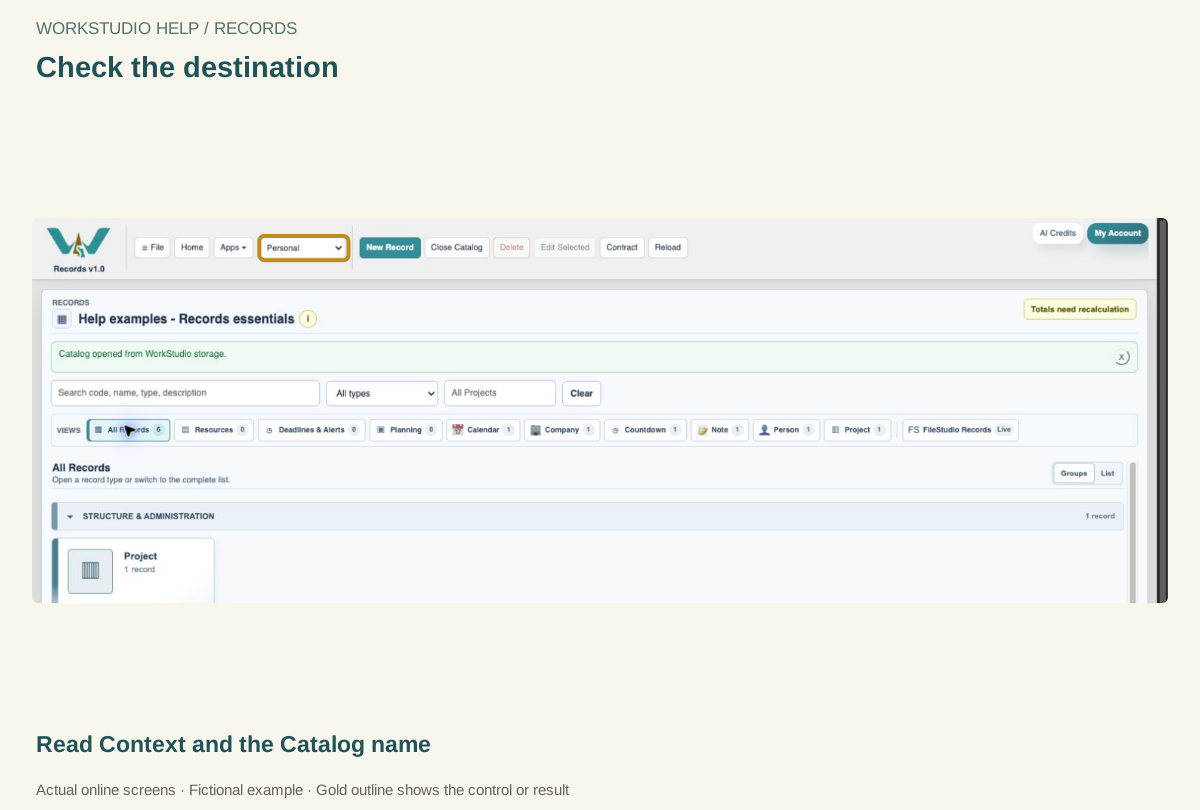
Check the destination
This example is in Personal context. Your context choices depend on your memberships; a project-themed record does not change the context.
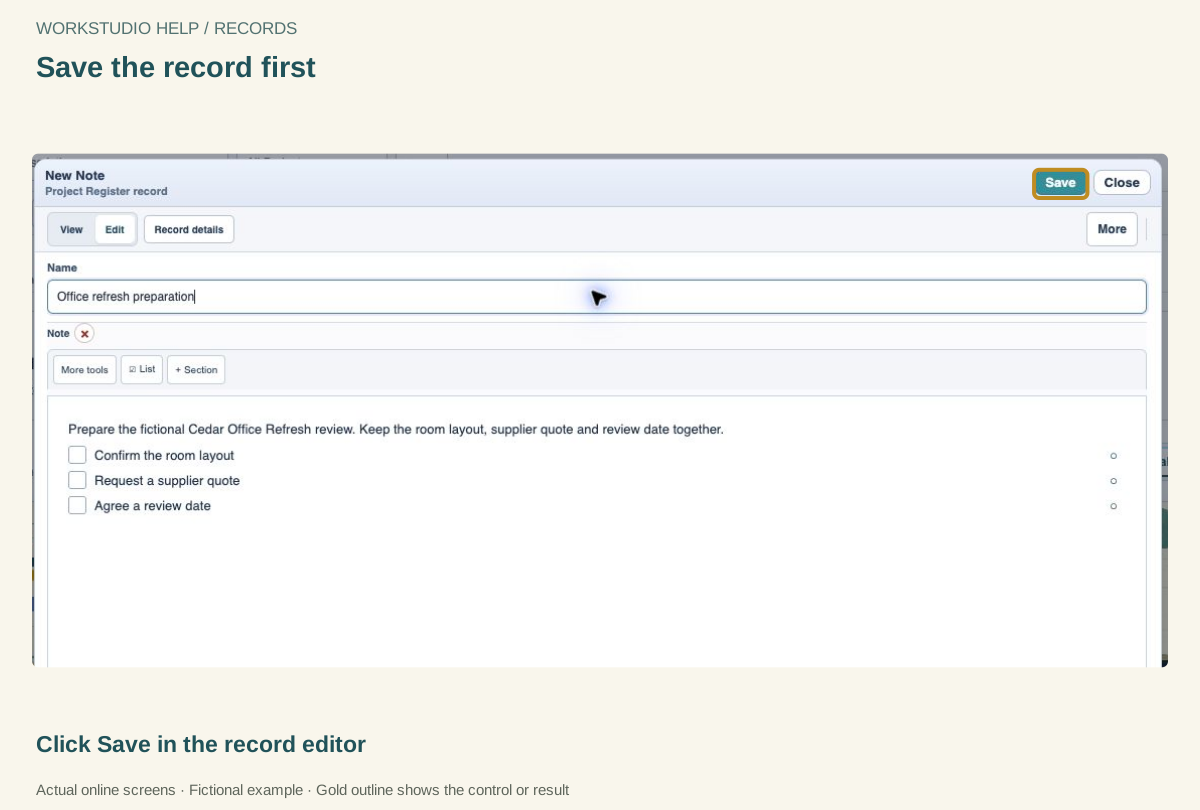
Save the record first
Apply the Note changes to the open Catalog. The Catalog may still have work that has not reached the server.
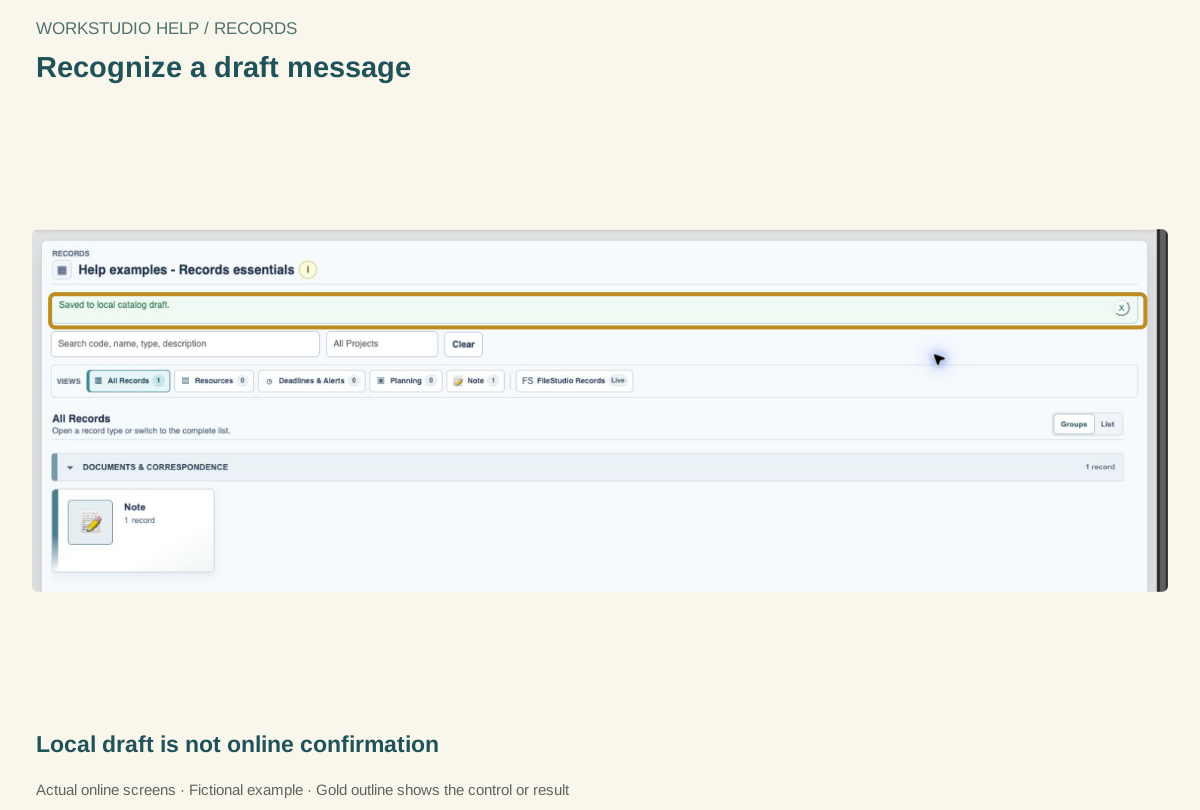
Recognize a draft message
Read the status after saving a record. Keep the tab open and continue to the Catalog save.
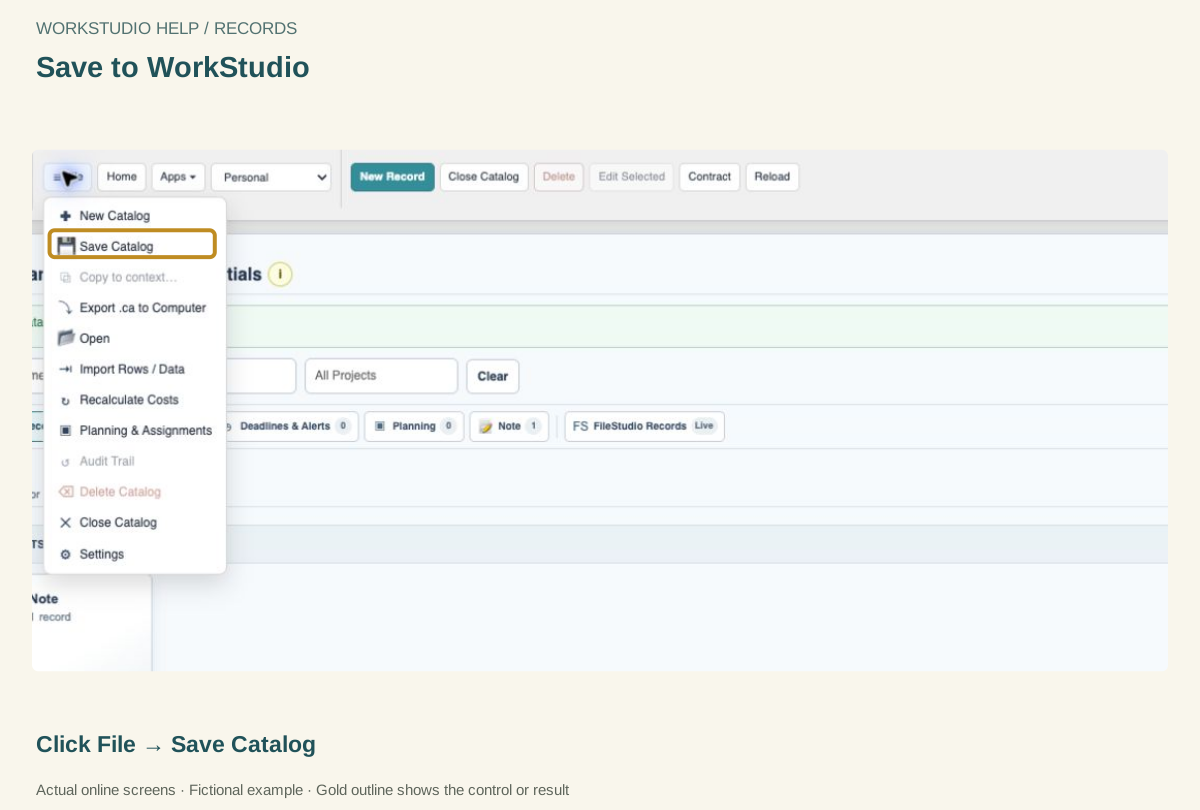
Save to WorkStudio
Signing in is required. Keep the window open while the Catalog and its attachments are saved.
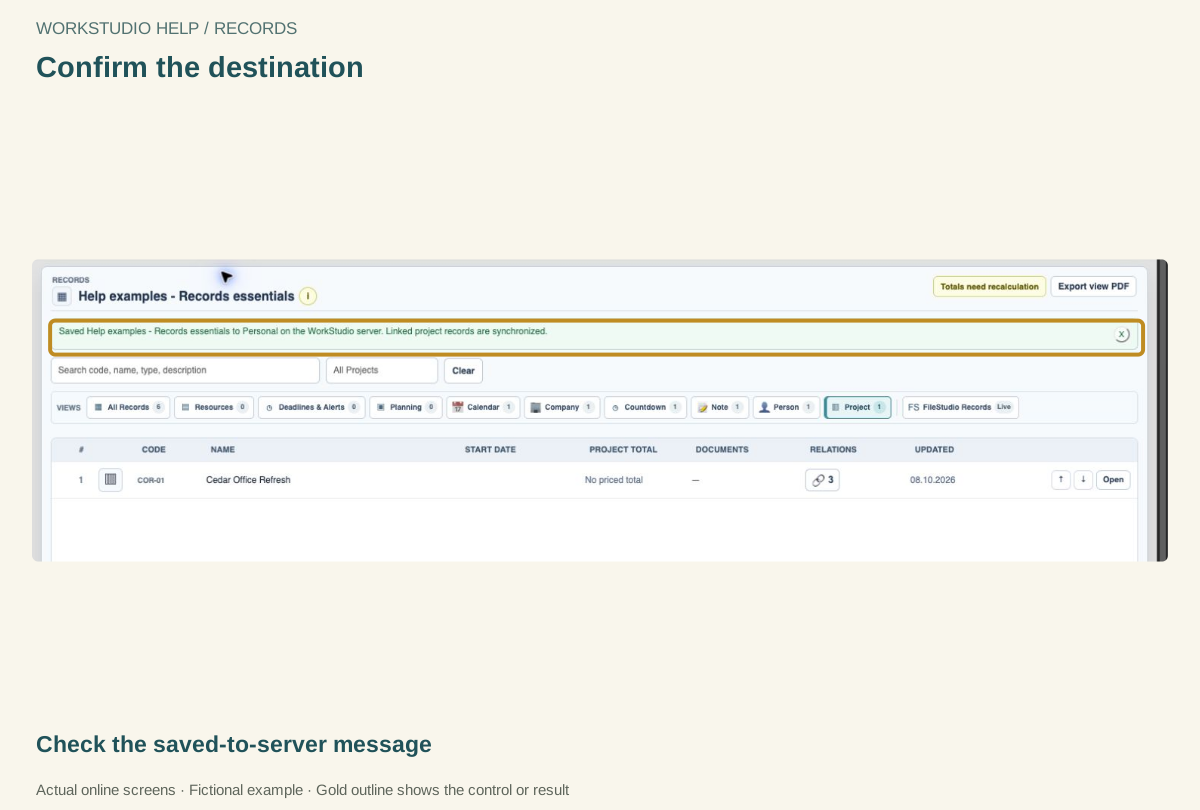
Confirm the destination
Read the Catalog name and context in the success message. If a save fails, keep the draft open and follow the error message.
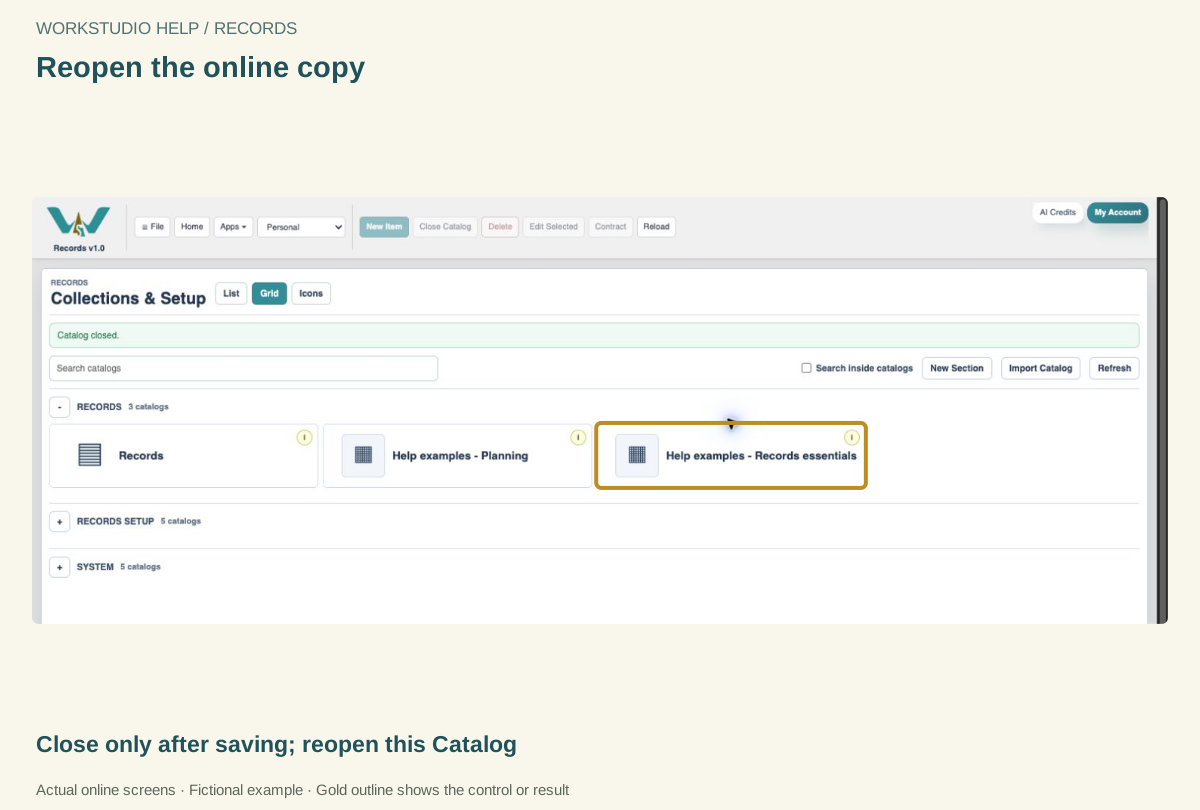
Reopen the online copy
From Collections & Setup, open Help examples - Records essentials. Then open a record and check its contents.
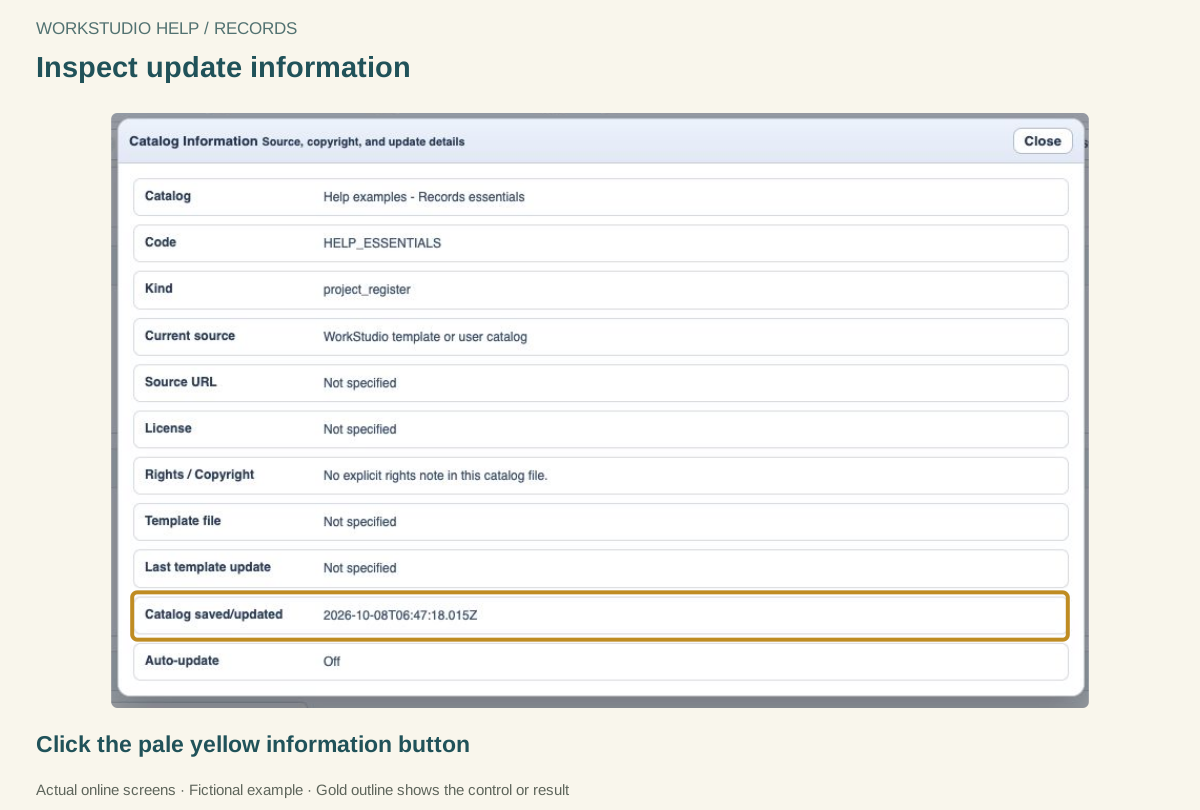
Inspect update information
Catalog Information shows when this collection was saved or updated. It is useful context, alongside checking your actual record.
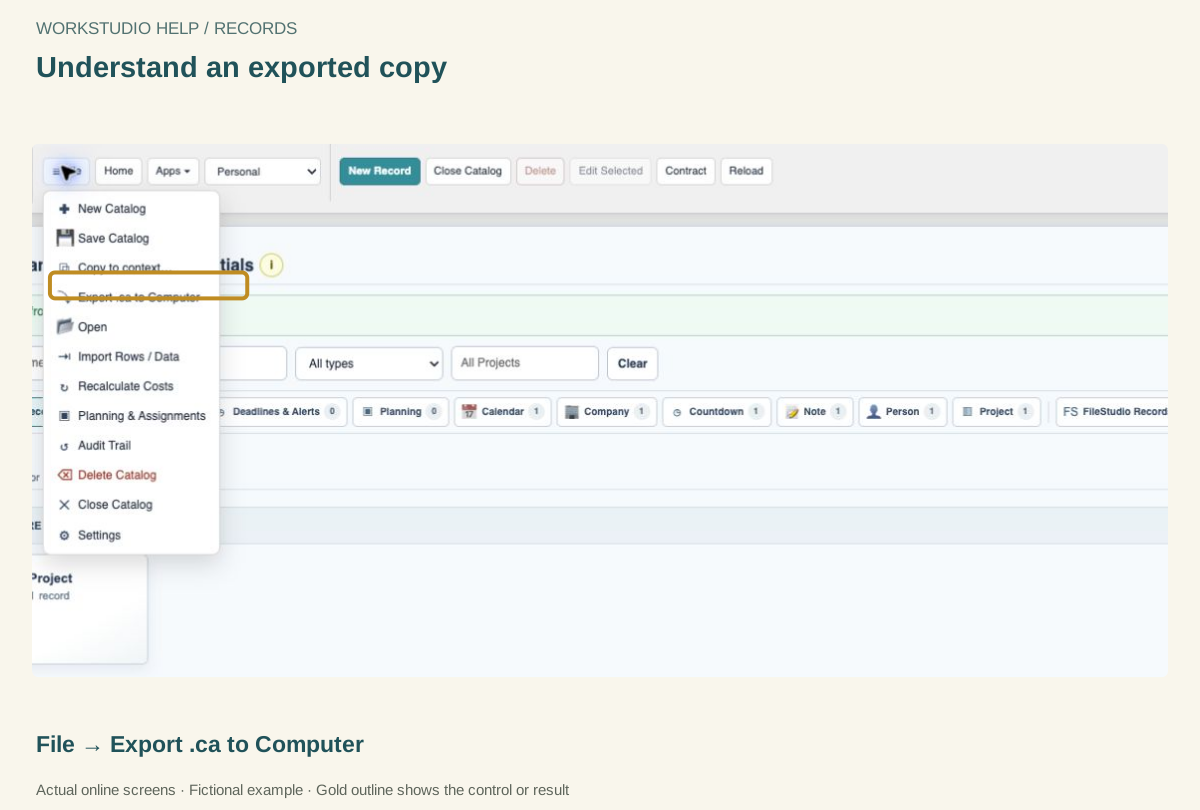
Understand an exported copy
For a portable copy, choose Export .ca to Computer. Read the menu label: a Type view may export only that Type. The file will not keep itself synchronized.
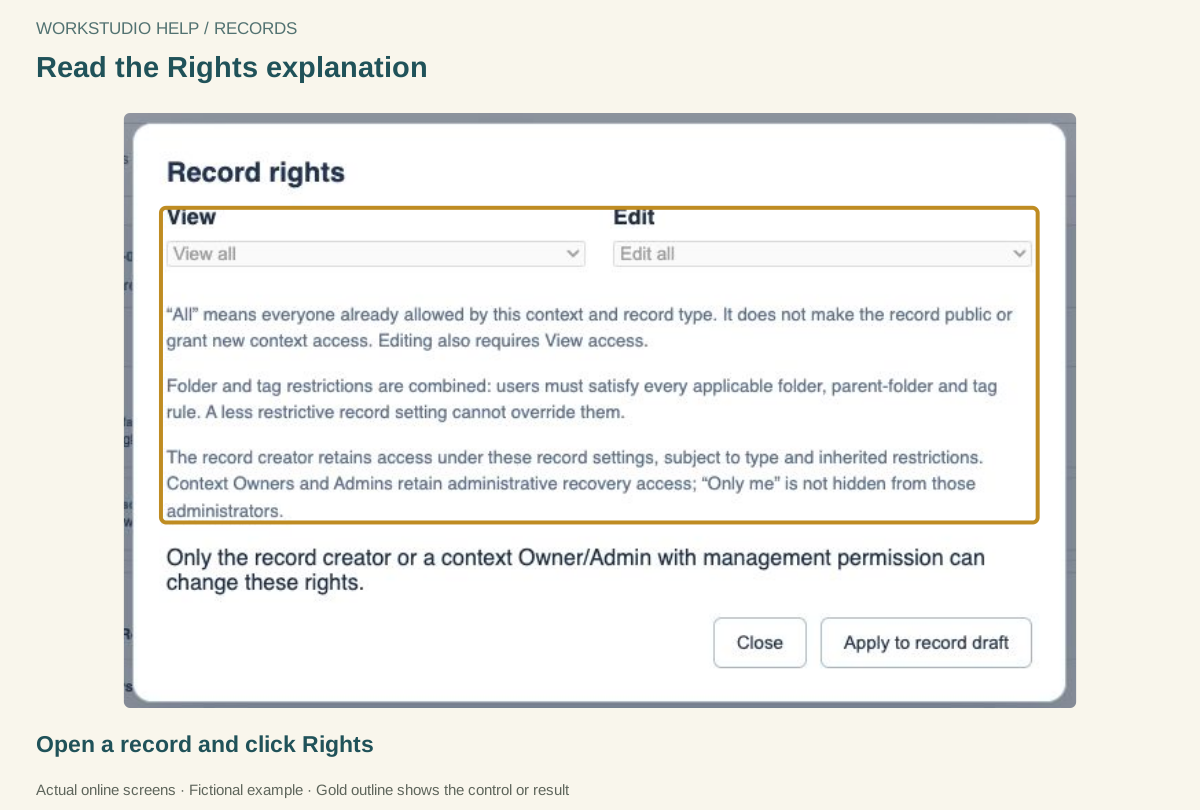
Read the Rights explanation
All means users already allowed by context and Type. Edit also requires View. This walkthrough only inspects the settings.
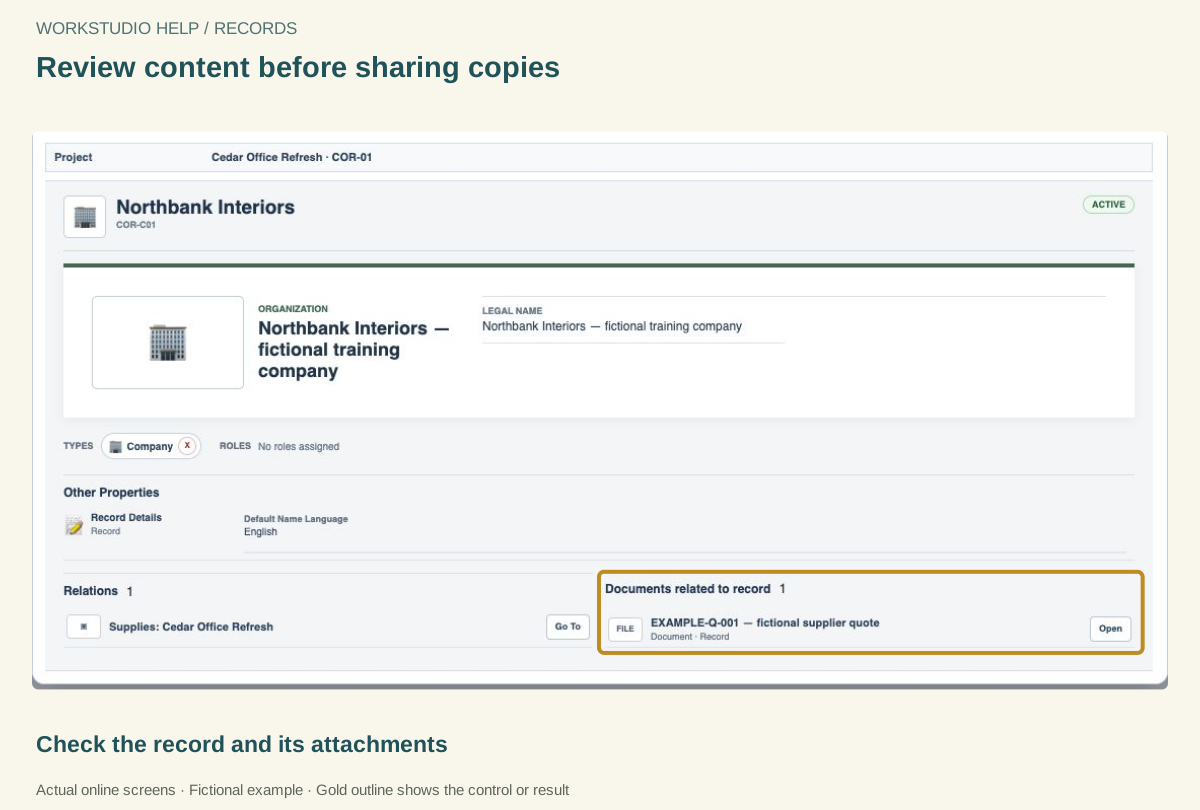
Review content before sharing copies
Online access rules and downloaded copies are different. Review the content and recipient before sharing. Owners/Admins retain recovery access.
Enable JavaScript to use reading progress and usefulness ratings.