
Understanding Calendar views and event dates
Add a dated event, choose a useful view and understand why an item may be hidden.
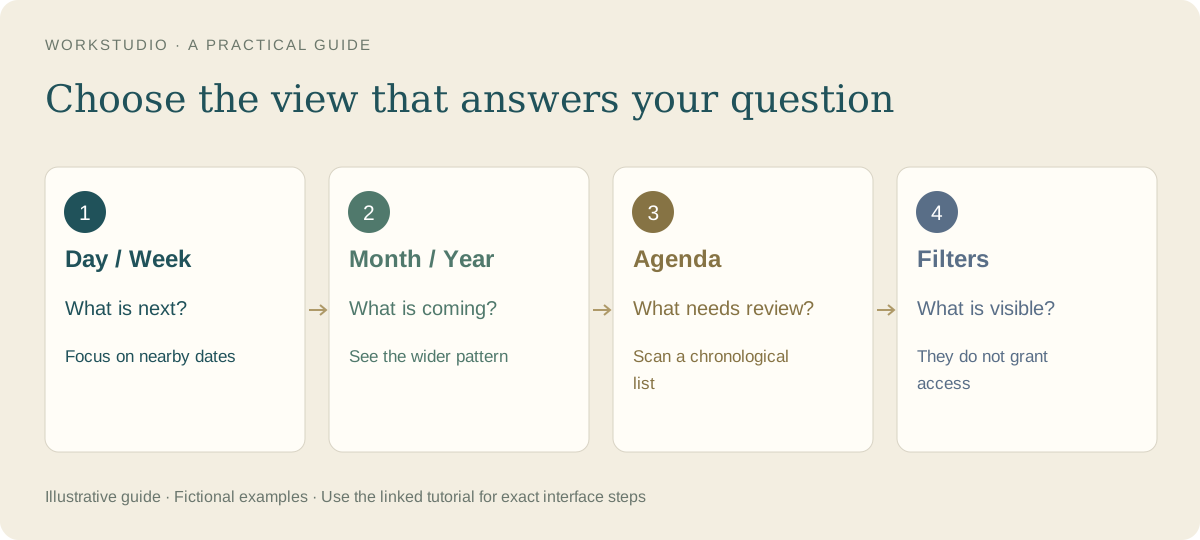
Calendar brings readable dated items into Day, Week, Month, Year and Agenda views. Start with one named calendar and an event that is easy to recognize.
Enter only the dates you need
Create Monthly report review — fictional example. For a meeting, give it a start date, start/end time and clear title. For a deadline known only by its end date, leave Start empty and enter End. The event appears on that end date.
Multi-day ranges include both the start and end dates. Use All day when a specific time is not meaningful. Calendar times are local wall-clock times; check the displayed values when coordinating across time zones.
Use the view that answers your question
- Day: inspect a particular date and its details.
- Week: review the next group of commitments.
- Month: scan dates and open a busy day for its full list.
- Year: look for dates with activity across the year.
- Agenda: read a list for Today, Week, Month, Year or All events, ordered newest or oldest first.
Agenda’s All events option lists a repeating series once instead of expanding an unlimited set of future repetitions. Use a dated view when you need a particular occurrence.
If an item seems missing
Check the date range, calendar destination, category/source filters and completed-item setting. A dated section with no actual event content may not appear. A busy day’s overflow control opens the full list; it does not mean the remaining events were lost.
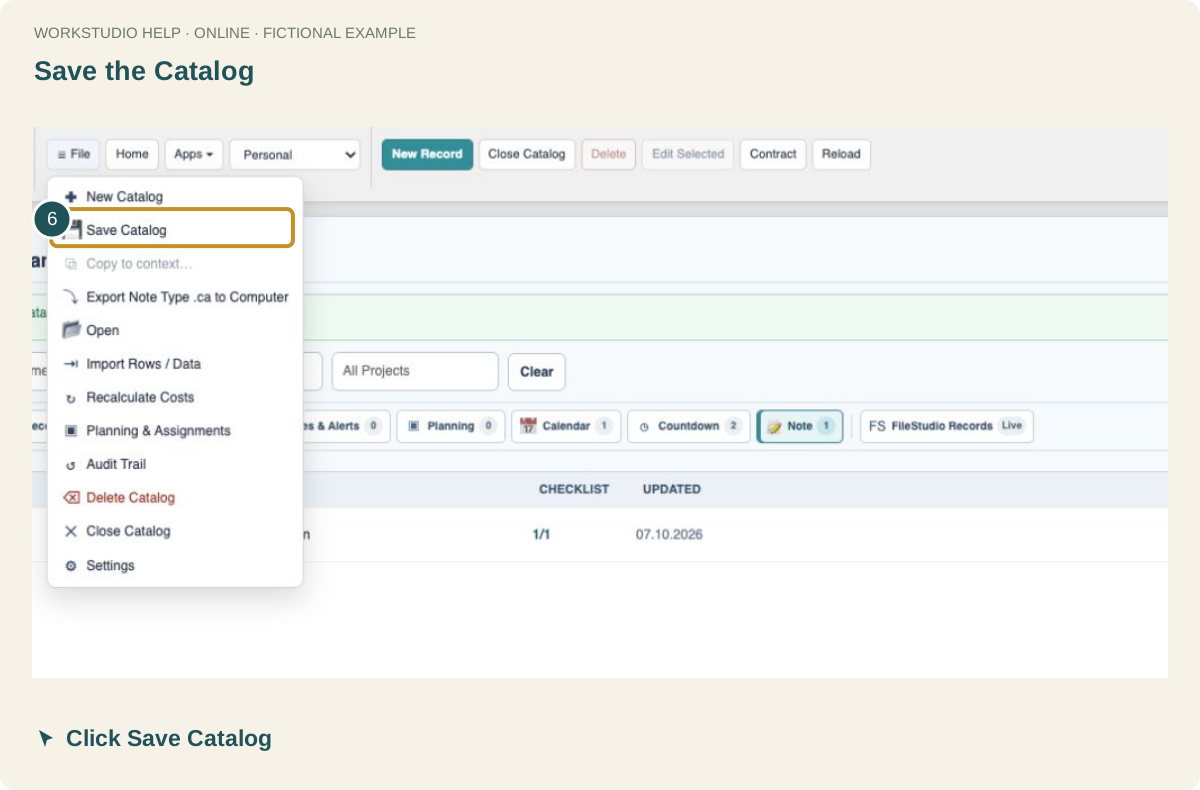
Use Save event, then File → Save Catalog. Read One item across several views before creating another record to represent the same event.
In the example Catalog
Fictional example used to explain the workflow.
Enable JavaScript to use reading progress and usefulness ratings.