
Create a Document Submission Register
Plan required items, group them clearly, manage responsibility and validity, then export an indexed document package.
A Container can begin as a list of requirements before every record or document exists. It becomes both the working register and the source for a controlled export.
Related: Container Registers and Submission Packages, Connect a Record to People, Documents, and Other Records.
Continue with the new company examples: Open the practical tutorial and film.
Create the Container
Select New Record, choose Container, enter its Name and language, and add the export title, subtitle, and logo when the final package needs them.
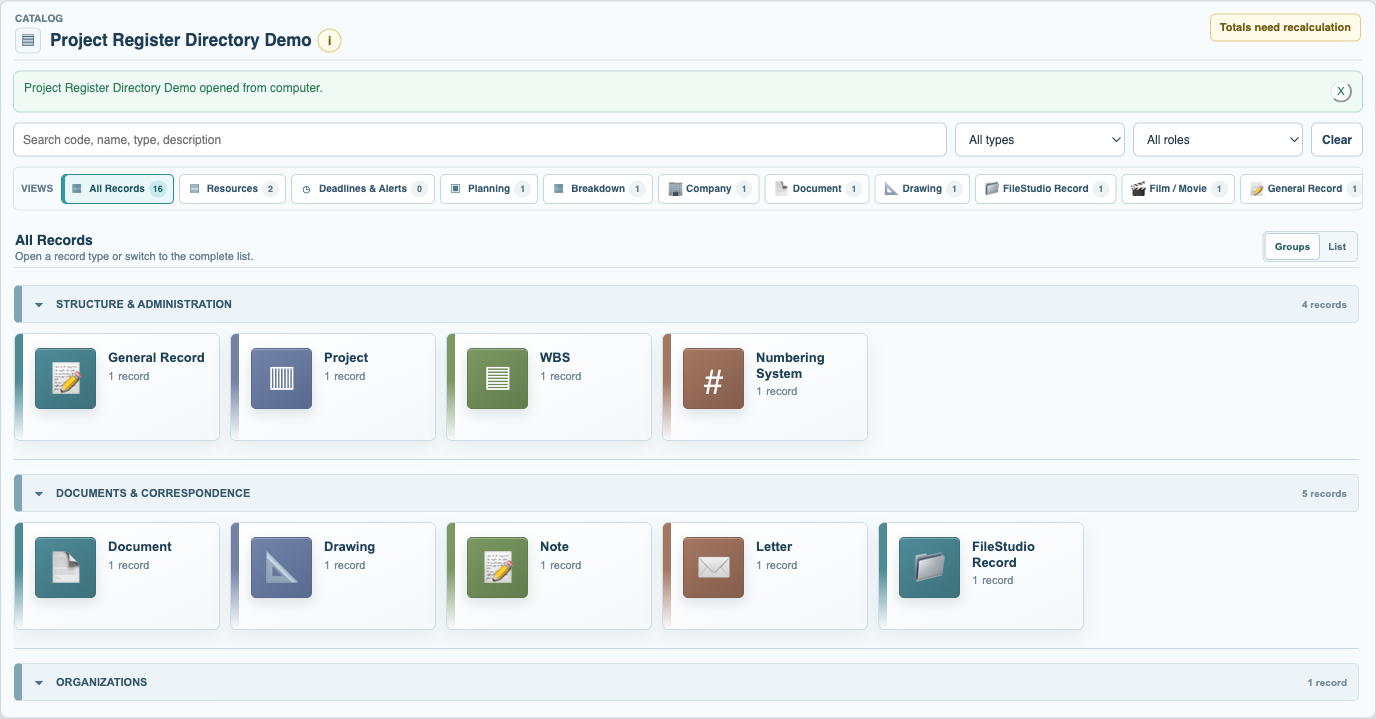
Build the working list
In Edit mode, add each required item. Set its Type, status, percentage, priority, deadline, responsible party, notes, and optional linked record.
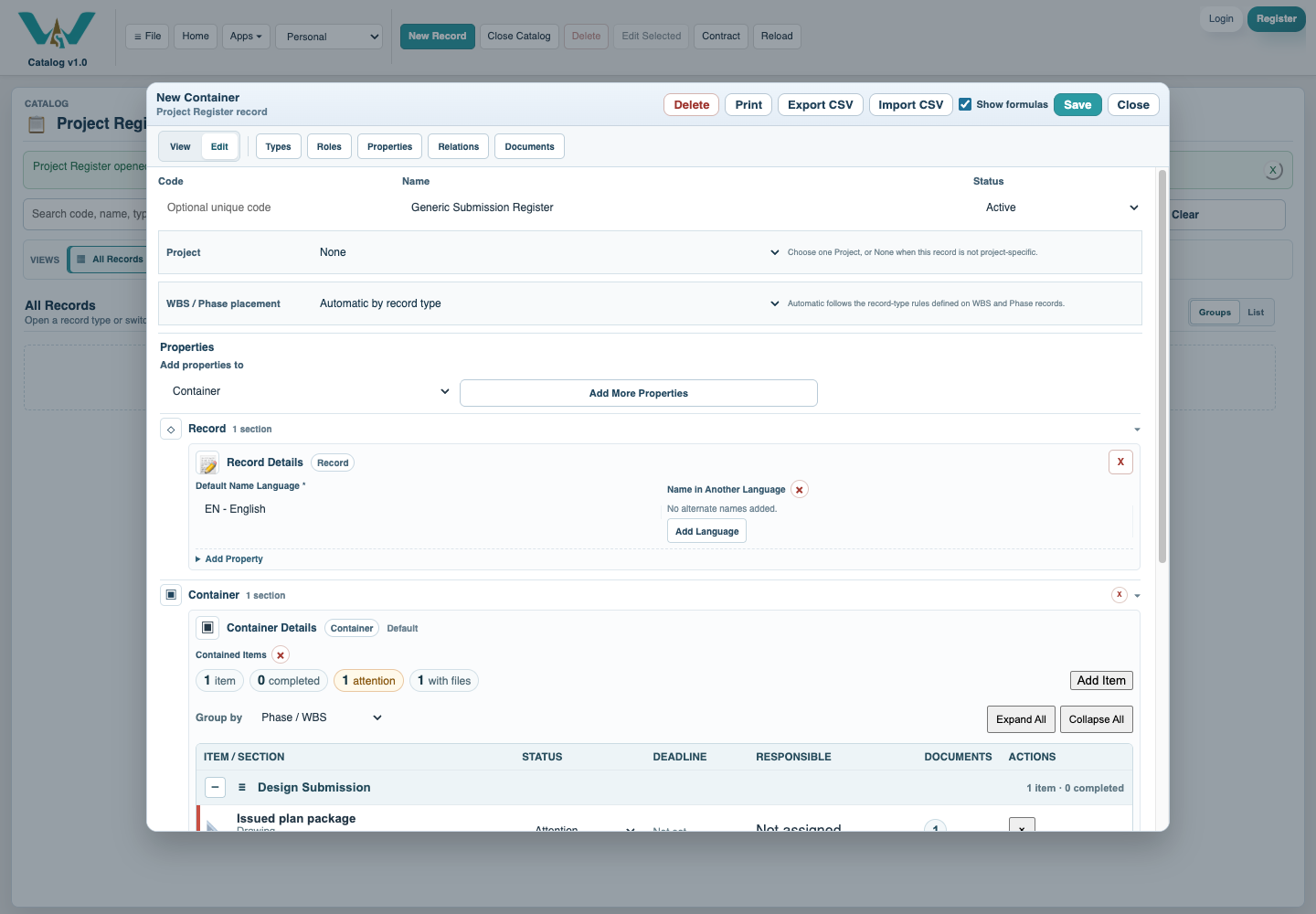
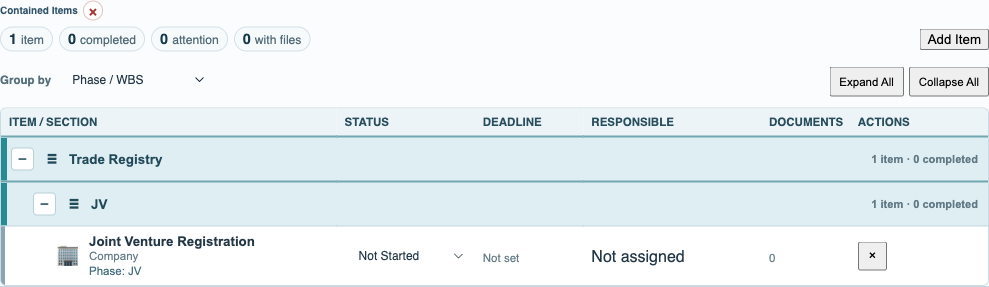
Organize sections
Assign WBS, Phase, or project tags and choose the grouping that matches the review. Expand and collapse the hierarchy to check placement.
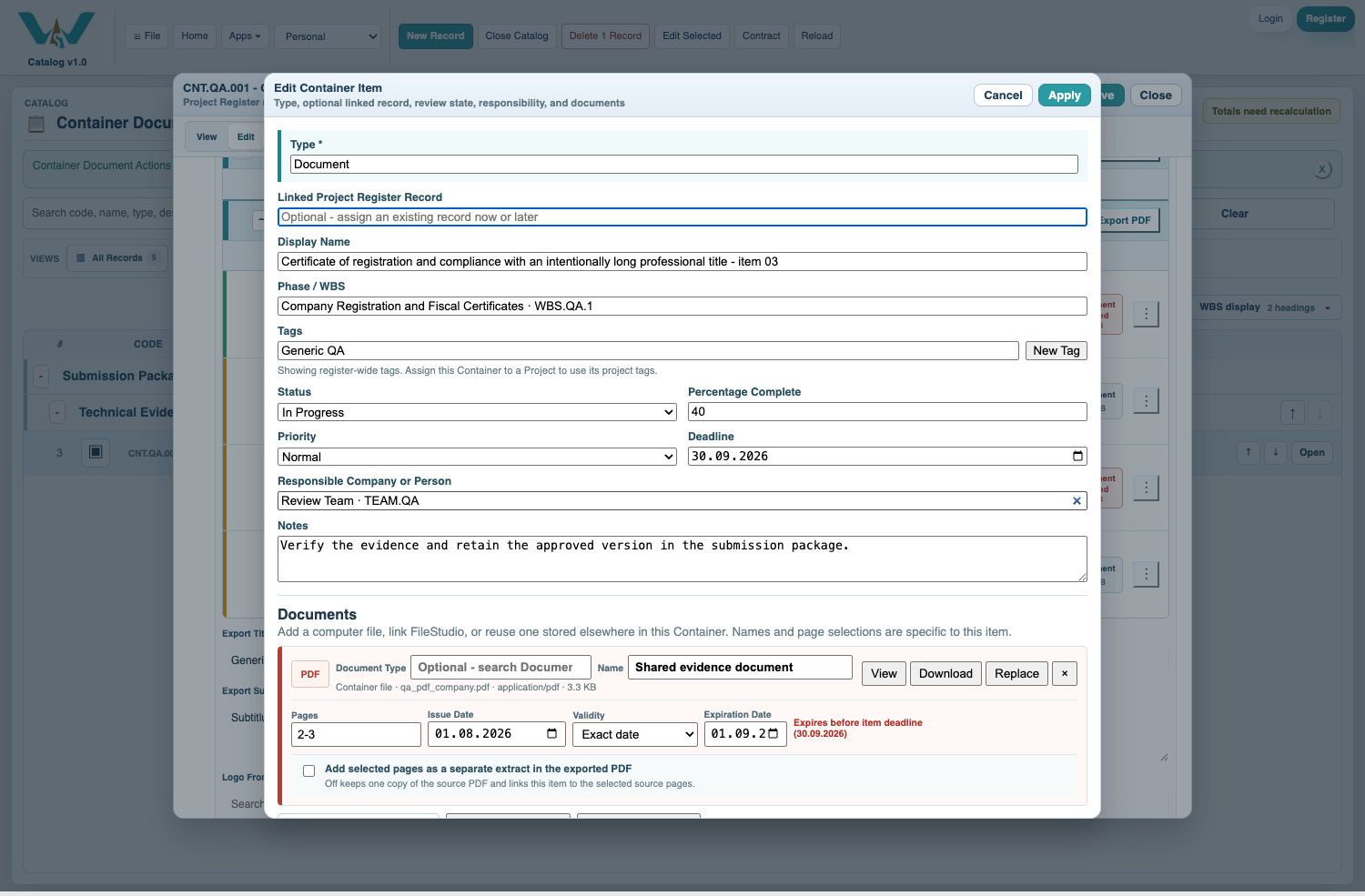
Attach and validate documents
Add files from the computer or FileStudio, or reuse a file already stored in the Container. Set the document name, selected pages, issue date, and validity when applicable.
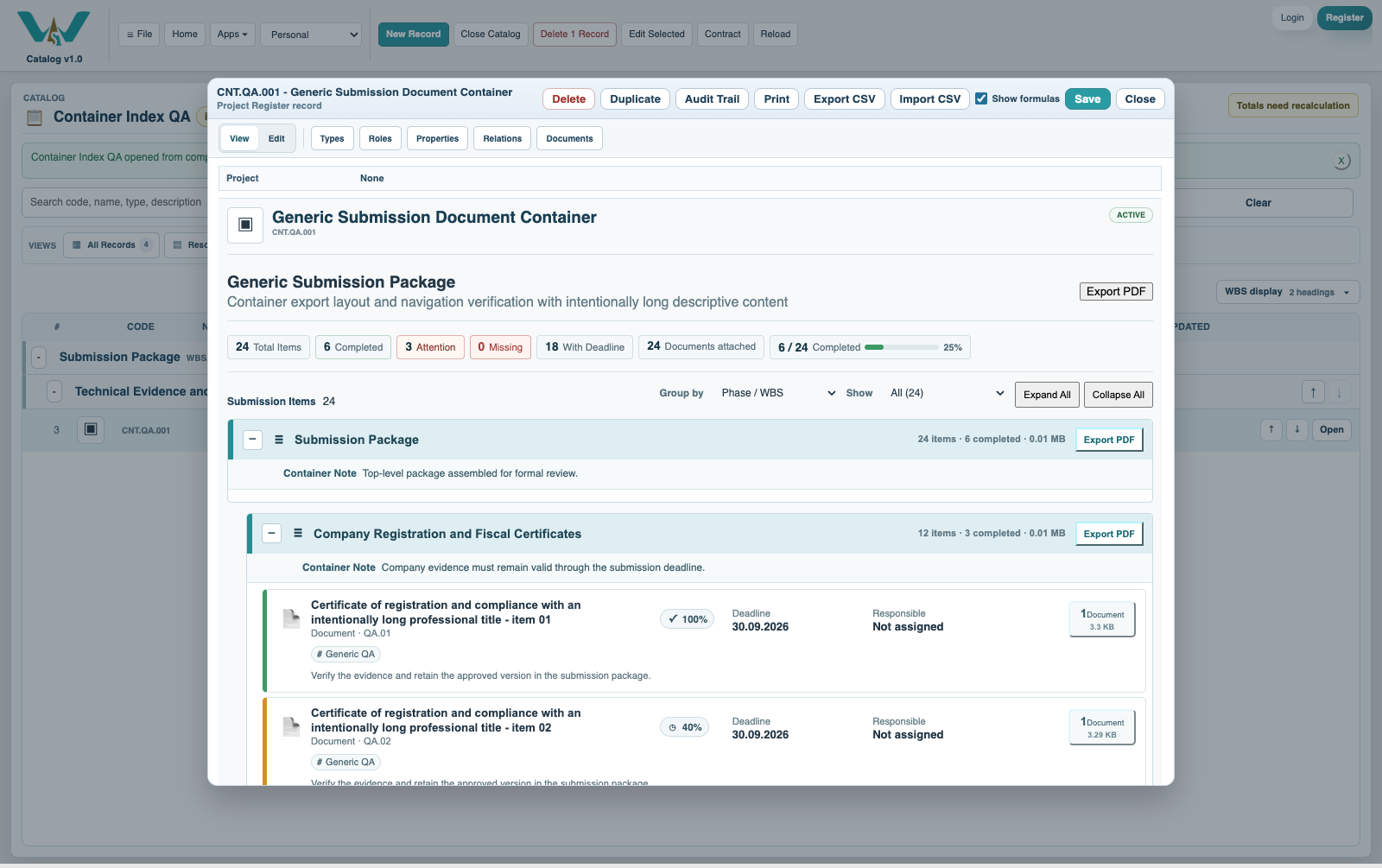
Review the register
Switch to View. Filter attention, blocked, or expired items and open any item to inspect all details and documents.
Choose export contents
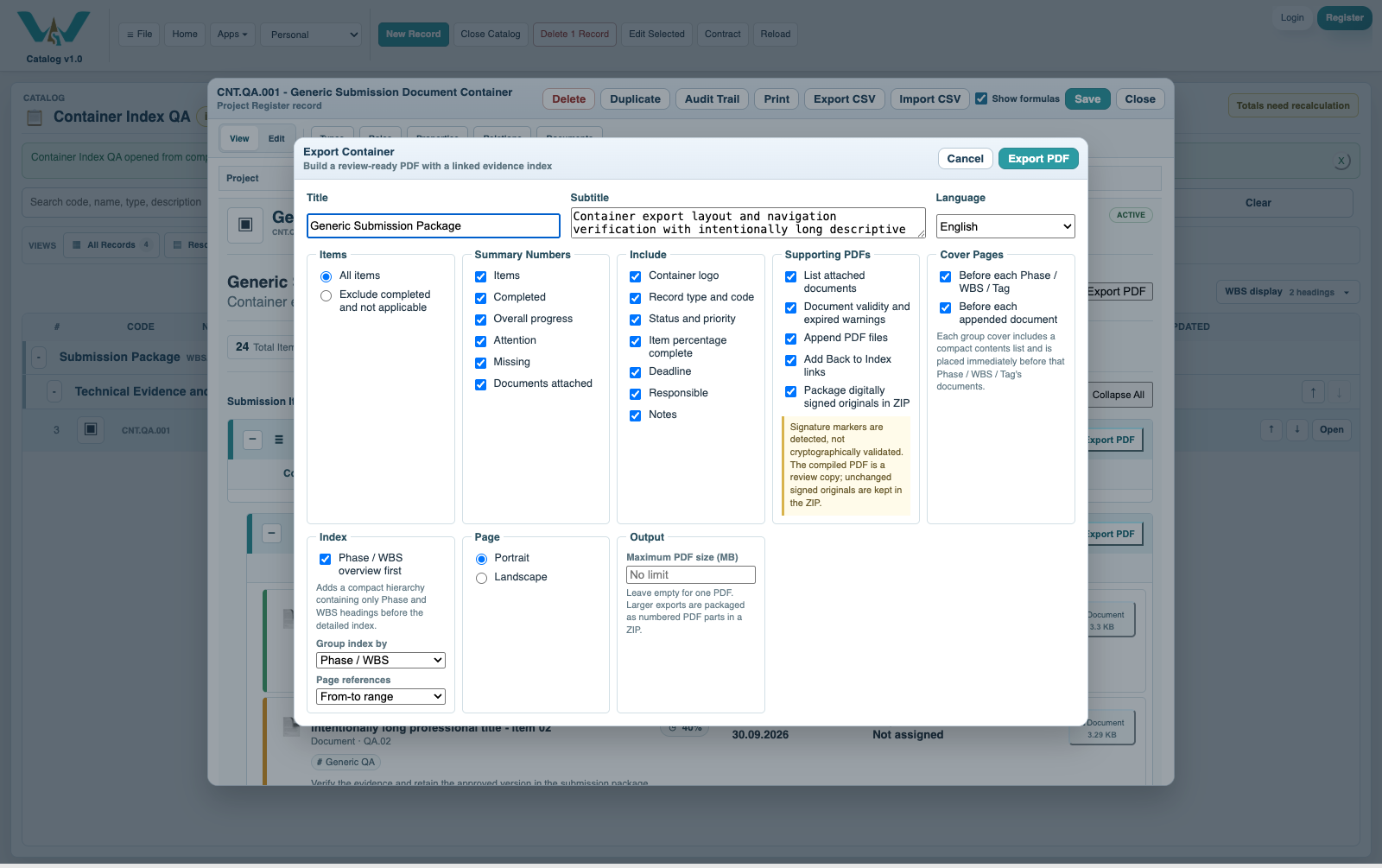
Open Export PDF and select item states, displayed fields, files, covers, index choices, language, signature note, and optional size limit.
Check the index and package
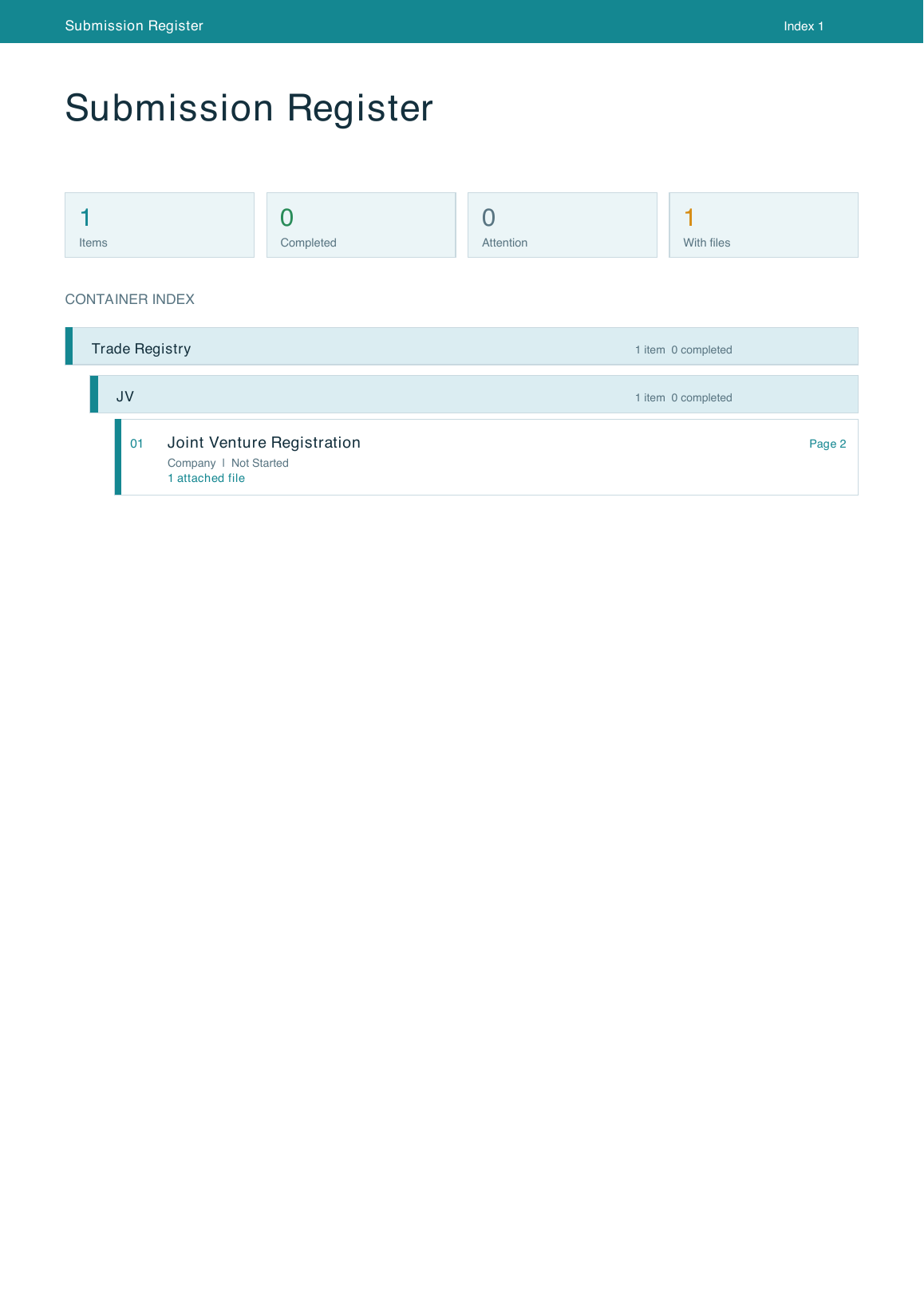
Review page ranges, group covers, document names, expiration warnings, index links, and signed-original ZIP references before sharing the files.
Enable JavaScript to use reading progress and usefulness ratings.