
Organize a CADStudio Drawing with Layers and Groups
Create nested layer groups, edit layer style, collapse groups, hide or freeze groups, and select objects by group.
Use this tutorial when a CADStudio drawing needs structure.
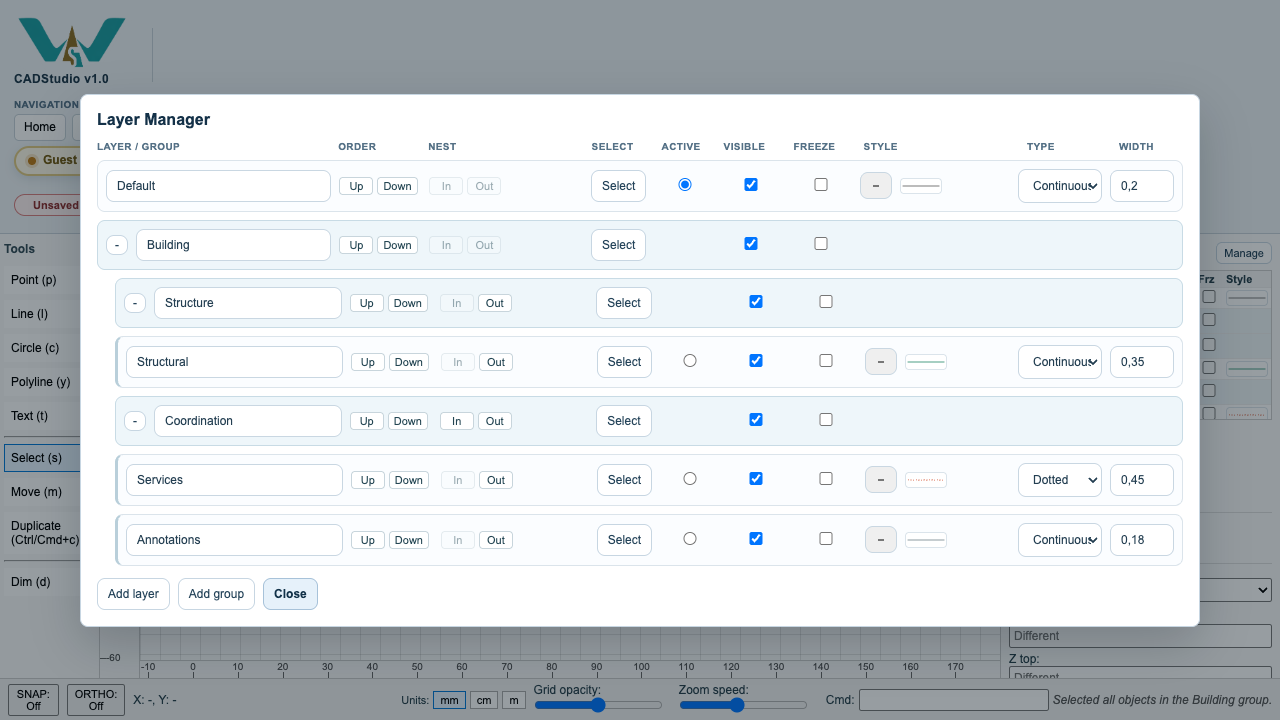
The Layer Manager lets you edit names, order, nesting, visibility, freeze state, style, line type, line width, and object selection by layer or group.
Related: Layers in CADStudio, Layer Manager Reference, Selection, Properties, Notes, Tags, and Materials in CADStudio.
Open Layer Manager
Use Manage in the Layers panel. The modal shows each layer and group with order, nesting, selection, active state, visibility, freeze state, style, type, and width.
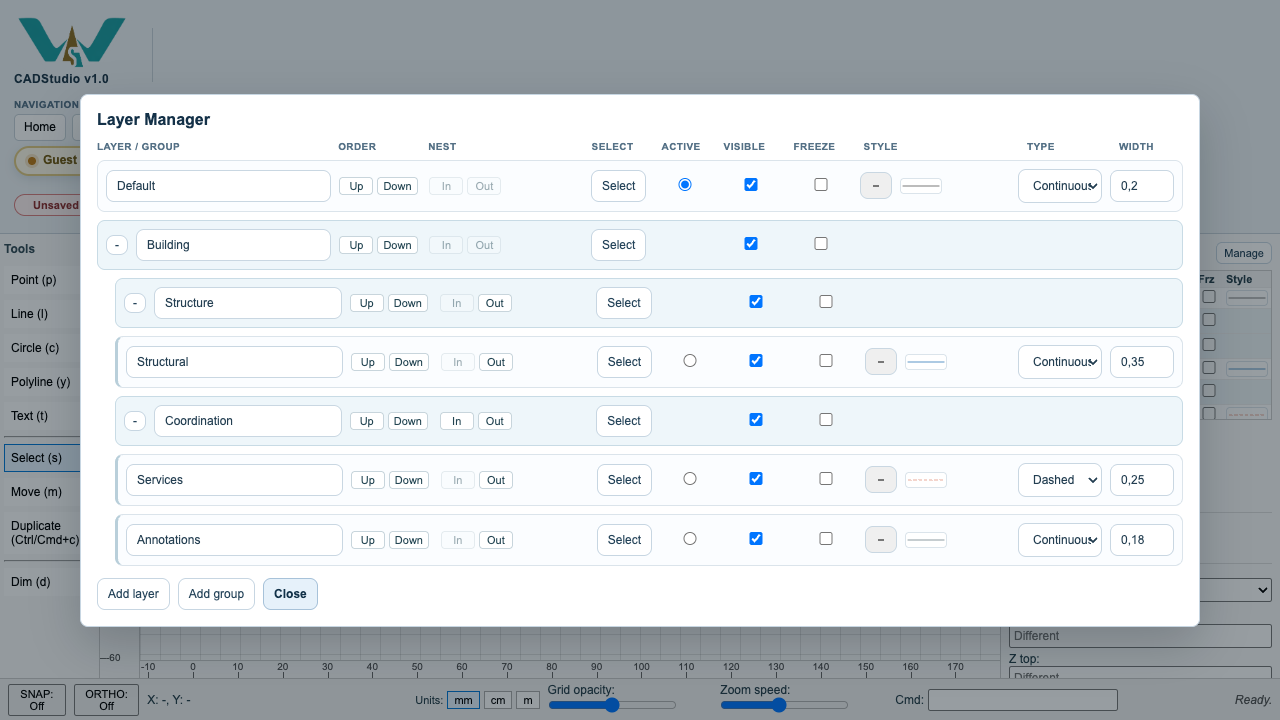
Review nested layer groups
Groups can contain other groups, and layers can be indented under those groups. This gives the Layers panel a folder-like structure.
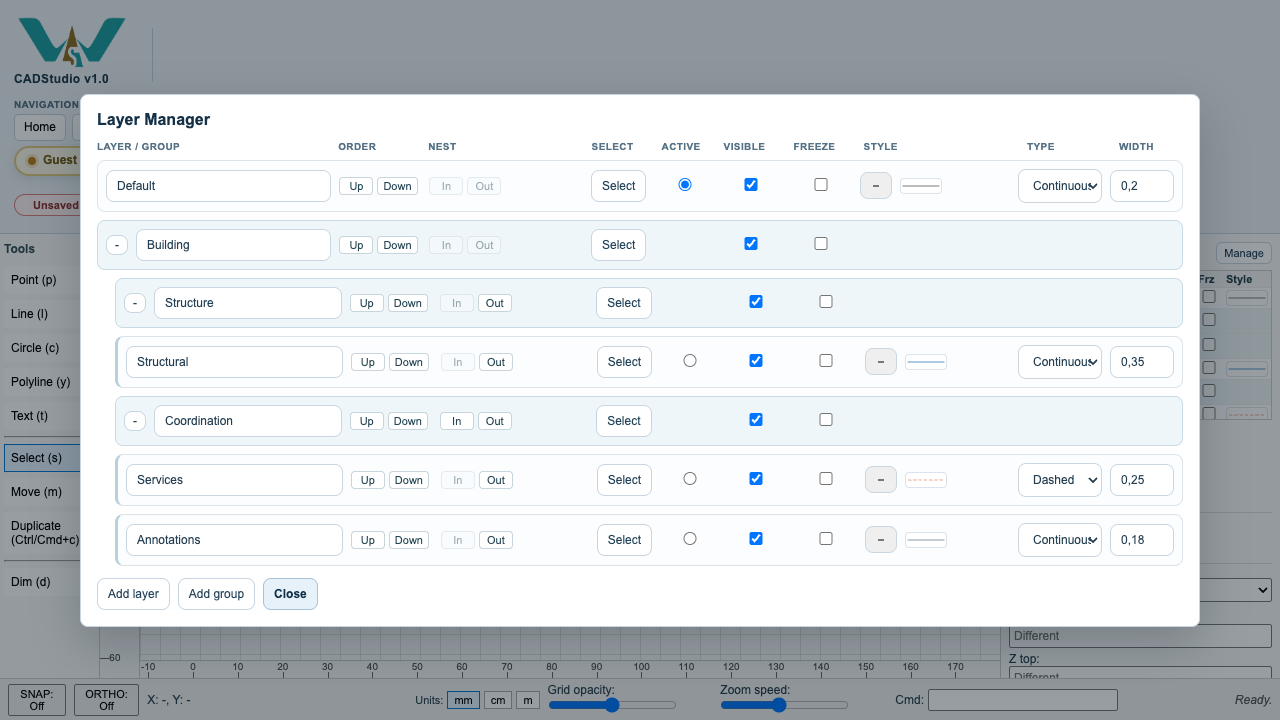
Change layer style
Edit color, line type, or width on a layer. Objects on that layer update to match the layer setting.
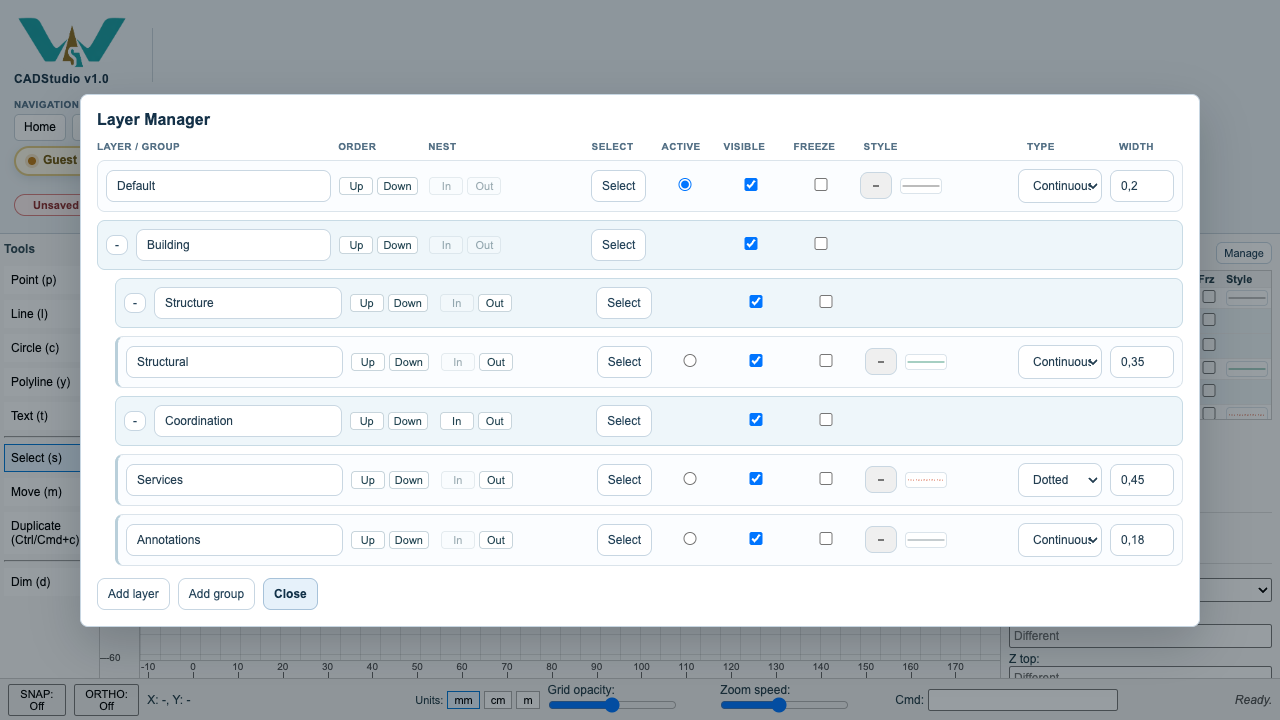
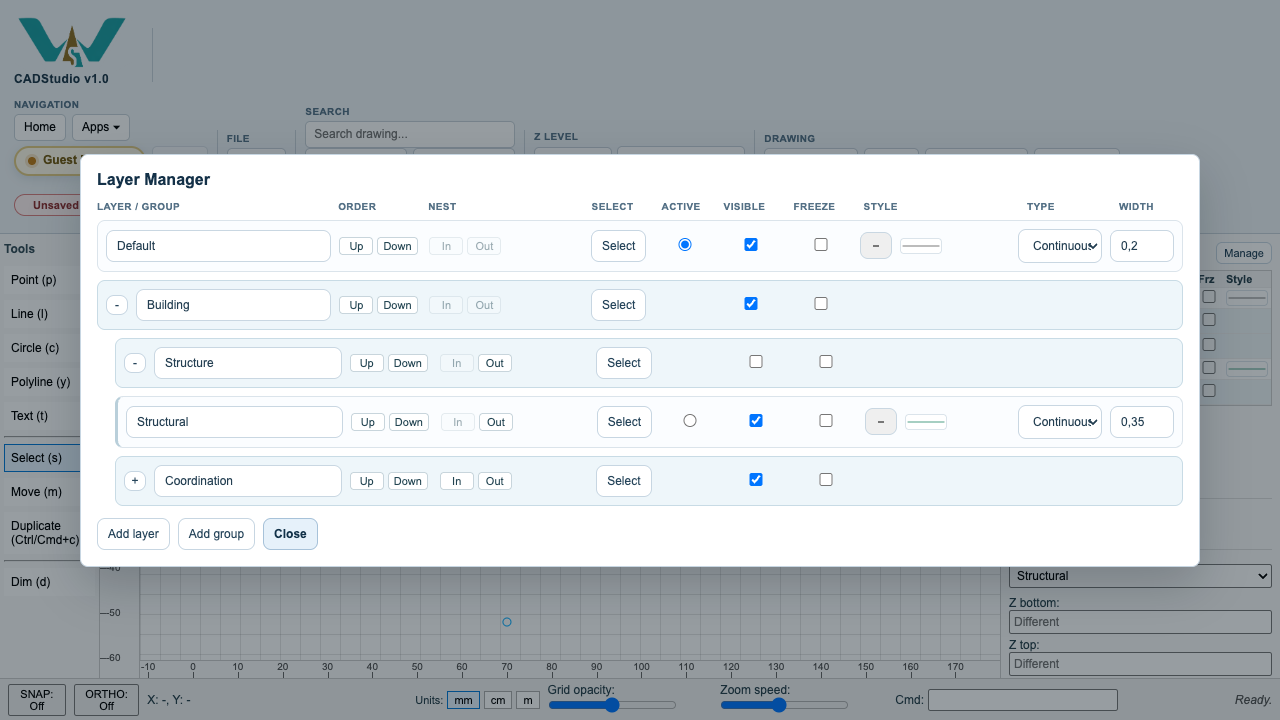
Collapse, hide, or freeze
Collapse only organizes the list. Hide removes the group from view. Freeze keeps it visible but non-interactive.
Select a layer or group
Use Select in Layer Manager to select every object in a layer or group. The Properties panel then shows the multi-selection report.
Enable JavaScript to use reading progress and usefulness ratings.