
WS Timetables on iPhone: a short guide
Keep a school timetable or presentation timeline with you.
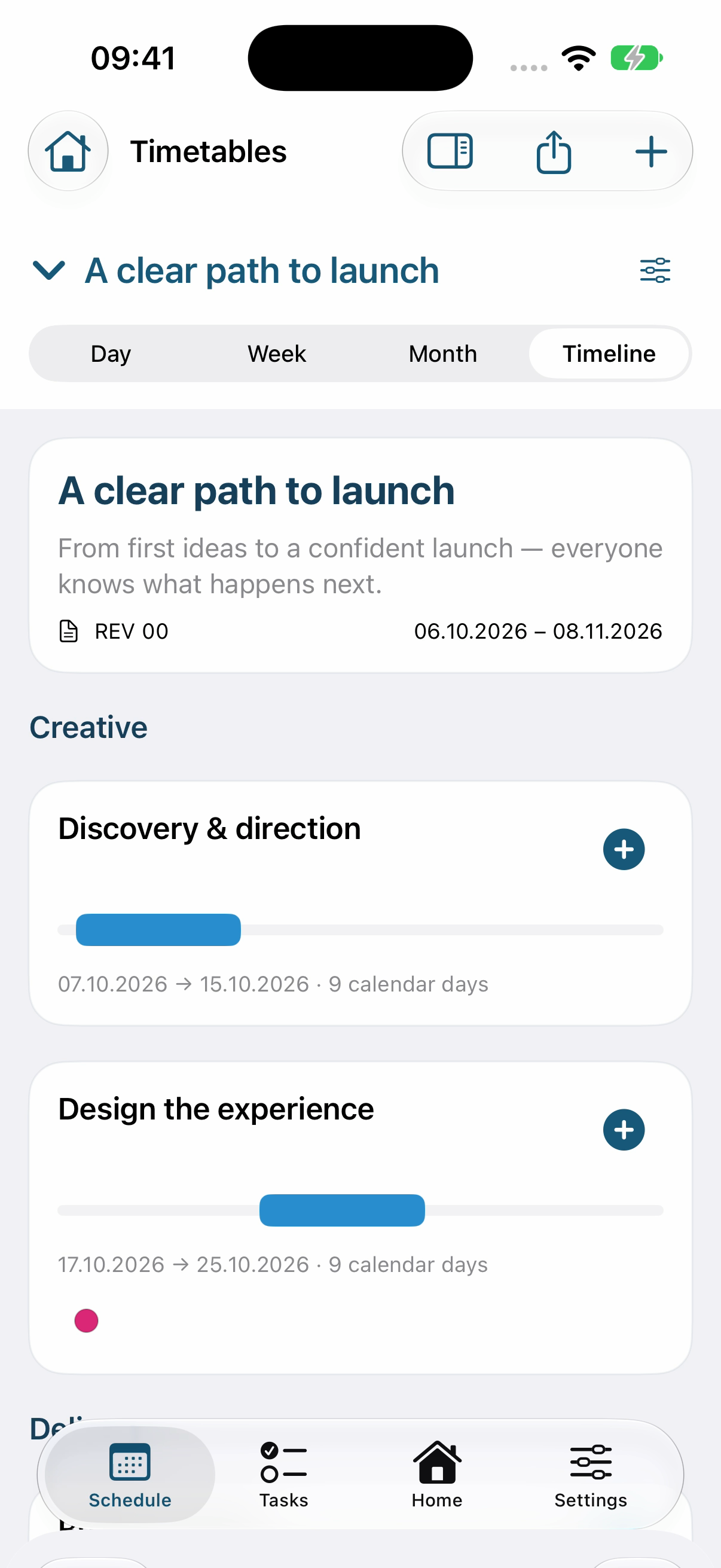
Start with the right kind of timetable
A school timetable organizes classes by day and period. A presentation timeline organizes phases and attached milestones. Choose the kind that fits your work before adding detail.
Three useful things to try
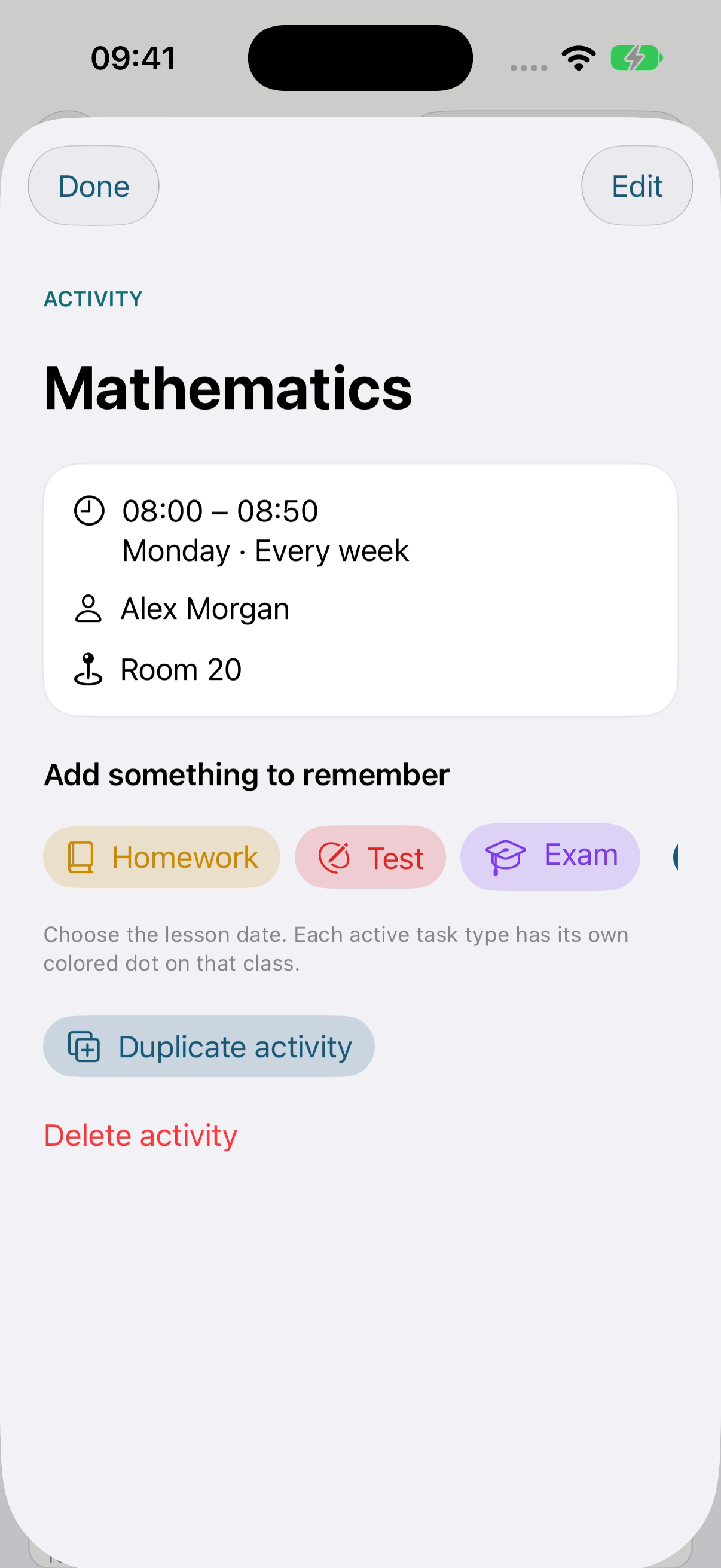
- Open a class and keep its homework with the lesson.
- Open a phase and inspect its attached review or milestone.
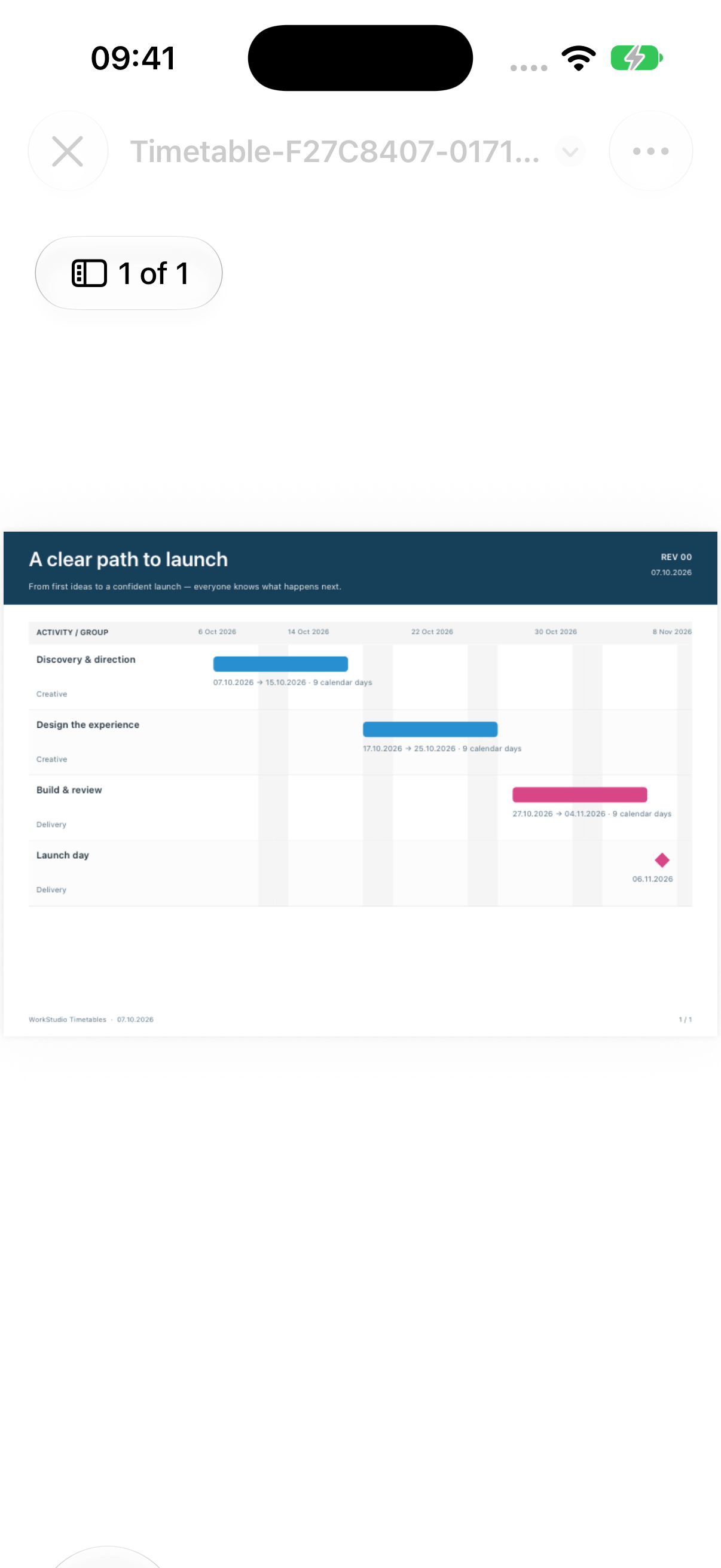
- Export a PDF for reading or printing. An editable .tt file serves a different purpose: continuing work on the timetable.
Local and connected work
The app can work with local timetables. When connecting to an online Catalog, check which collection you selected and whether your changes have synchronized before switching devices. Signing in alone does not mean every local timetable is shared.
Watch or follow the pictures
Use the school tutorial, the timeline tutorial and the export tutorial. Each contains a slower Help film, screenshots for its steps and a separate App Store preview download.
The examples show the real app with fictional local data. They do not demonstrate live synchronization.
Keep a class and its homework together
Actual app screen with fictional example data. Any resemblance to real people or events is coincidental. Tap Homework below the class details.
Inspect the exported PDF in the iPhone preview
Actual app screen with fictional example data. Any resemblance to real people or events is coincidental. This is a fictional generated PDF. Its contents demonstrate export functionality, not actual project data.
Enable JavaScript to use reading progress and usefulness ratings.