
Set Up 2-Step Authentication
Enable an authenticator app in My Account and save the recovery codes you will need if you lose the device later.
Use this tutorial when you want to secure your WorkStudio account with an authenticator app.
The walkthrough follows the normal My Account flow and ends with the recovery codes you must save after activation.
The QR code, manual setup key, and recovery codes are intentionally redacted in the Help images.
Related: 2-Step Authentication in WorkStudio, WorkStudio Account Types.
Use this account security setup for the login you use to access authorised Records collections. Creating a Person record does not create or secure a login account.
Open My Account
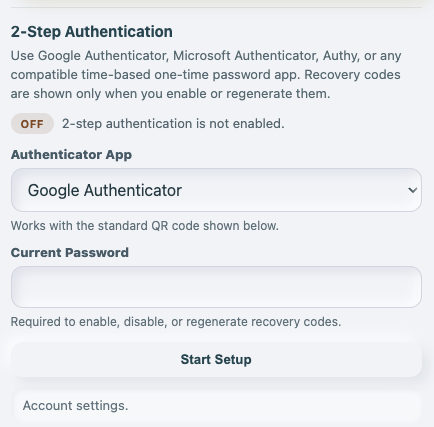
Open My Account and go to the 2-Step Authentication section. When it is not enabled yet, the status shows Off and the setup controls stay available.
Choose the authenticator app label
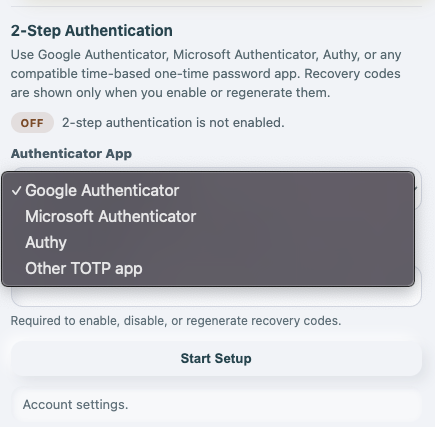
Open the Authenticator App list and choose the label you want to keep on the account, such as Google Authenticator, Microsoft Authenticator, Authy, or Other TOTP app.
Enter your password and start setup
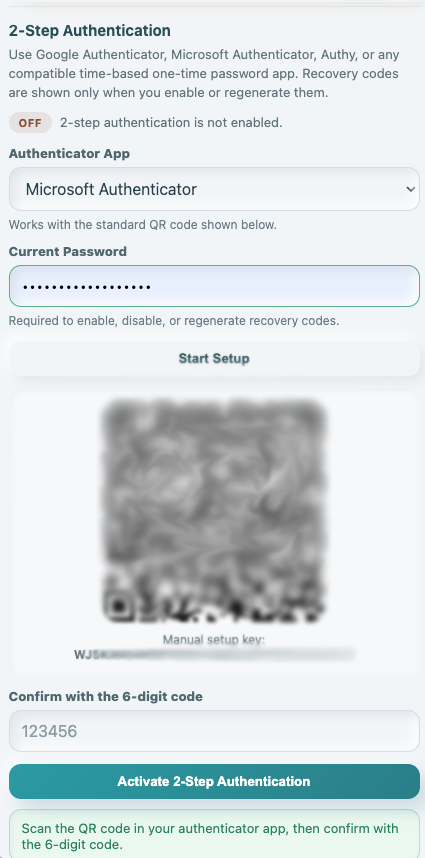
Enter your current password and choose Start Setup. Then scan the QR code in your authenticator app, or use the manual setup key if scanning is not convenient. Finish this step by entering the 6-digit code from the app and activating 2-step authentication.
Save the recovery codes
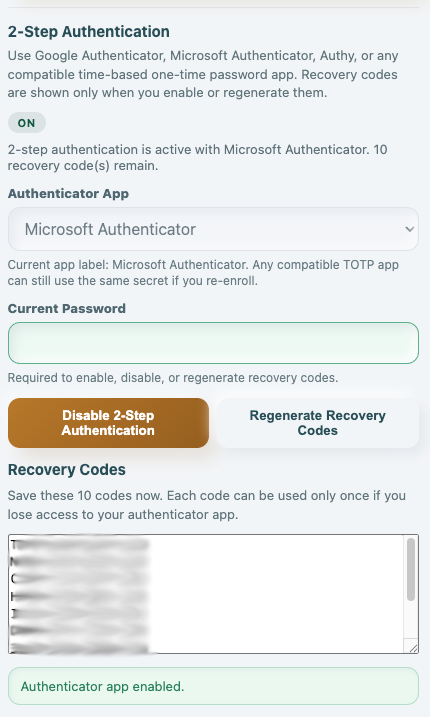
After activation, WorkStudio shows 10 one-time recovery codes. Save them somewhere safe. If you ever use one to sign in, return to My Account and regenerate the recovery-code list.
Enable JavaScript to use reading progress and usefulness ratings.