
Prepare and track a monthly company report
Follow the marked screenshots, or watch the online walkthrough at your own pace.
Where: WorkStudio online → Records. Use a saved example Catalog; our screenshots show Help examples - Planning.
The gold outline marks the control or result to look at. Read the instruction, make the change, then continue. Dates are fictional and will differ from your own.
Prepare and track a monthly company report
Guided screen walkthrough using real online screens and click highlights. Screens are held for reading; this is not a continuous recording. All names, dates and tasks are fictional examples. Any resemblance to real people or events is coincidental.
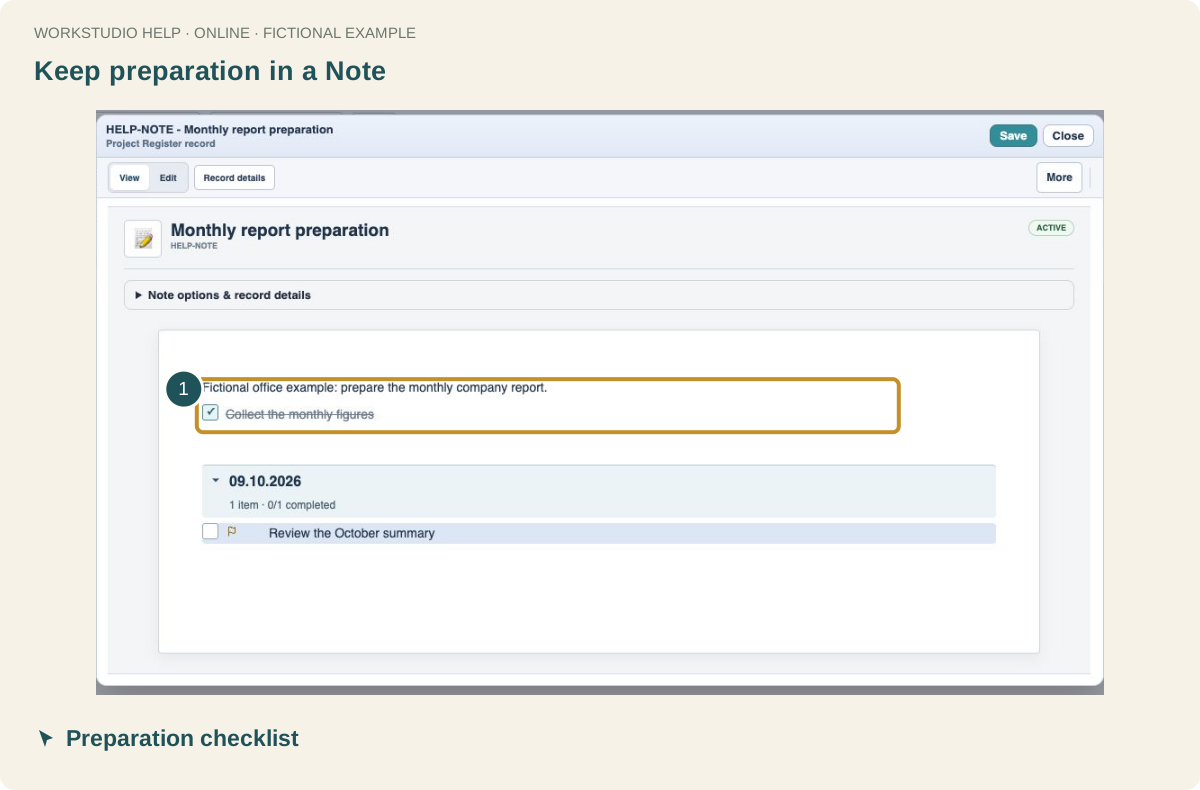
Keep preparation in a Note
Use Monthly report preparation for work such as collecting figures. Check off completed preparation separately from the reporting deadline.
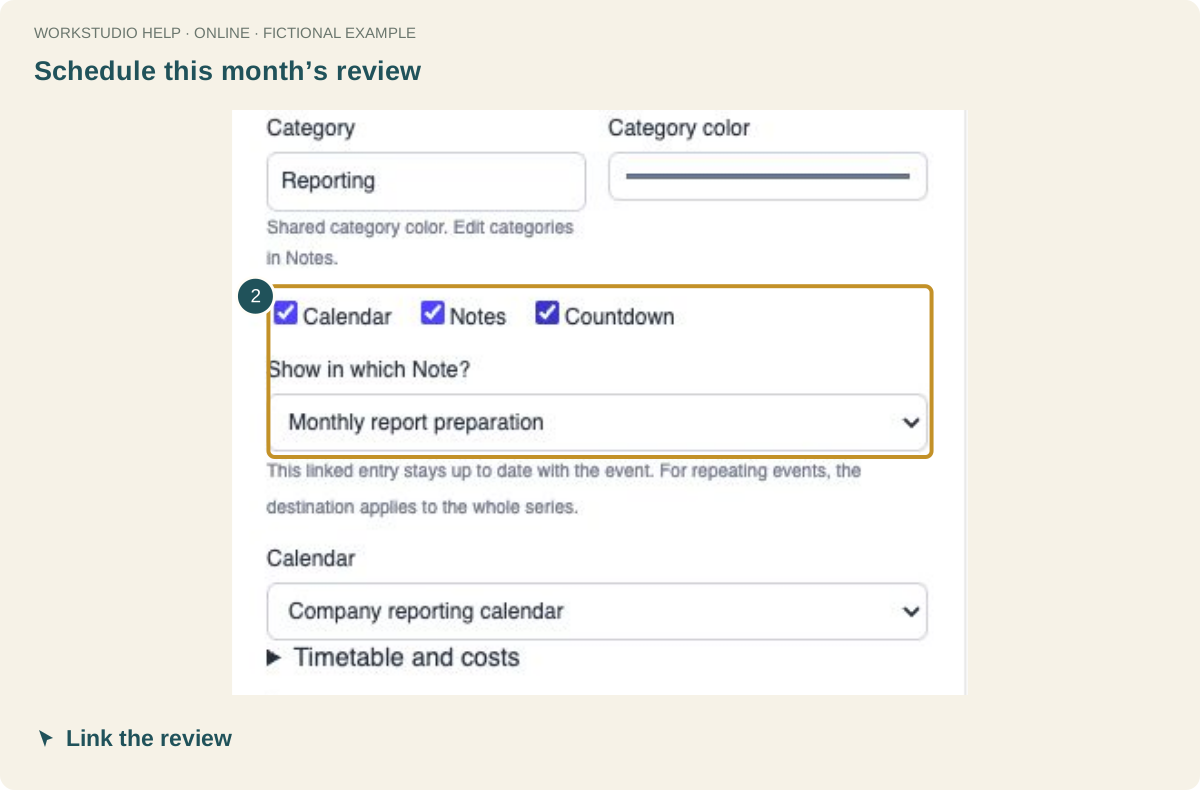
Schedule this month’s review
Create a one-off review event for 9 October. Enable Notes and choose the preparation Note so the dated review stays connected.
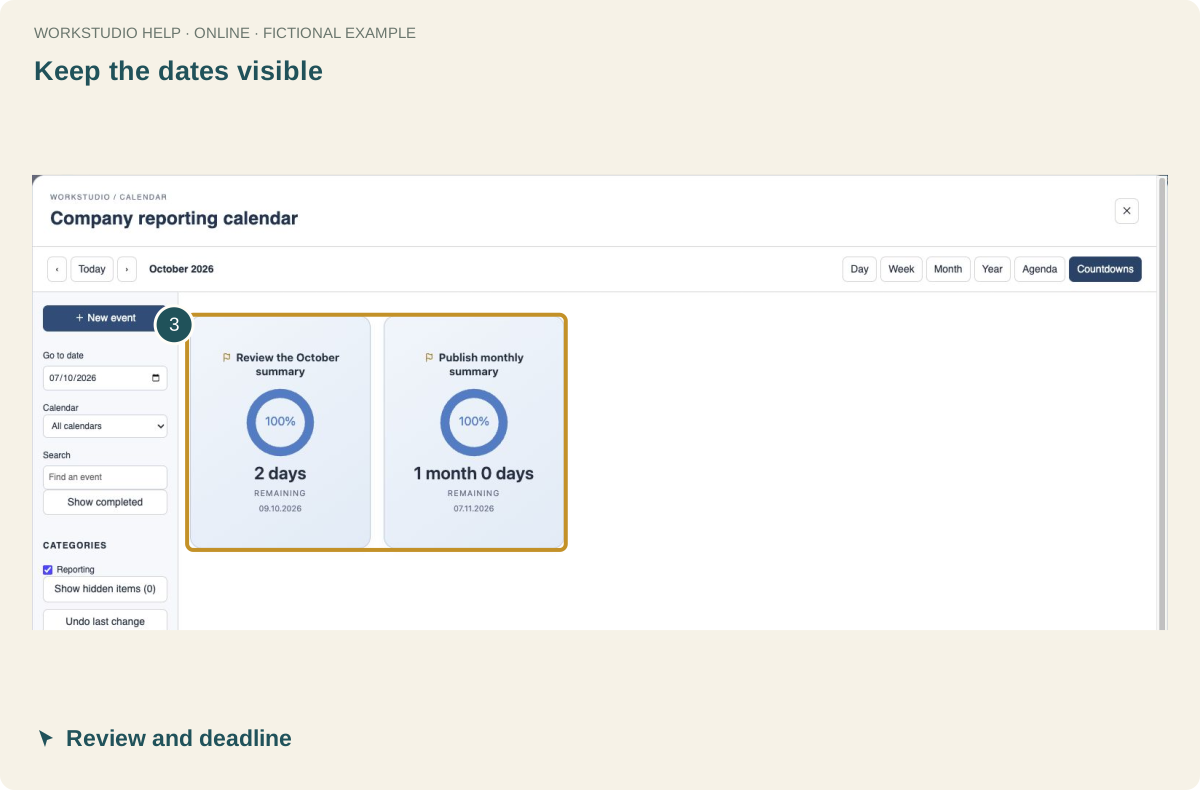
Keep the dates visible
Use Countdown to see the upcoming review and the next monthly reporting deadline. These are two different commitments.
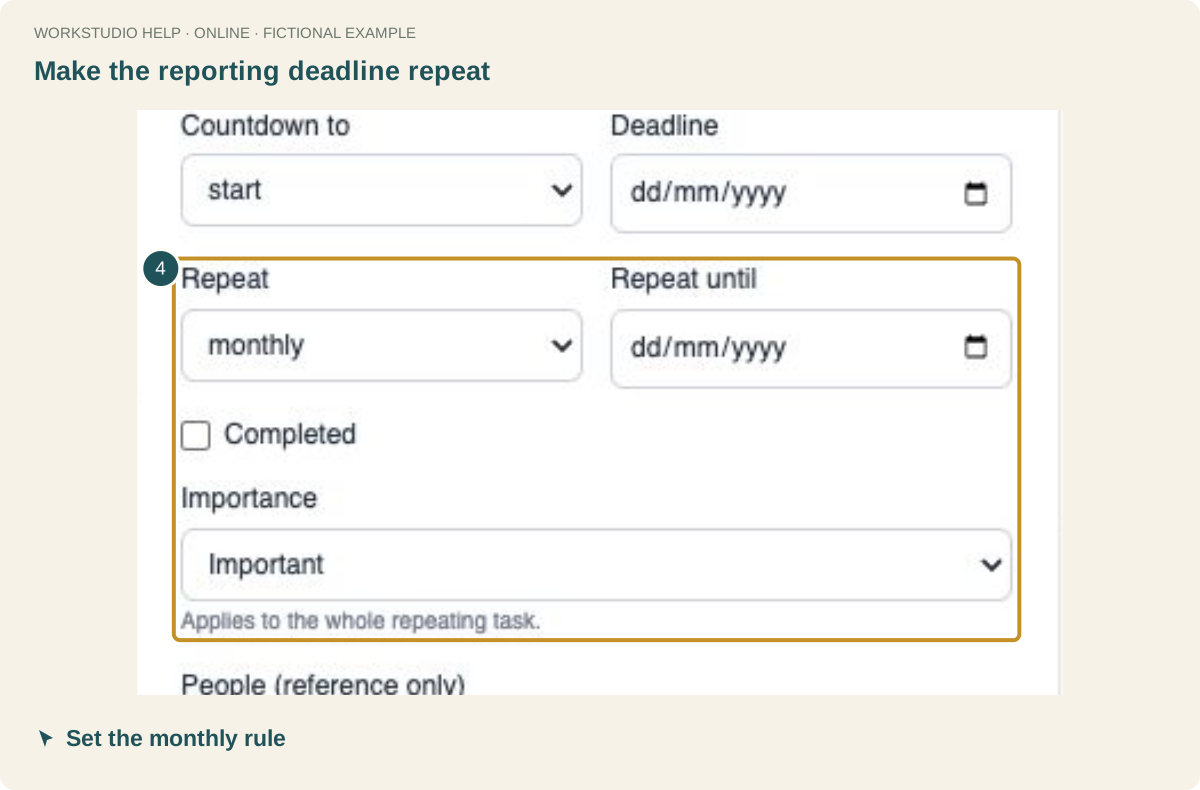
Make the reporting deadline repeat
Create the reporting event with Repeat set to monthly. Give the series a clear name and verify its first date.
Close the finished reporting occurrence
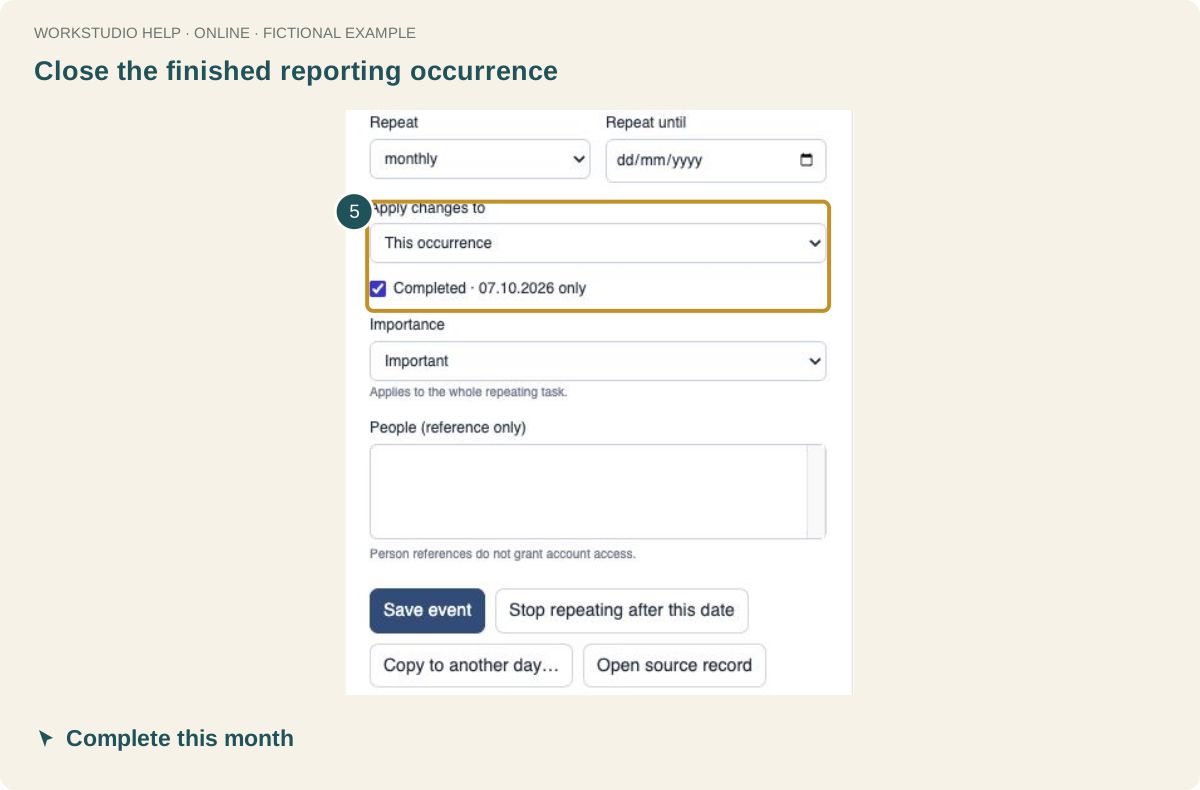
After the report is actually issued, open that month’s occurrence, choose This occurrence and mark its dated Completed box.
Leave next month ready
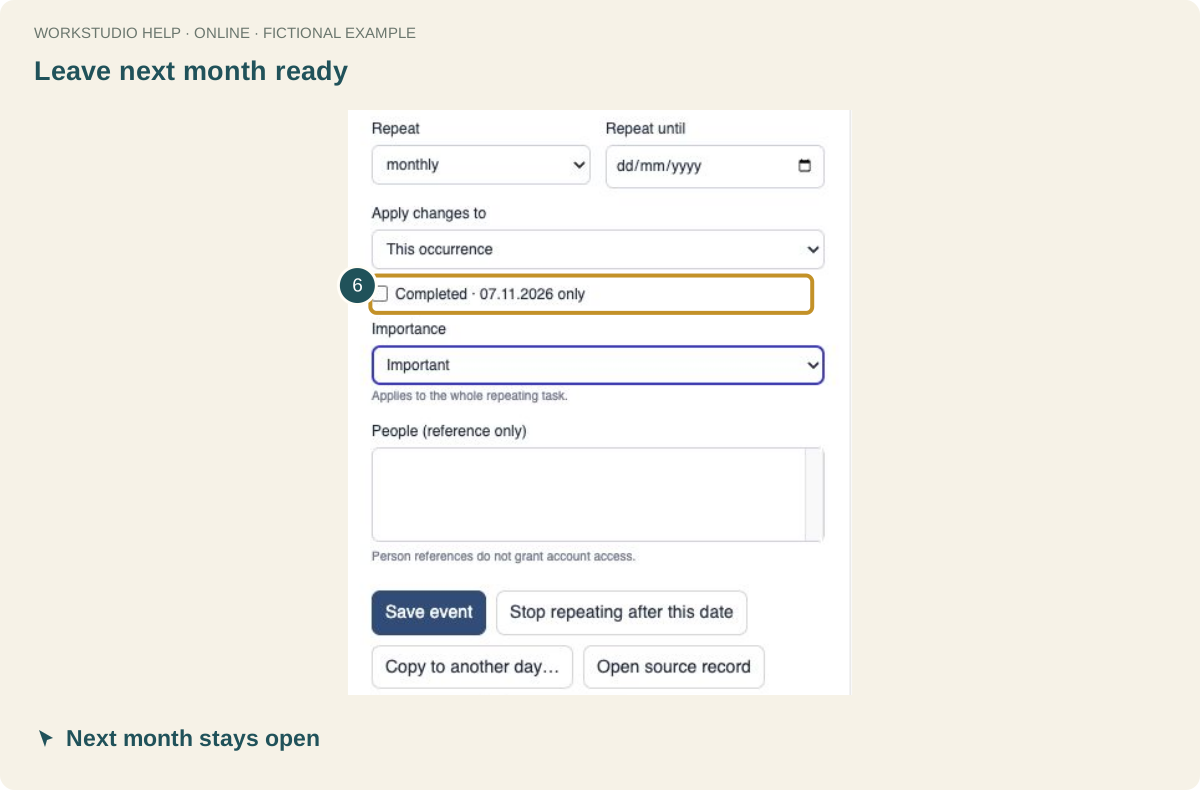
Check that the next occurrence is still open. Preparation checklists and supporting records remain available for the next cycle.
Verify the online save
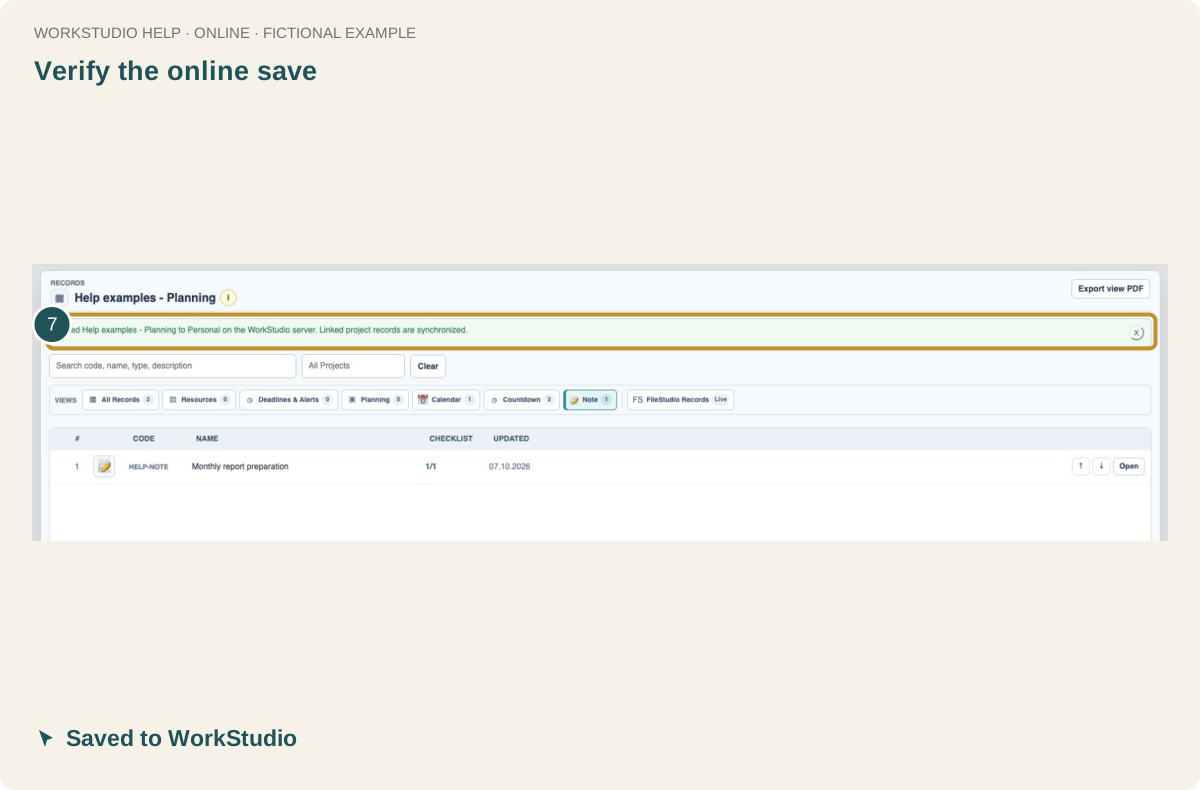
Choose File → Save Catalog and wait for the saved-to-server message. This example was reopened from WorkStudio storage to check persistence.
Enable JavaScript to use reading progress and usefulness ratings.