
Tag a Shared Family Photograph
Describe one photograph and connect the people pictured without duplicating the stored image.
Use the generated garden photograph in the sample or a photograph you are authorized to use. The owner in the example is Anna Linden.
All people and stories in these screenshots are fictional. Photographs were generated for these examples. The sample collection opens locally; changes to it do not save to your online collection automatically.
Watch Genealogy and Family Archives — Three Films for the family PDF, face tagging and the complete Person workflow.
Find the owning record and file
Open Anna’s Documents or Images & Media and select the garden photograph. For a new file, attach it to the intended owner first.
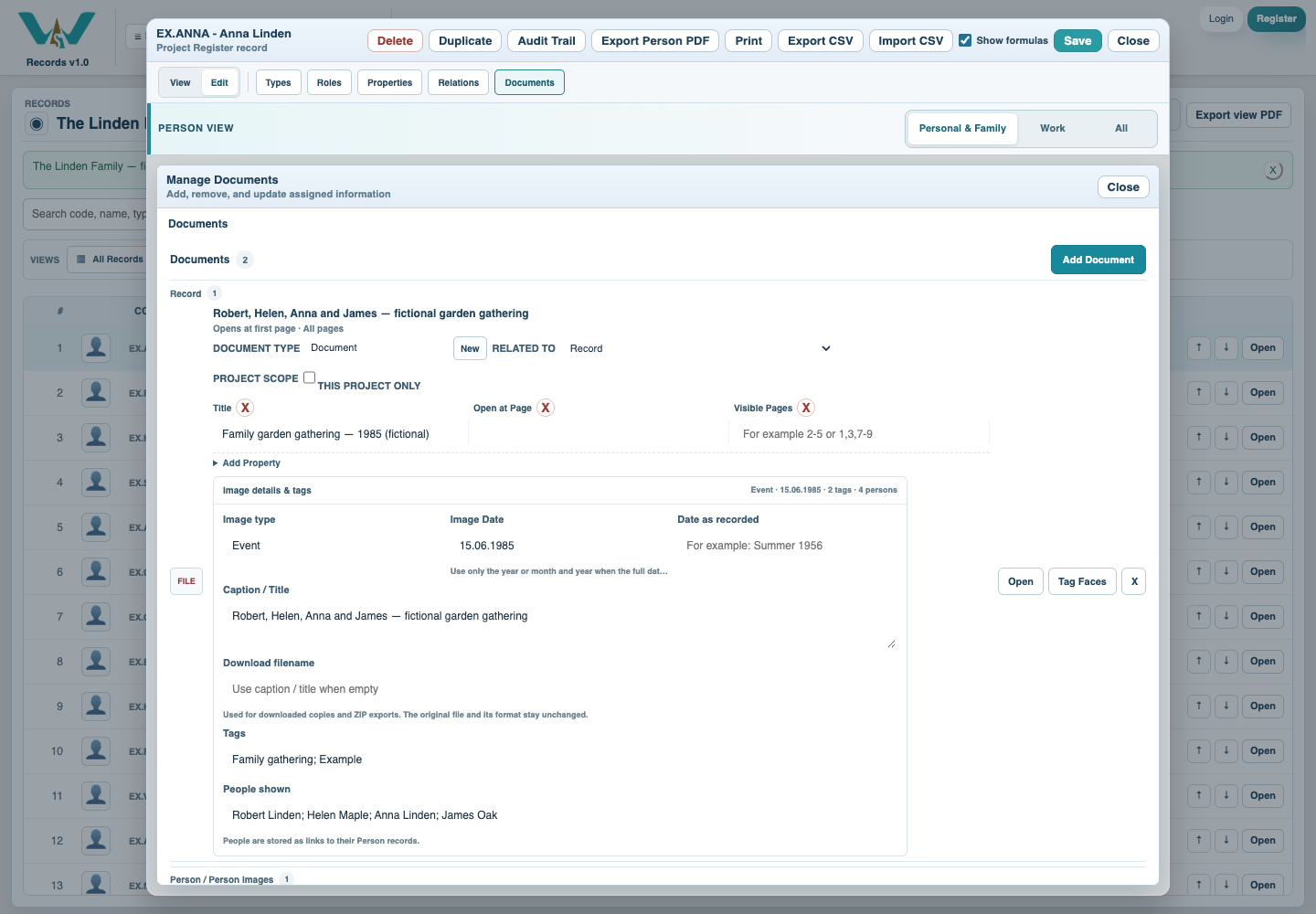
Inspect the full image
Open the photograph in the image viewer. Confirm that the full image is correct before changing its metadata.
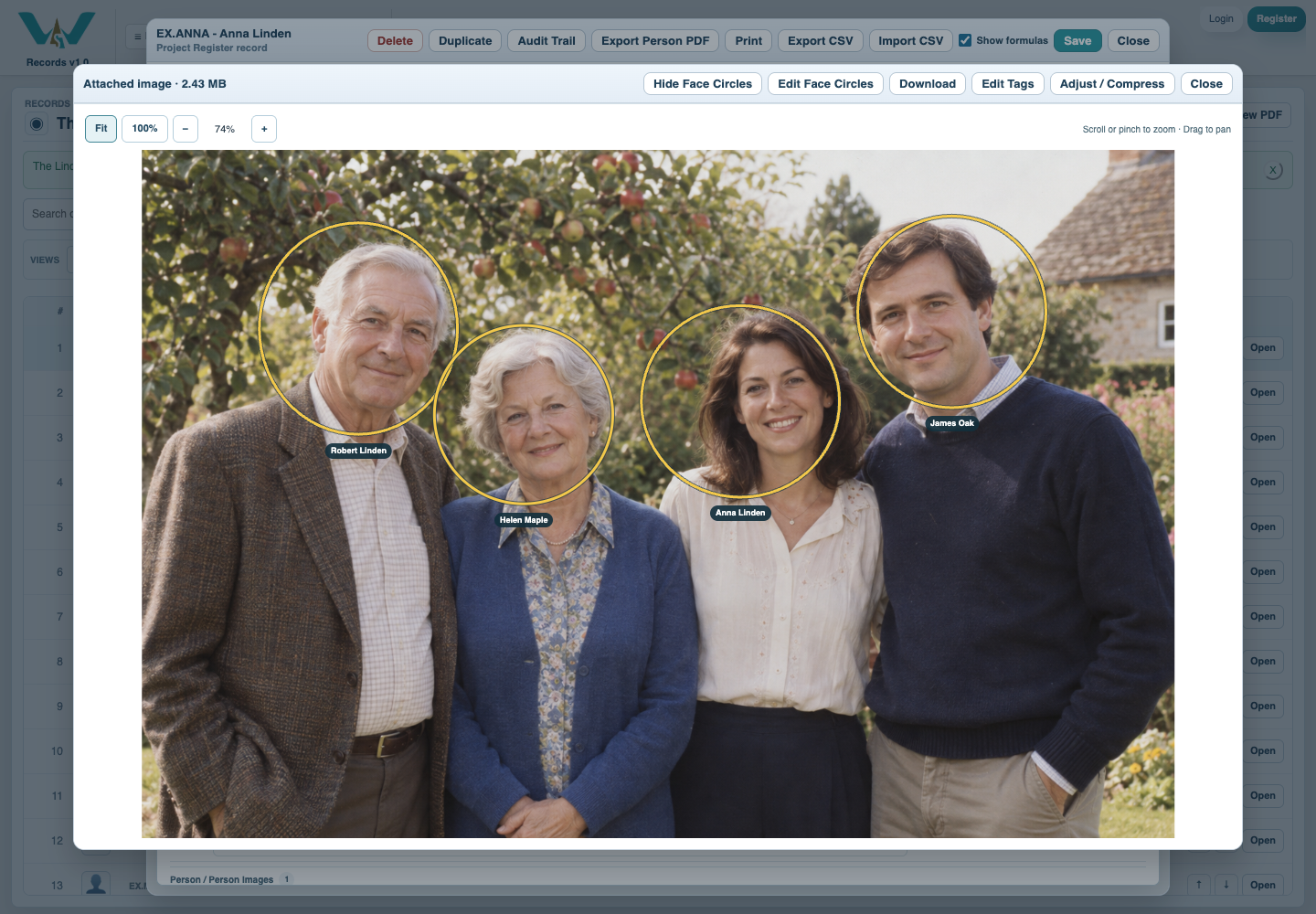
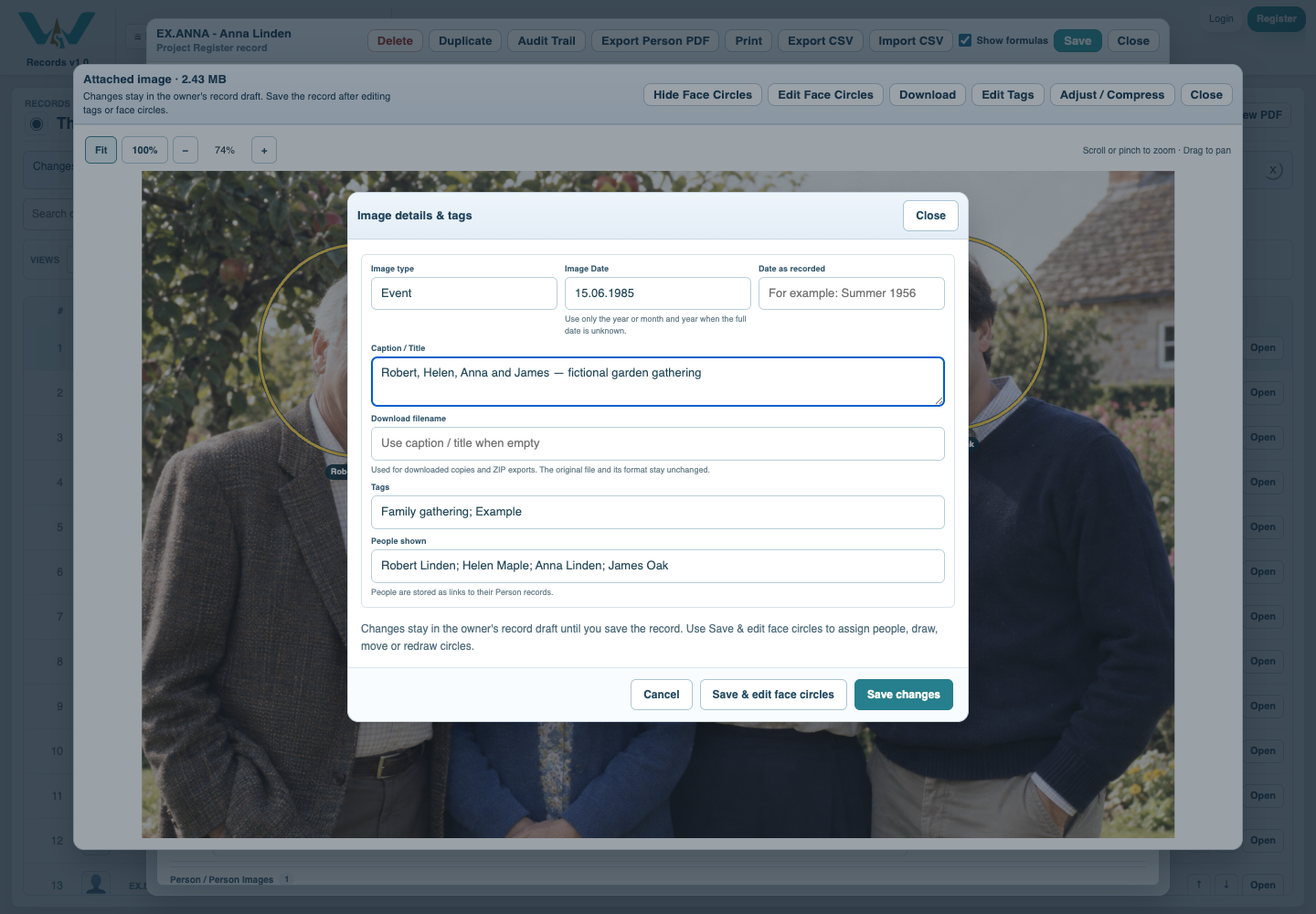
Describe and tag the photograph
Choose Edit Tags. Enter a useful caption, date and type, and link Robert, Helen, Anna and James as people pictured. Use a persistent Download filename if helpful.
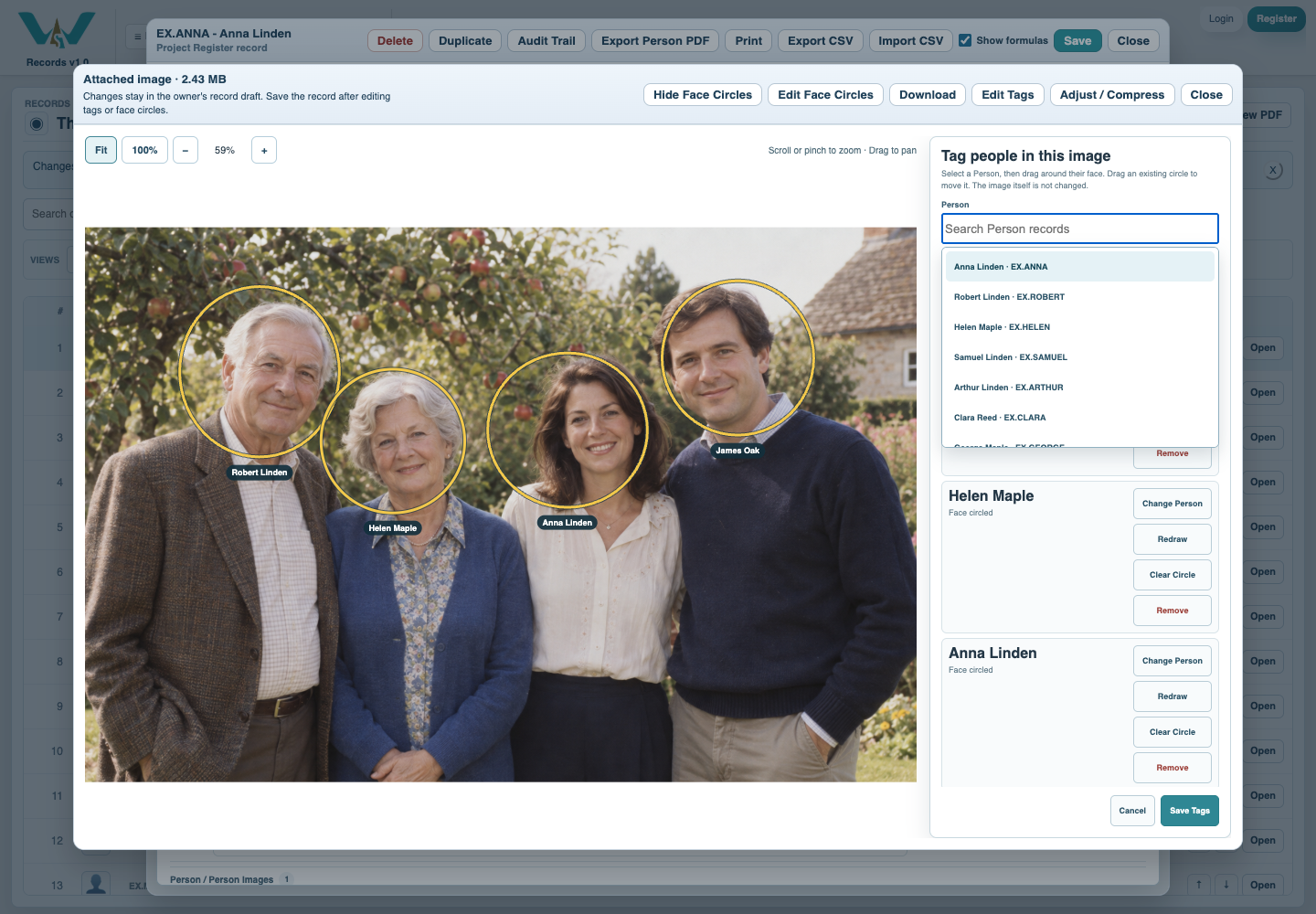
Place the face circles
Use Tag Faces or Edit Face Circles. Select a Person and draw or adjust their face region. Check that each circle belongs to the right Person; no identity or relationship is inferred automatically.
Save the owner and collection
Save Tags or Save changes, then save Anna’s record and the collection. If opened through another Person, edit the actual owner. The original file bytes remain unchanged.

Find the shared references
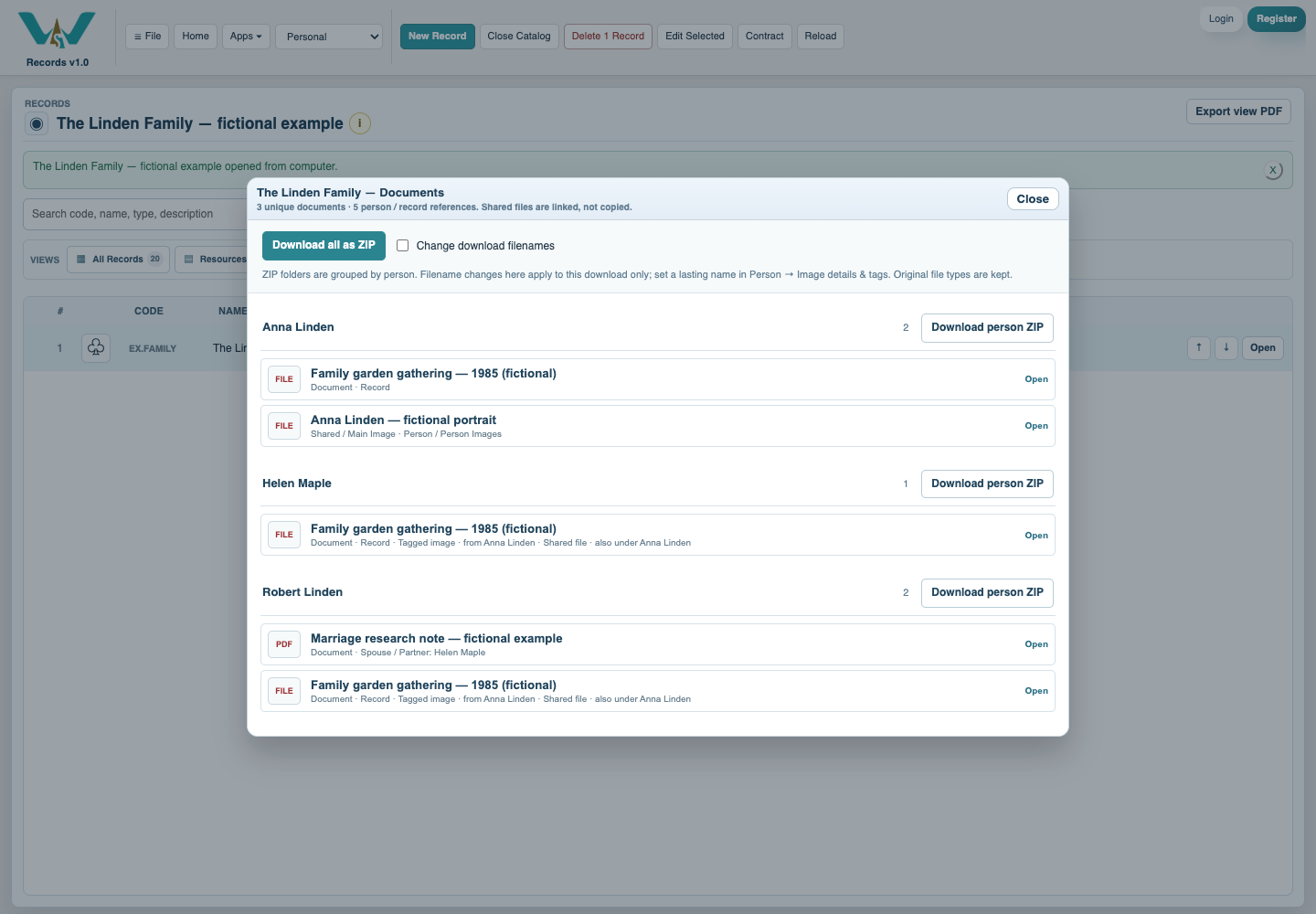
Open the Family Tree’s Documents count. Compare the photograph under eligible people. Several Person references can point to one stored original.
Enable JavaScript to use reading progress and usefulness ratings.