
An annual renewal in Notes, Calendar and Countdowns
Configure a prepared EUR 48 annual renewal, verify its destinations, record its payment and confirm next year stays open. The same cost is already included in Household budget.
These guides use fictional practice data and generic EUR amounts. Costs, tasks & dates is the second learning series; start with Costs & budgets if you are new to cost elements. The screenshots show the October 2026 interface. Adapt example dates and planning periods if practicing later. Recording bills and payments does not transfer money.
Before you start
Download connected-complete.ca below. It contains prelinked records so you can focus on this workflow. Then use File → Open → Computer → Choose .ca file. Work in the separate practice Catalog; save any existing work first.
Code is optional. Use it only if a short reference helps you; you can leave it blank. Number formats can vary with settings.
Online saving requires your usual signed-in account and edit access. Keep computer-only practice by exporting the complete Catalog.
Open the renewal tile
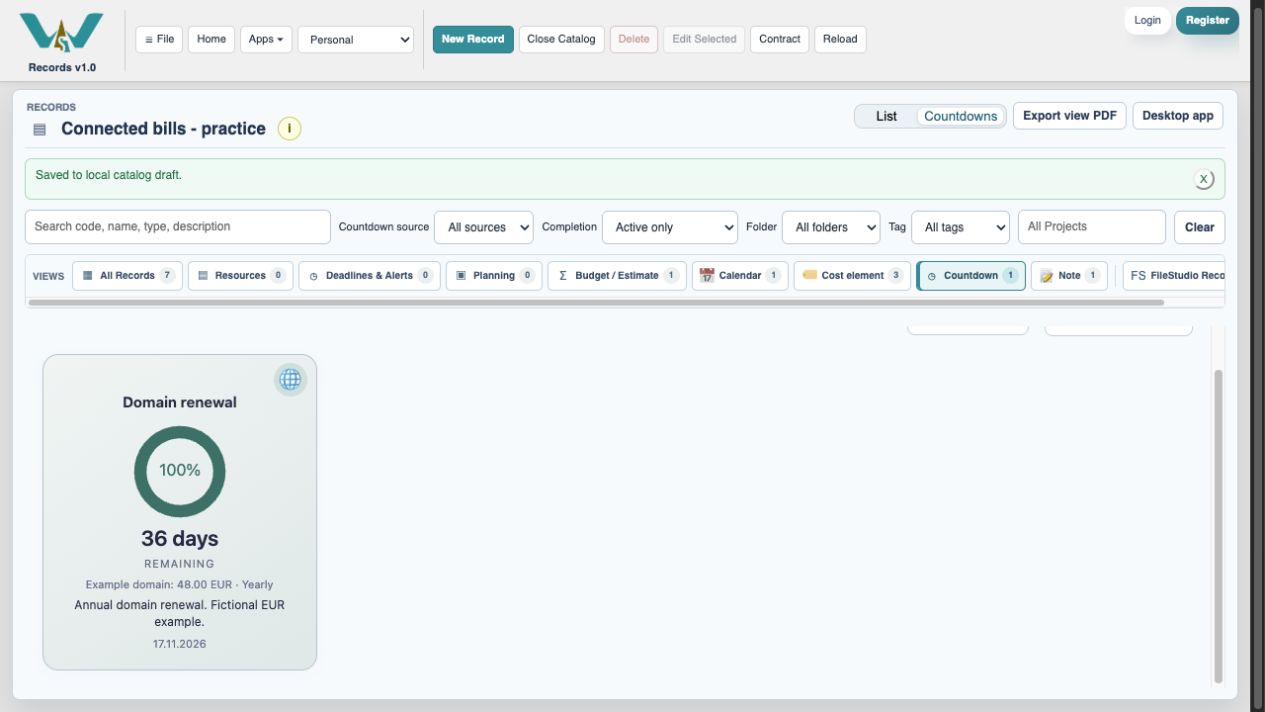
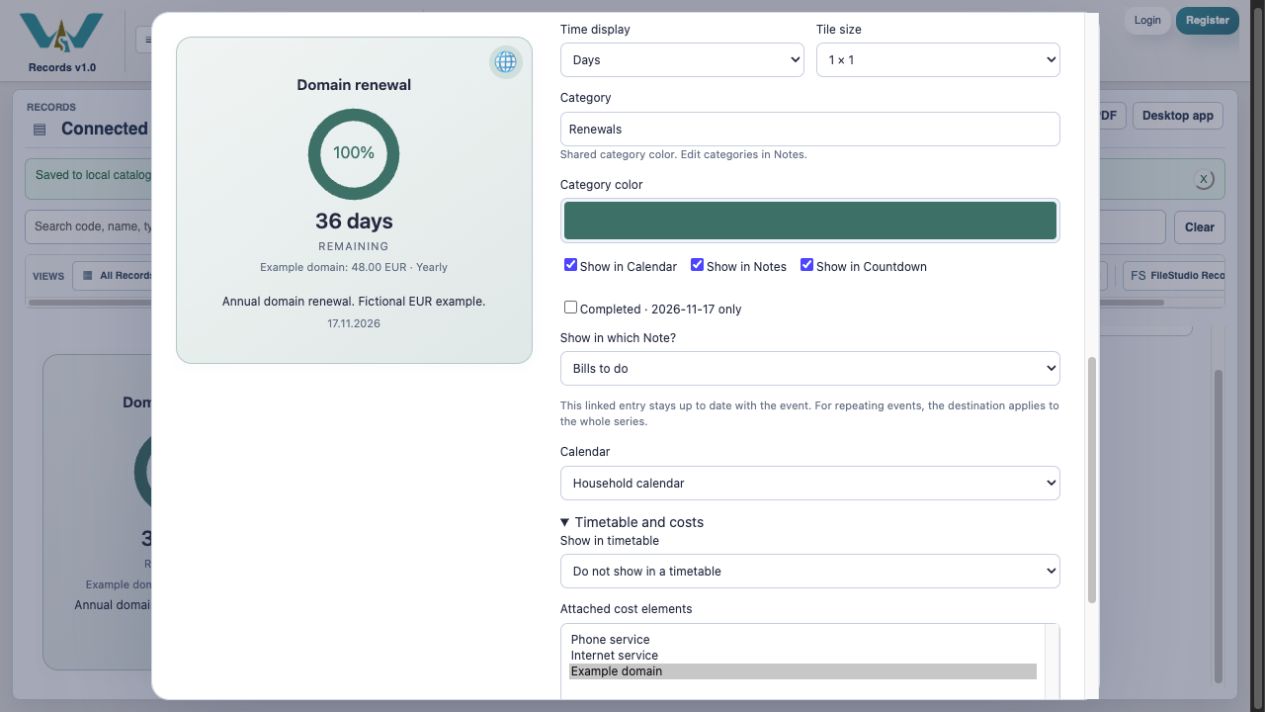
Choose Countdown, then Domain renewal. The tile carries the attached Example domain cost of EUR 48 yearly.
Set the deadline
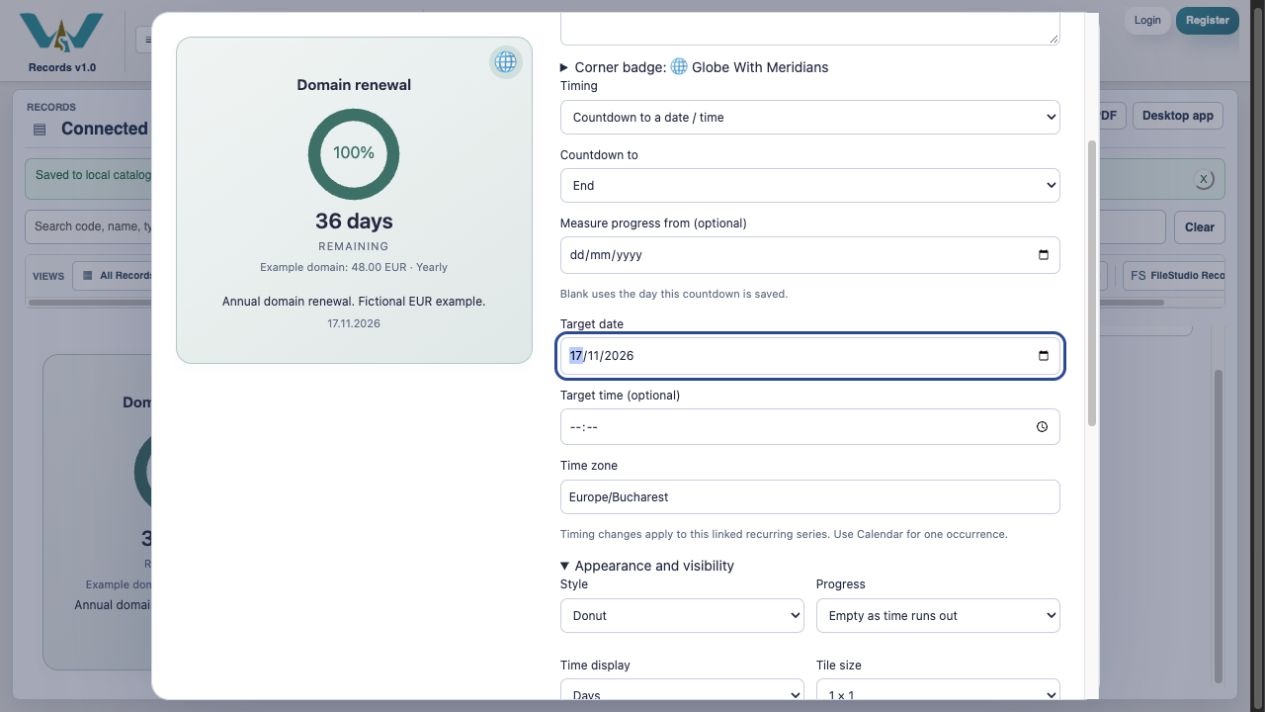
Use Countdown to a date / time, End, and Target date 17.11.2026. Leave Measure progress from blank unless you want a particular progress range.
Choose its Note
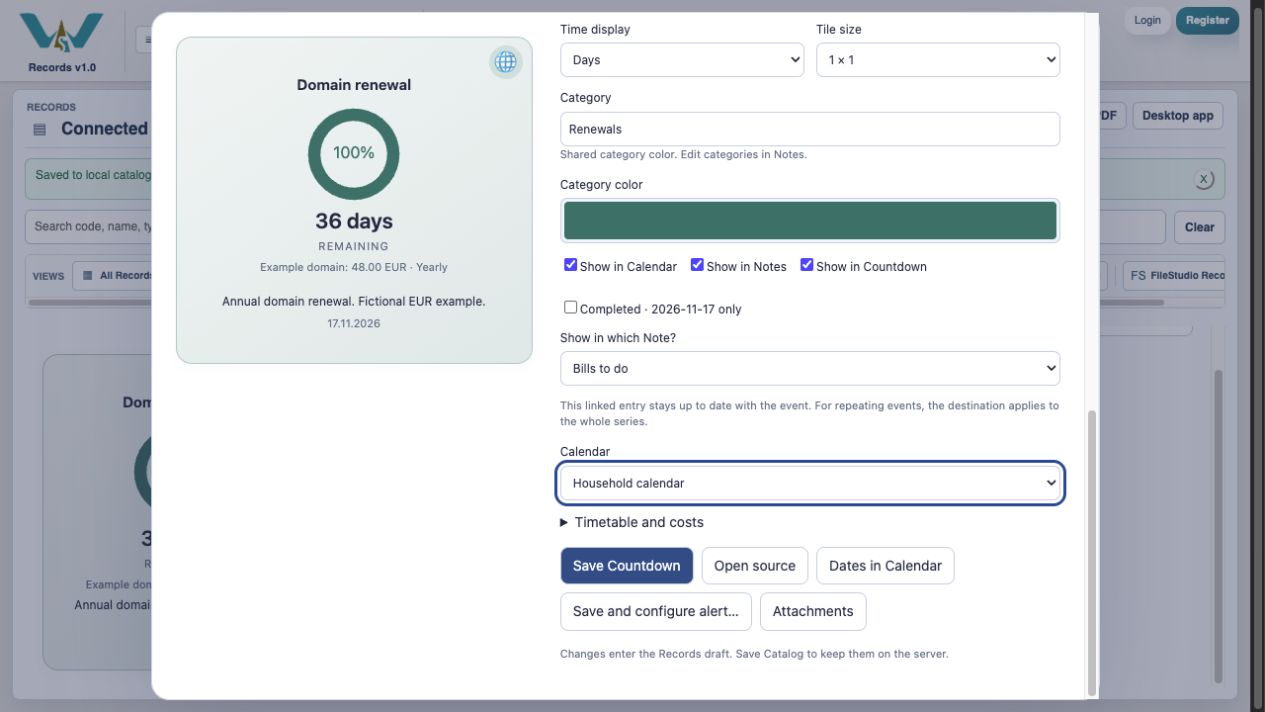
Enable Show in Notes and select Bills to do in Show in which Note?. Create a new Note is available when you need a separate destination.
Choose its Calendar
Enable Show in Calendar and select Household calendar. Keep Show in Countdown enabled. These are views of the linked renewal.
Attach the annual cost
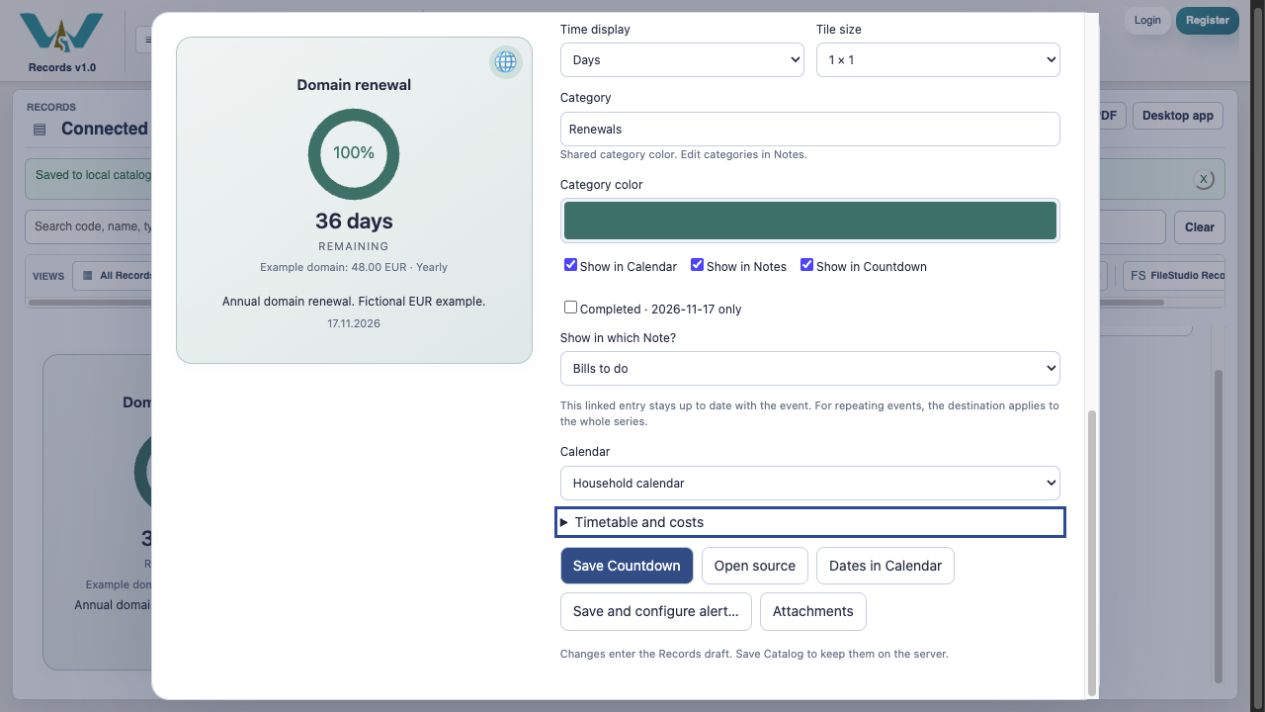
Expand Timetable and costs and select Example domain. Use the existing cost; do not create another EUR 48 cost merely for the countdown.
Save Countdown
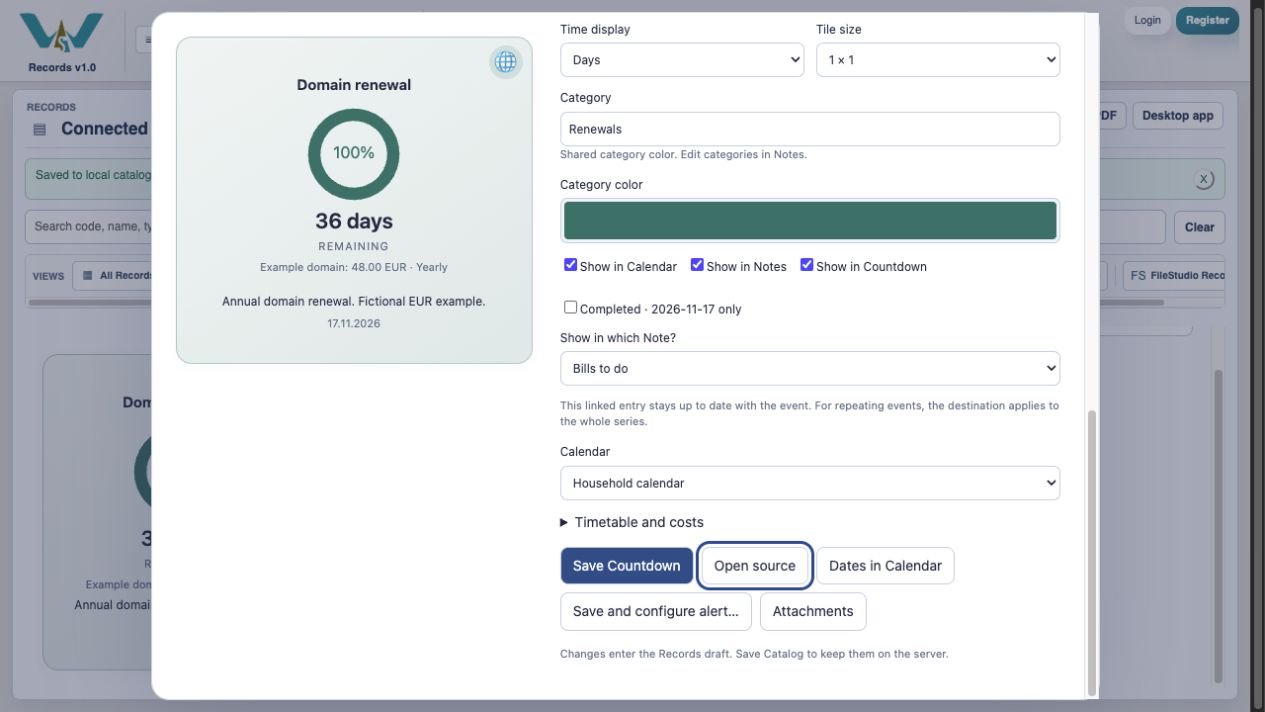
Choose Save Countdown. The changes enter your Catalog draft.
Open the destination Calendar
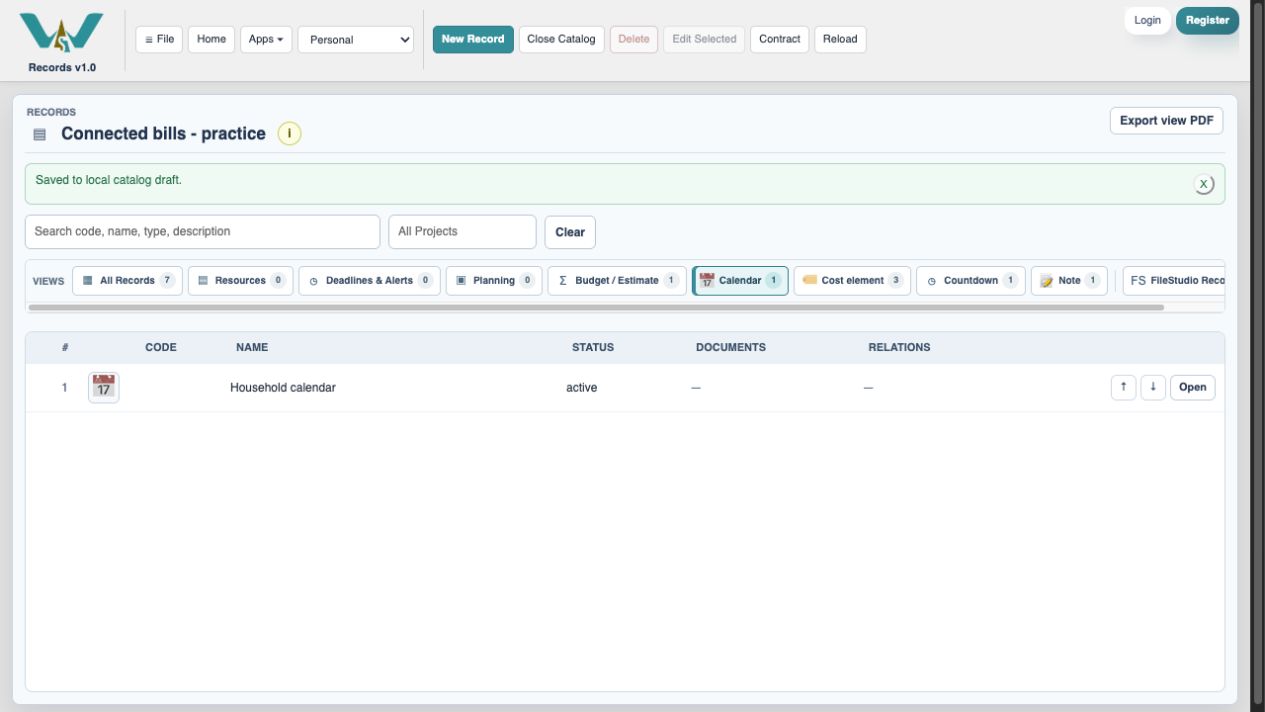
Choose Calendar → Open Household calendar. Set Go to date to 17.11.2026 and choose Household calendar in its filter.
Check the dated event
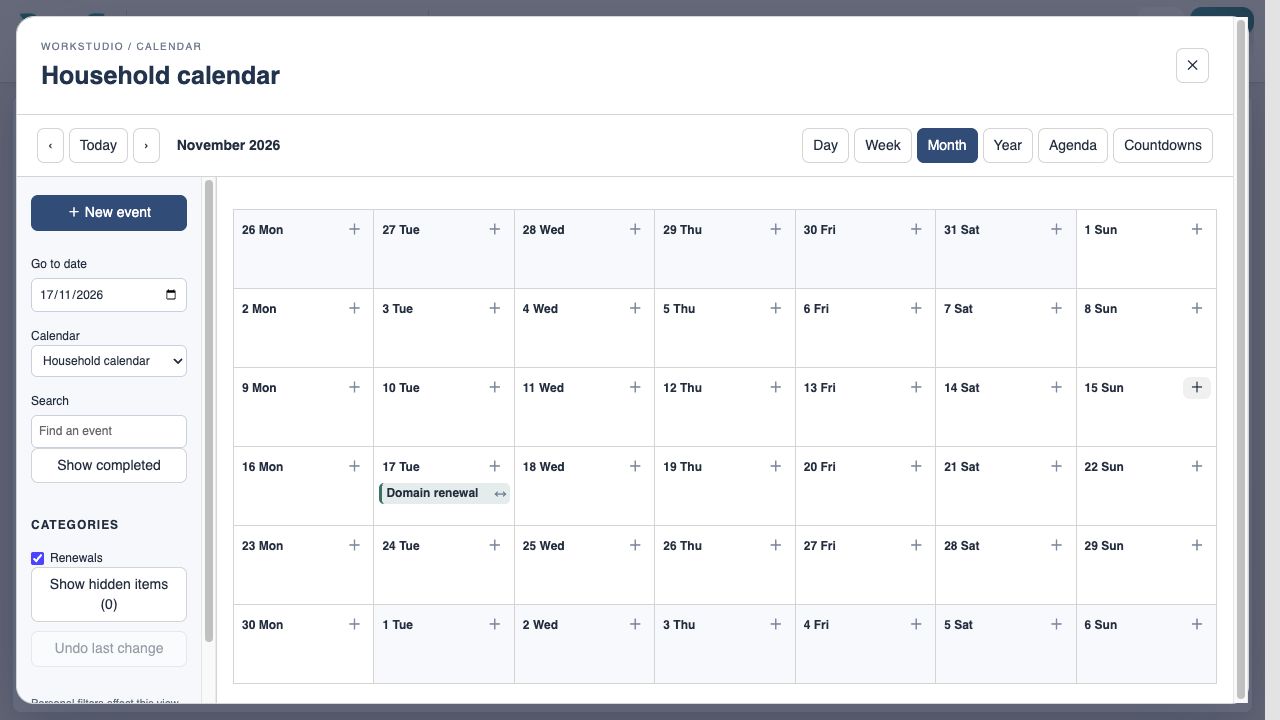
Confirm Domain renewal appears on 17 November. Open it to review its repeat settings.
Choose yearly recurrence
Set Repeat to yearly. The prepared example already uses it; the control shows where to check it.
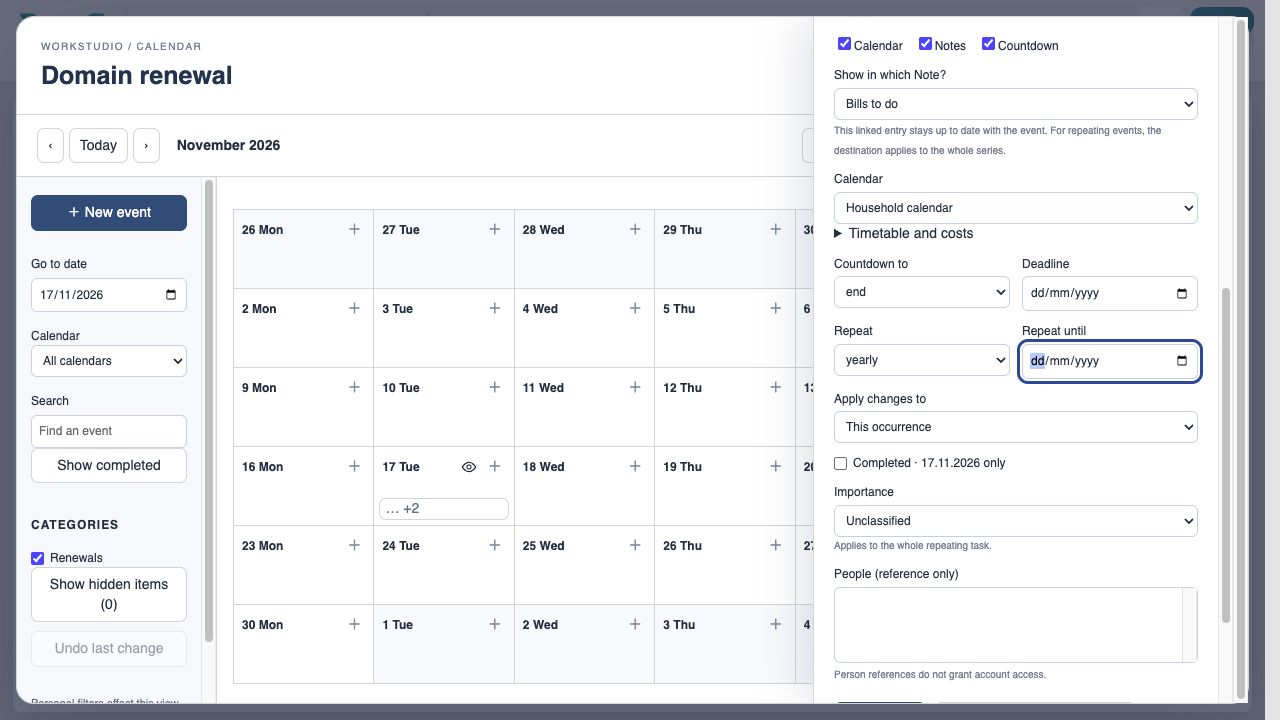
Choose the intended change scope
For a lasting recurrence change select Entire series. Use This occurrence when only one renewal differs.
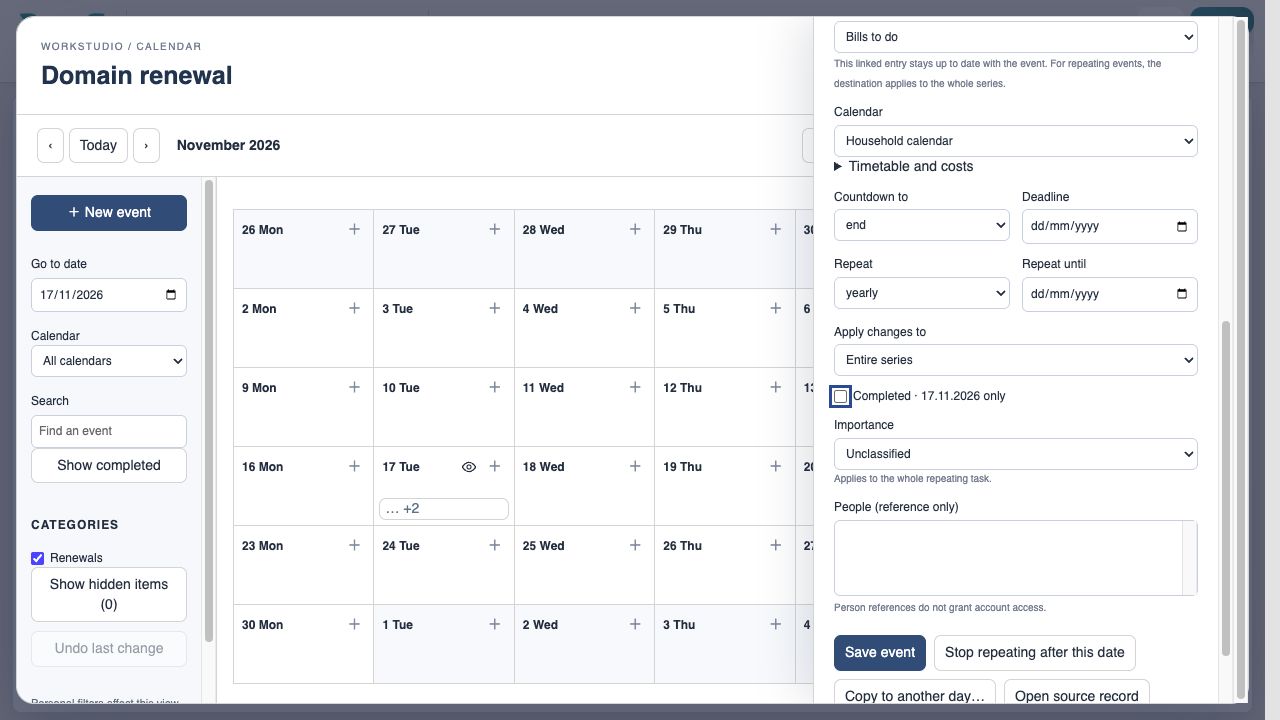
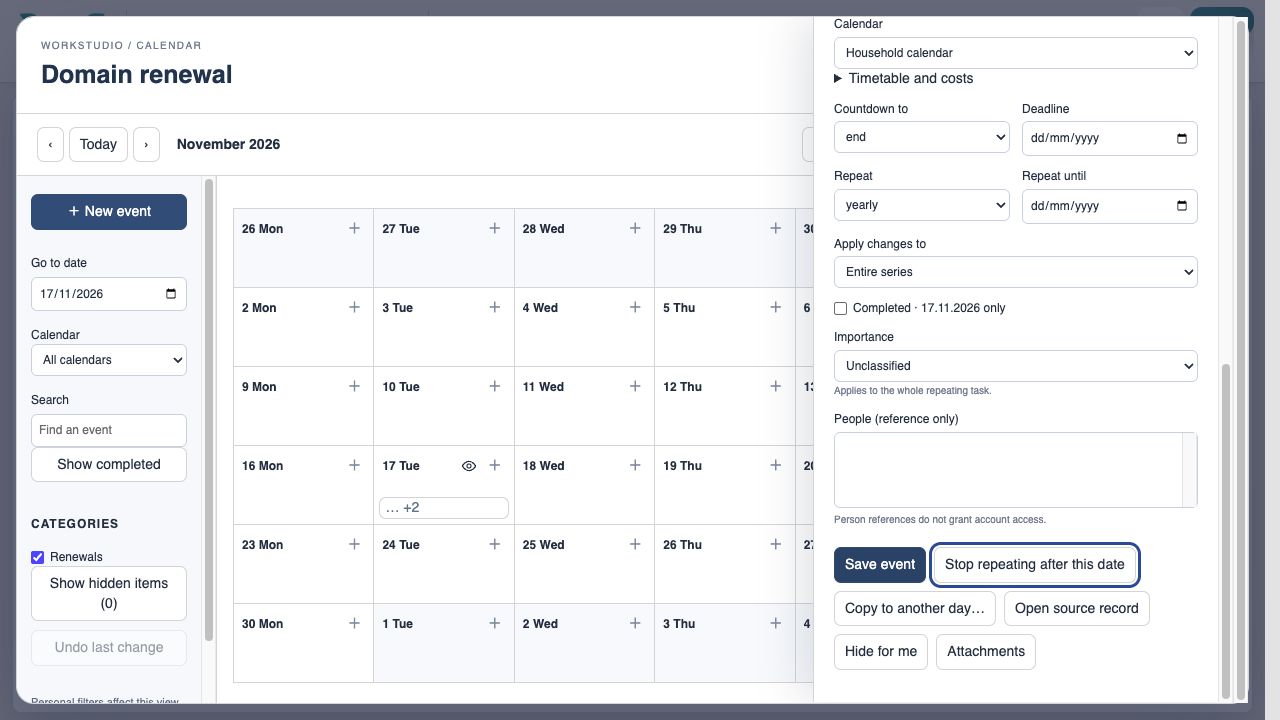
Save the event
Choose Save event and close Calendar. Save Catalog when working online.
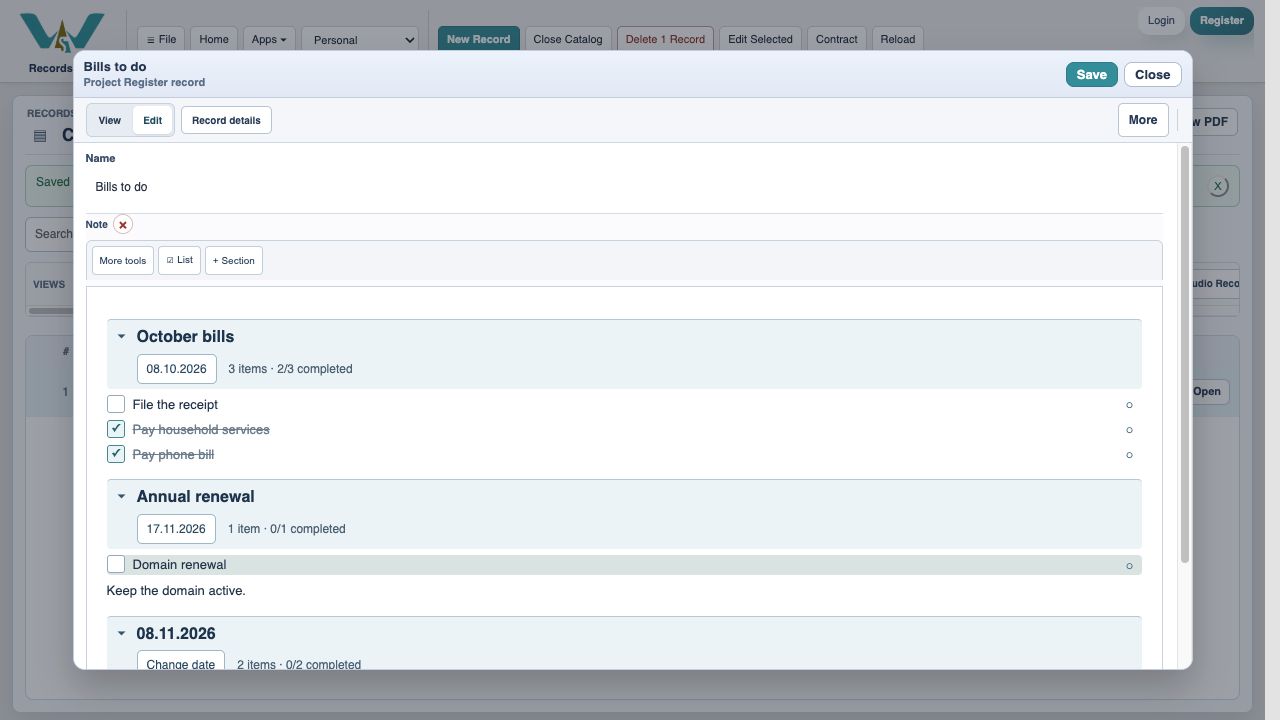
Review the Note’s payment choice
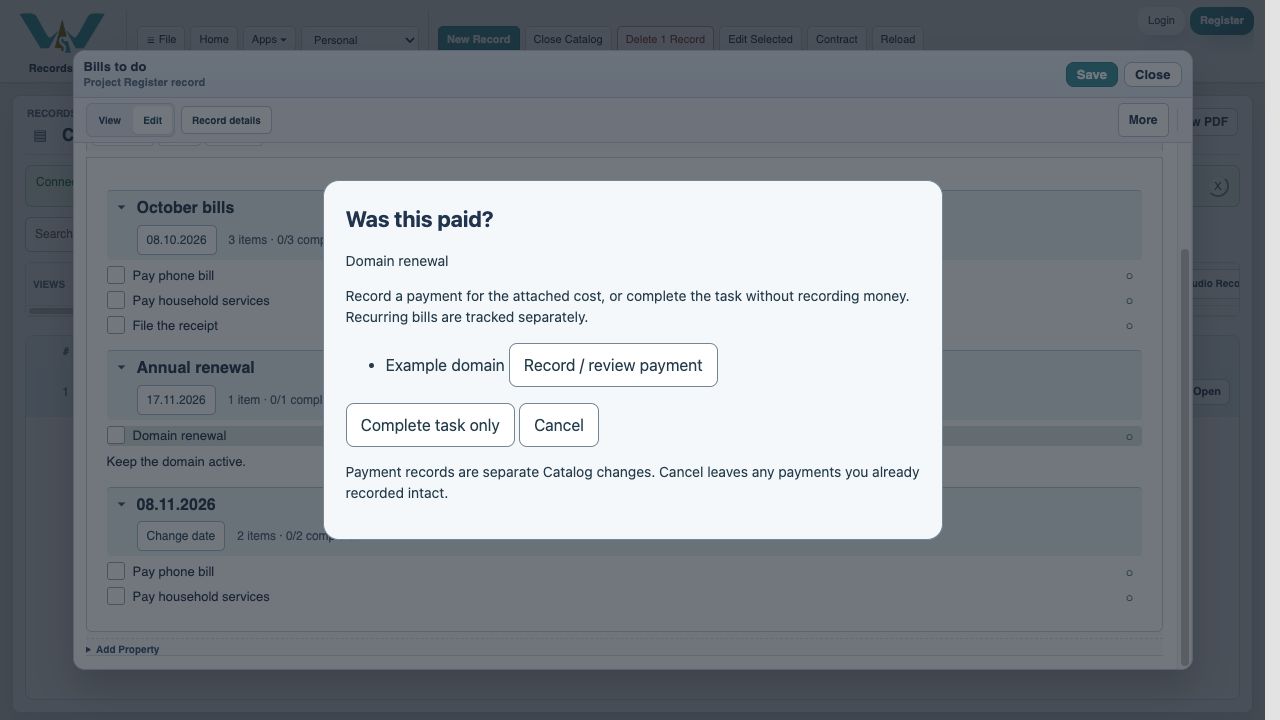
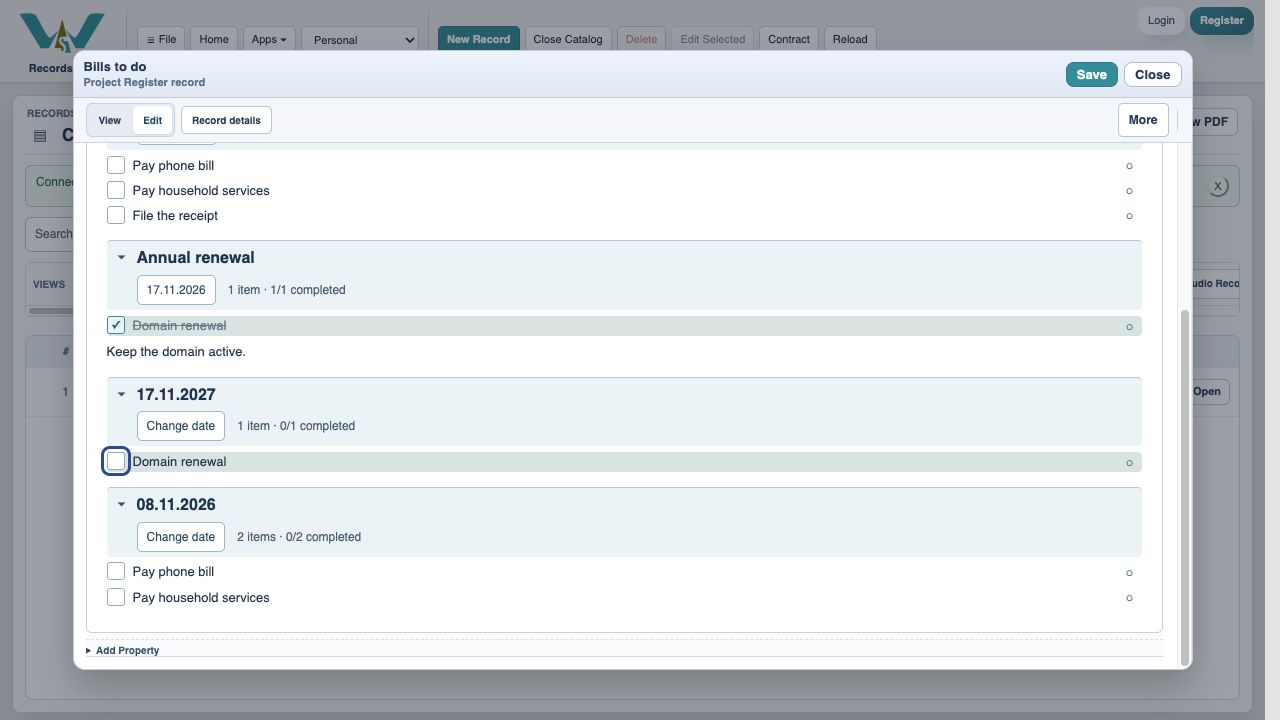
Open Bills to do in Edit and check the Domain renewal row under 17.11.2026. Was this paid? asks whether to record/review a payment or only complete the task.
Open payment review
In Was this paid?, choose Record / review payment for Example domain. Complete task only would record no money.
Allocate the annual payment
Keep Bill / due date at 17.11.2026. Enter 48 in Amount paid (EUR) and use the actual payment date. The example pays early on 12 October: that does not change which bill is settled.
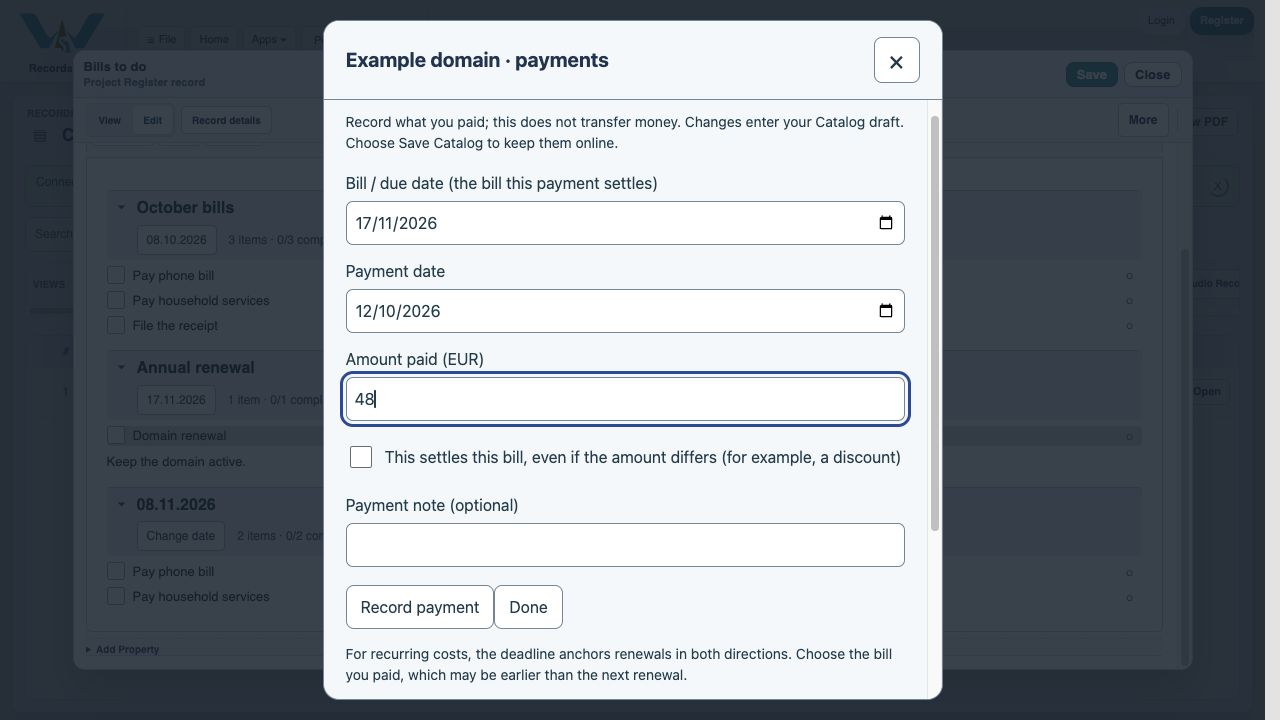
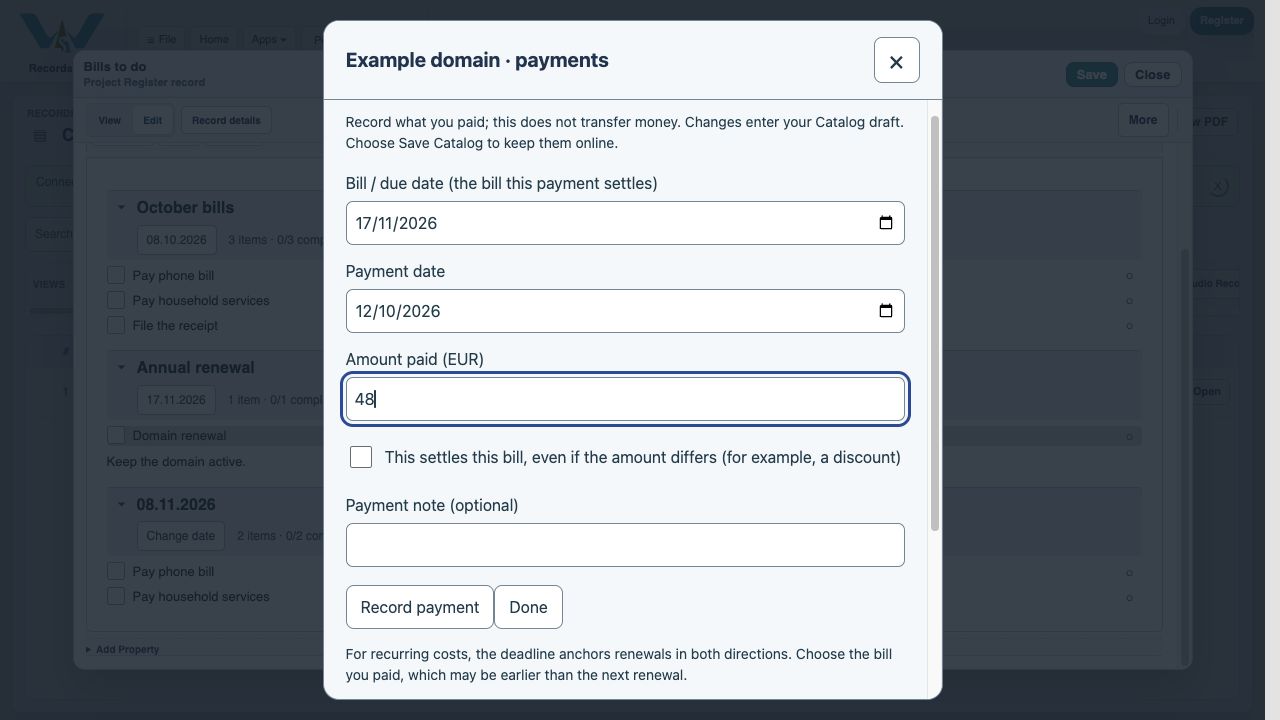
Record the EUR 48 payment
Choose Record payment once. The full amount settles this annual bill and the result reports its matching Notes occurrence checked. No bank transfer is made.
Finish the task prompt
Choose Done to return to Was this paid?, then Complete task. The paid occurrence is already checked by settlement; this closes the task prompt.
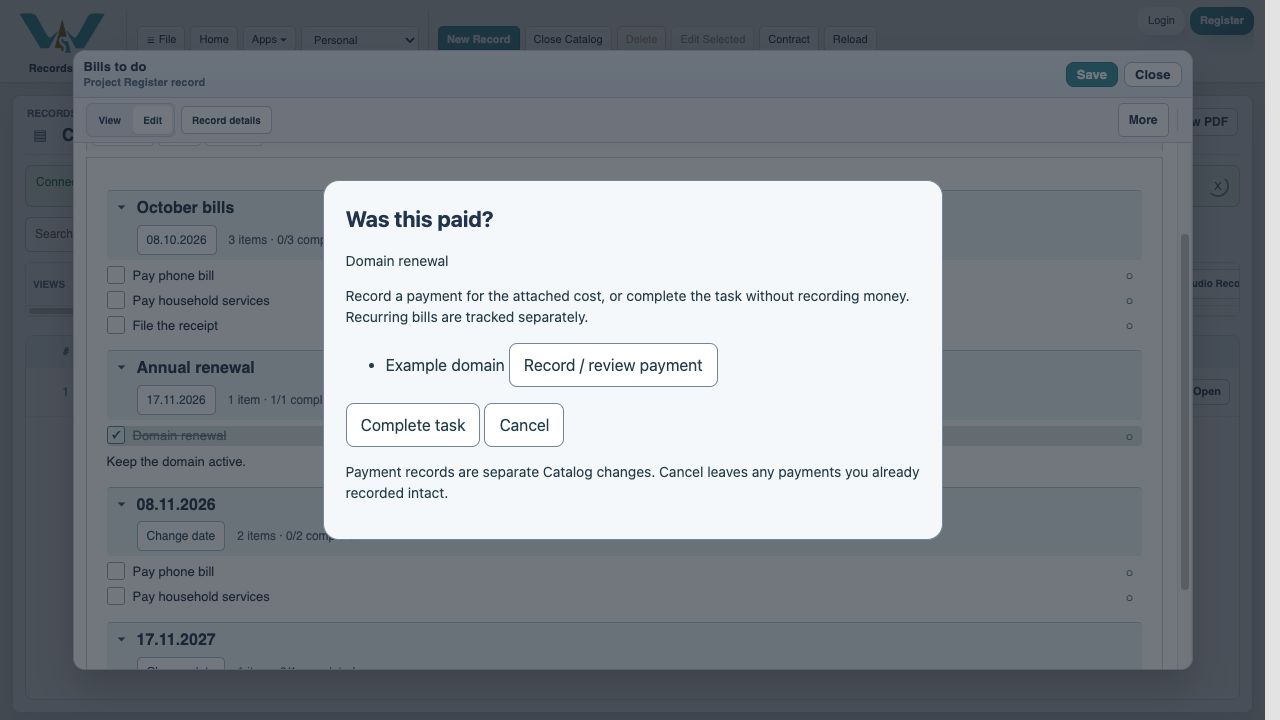
Verify next year remains open
Scroll to 17.11.2027. The next Domain renewal is unchecked. Save the Note to keep the editor changes in the Catalog draft.
Keep the linked setup
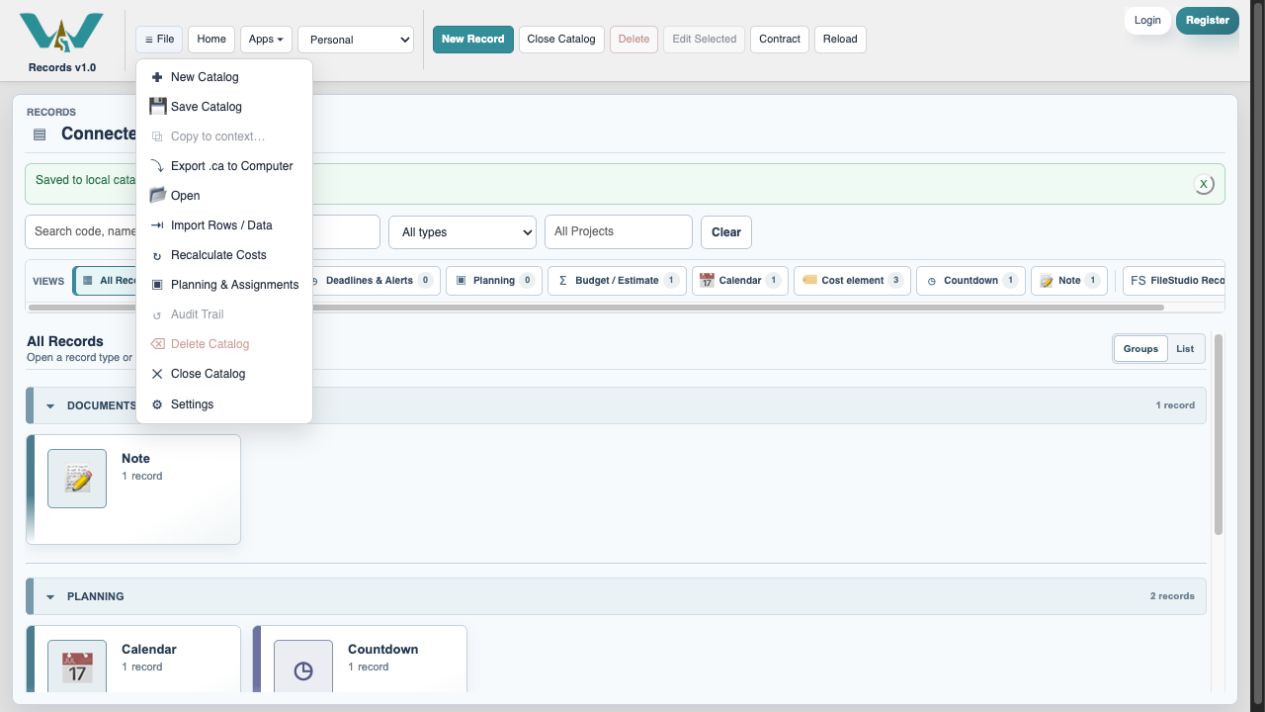
Online: File → Save Catalog. Computer-only: All Records → File → Export .ca to Computer. Early payment appears in its payment month, while the bill remains allocated to November.
Enable JavaScript to use reading progress and usefulness ratings.