
Export Planning & Assignments to PDF
Choose a Planning PDF scope, calendar and closed-item behavior, detail fields, landscape mode, page breaks, summaries, and linked REF charts.
Open Export PDF
Open Planning & Assignments and choose Export PDF. FileStudio presents the export choices every time.
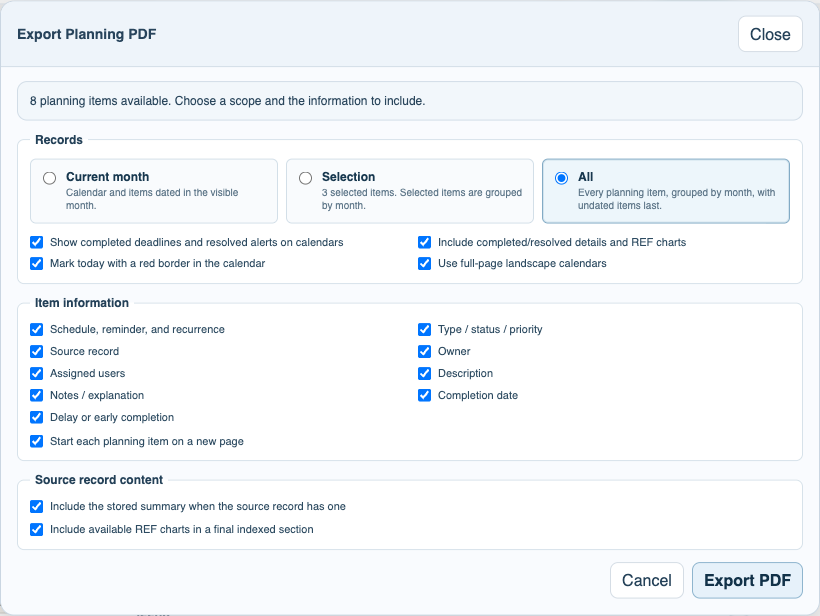
Choose Current month, Selection, or All
Current month exports one visible calendar and that month's details. Selection and All start with a clickable month index and group calendars and details by month, with undated items last.
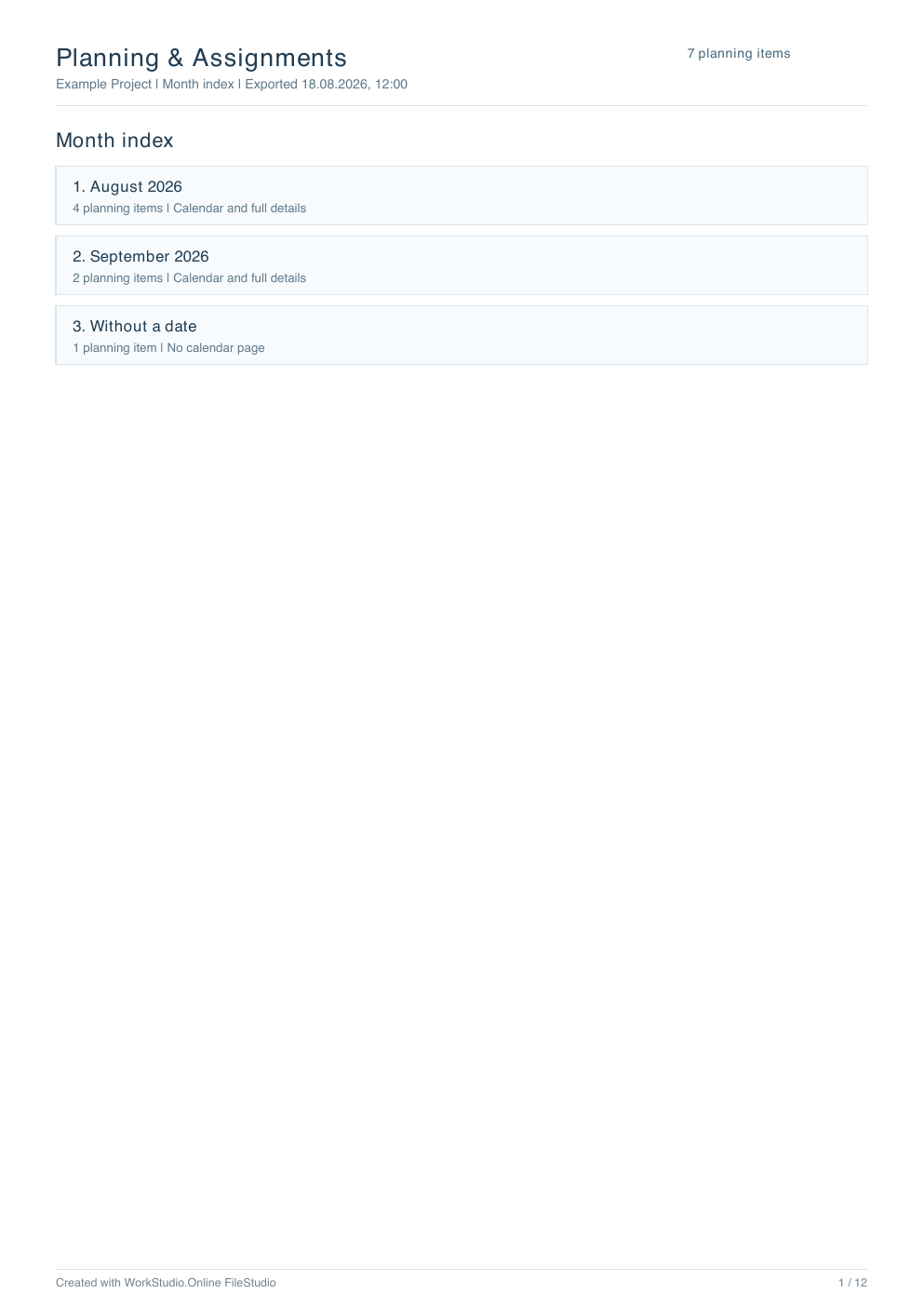
Set closed-item and calendar options
Choose whether completed and resolved items stay visible in grey on calendars and whether their details and REF charts are also exported. Mark today or use full-page landscape calendars when useful.
Choose detail fields and page breaks
Select the schedule, classification, source, people, description, notes, completion date, and delay fields. Turn on one item per page for a formal review packet.
Add summaries and REF charts
Include stored source summaries when needed. REF charts are placed after the item list in an indexed section; each detail entry links to the matching R number.
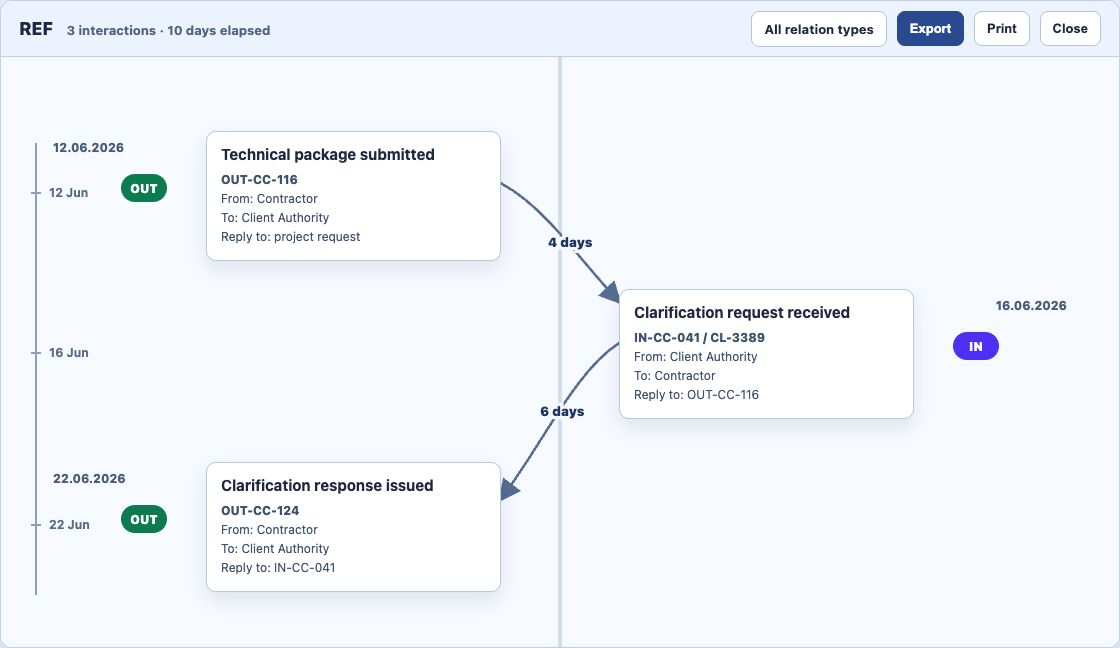
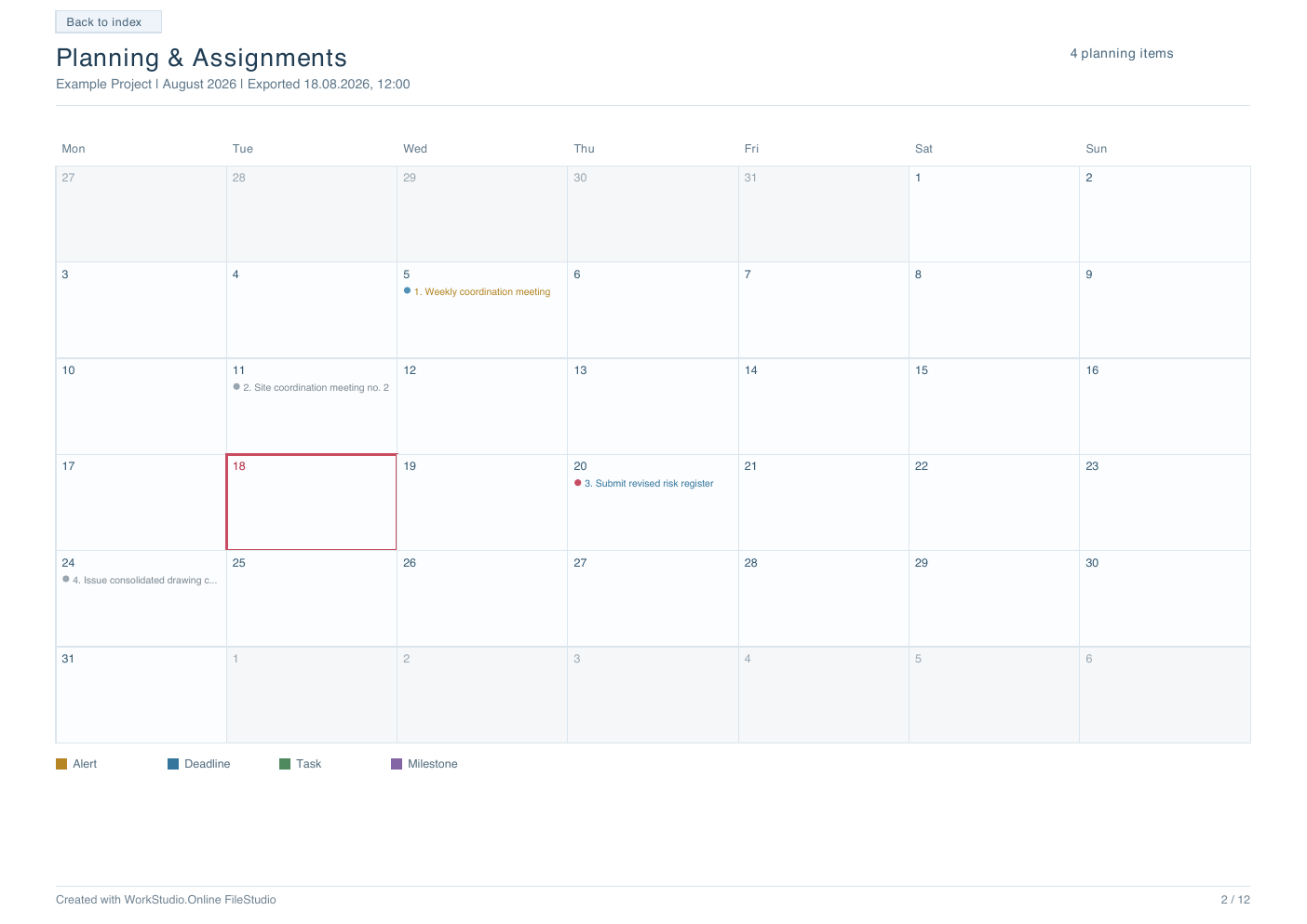
Use the links in the exported PDF
Click a calendar item to open its detail page. Return to the calendar or month index, and use Open REF chart Rn when the planning item has a linked conversation chart.
Enable JavaScript to use reading progress and usefulness ratings.