
Use AI Upload to Register a Document in FileStudio
Drop a document, choose AI Autofill + OCR, review the progress, and save the filled New Record form.
Drop the document into the register
Start in FileStudio Register. Drop the document file into the register area and choose whether FileStudio should use saved profiles or AI Autofill + OCR.
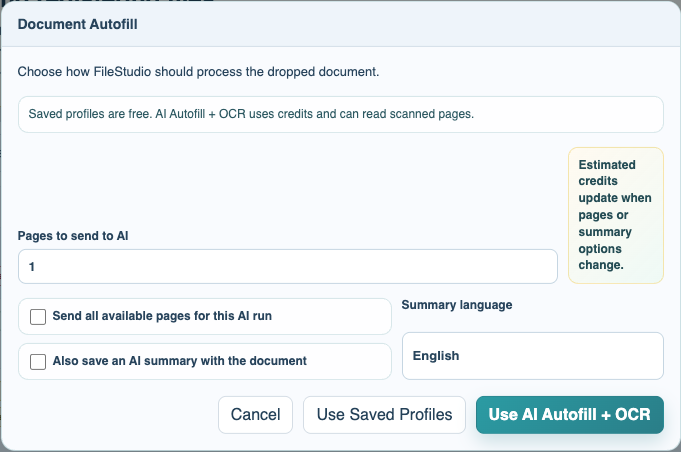
Choose pages and summary options
Set the number of pages to send. If you also save a summary, review the language and page selection because the credit estimate changes with the selected pages.
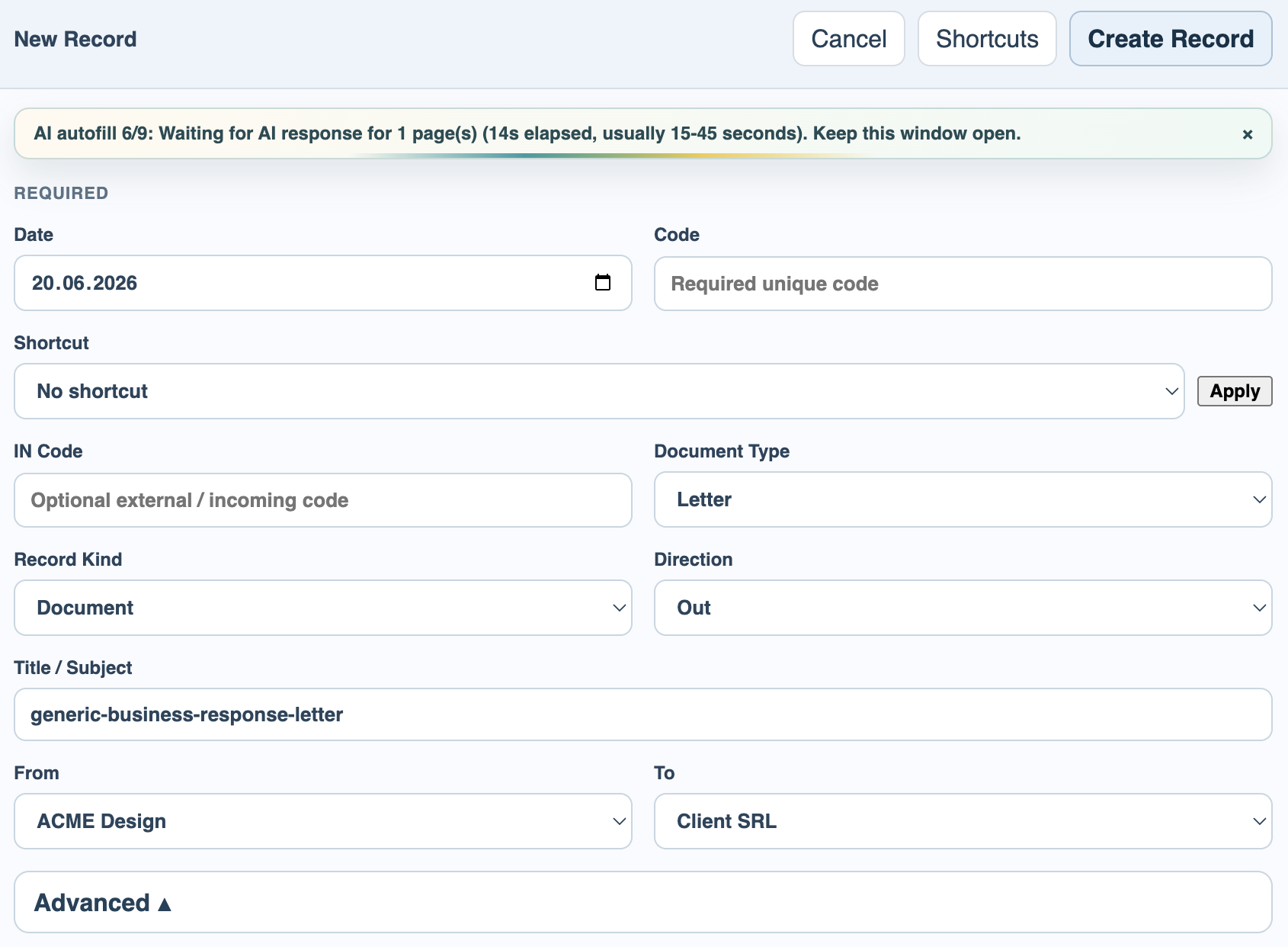
Watch the nine progress stages
FileStudio reports granular progress while it prepares pages, performs OCR or text extraction, sends the request, waits for AI, and fills the form.
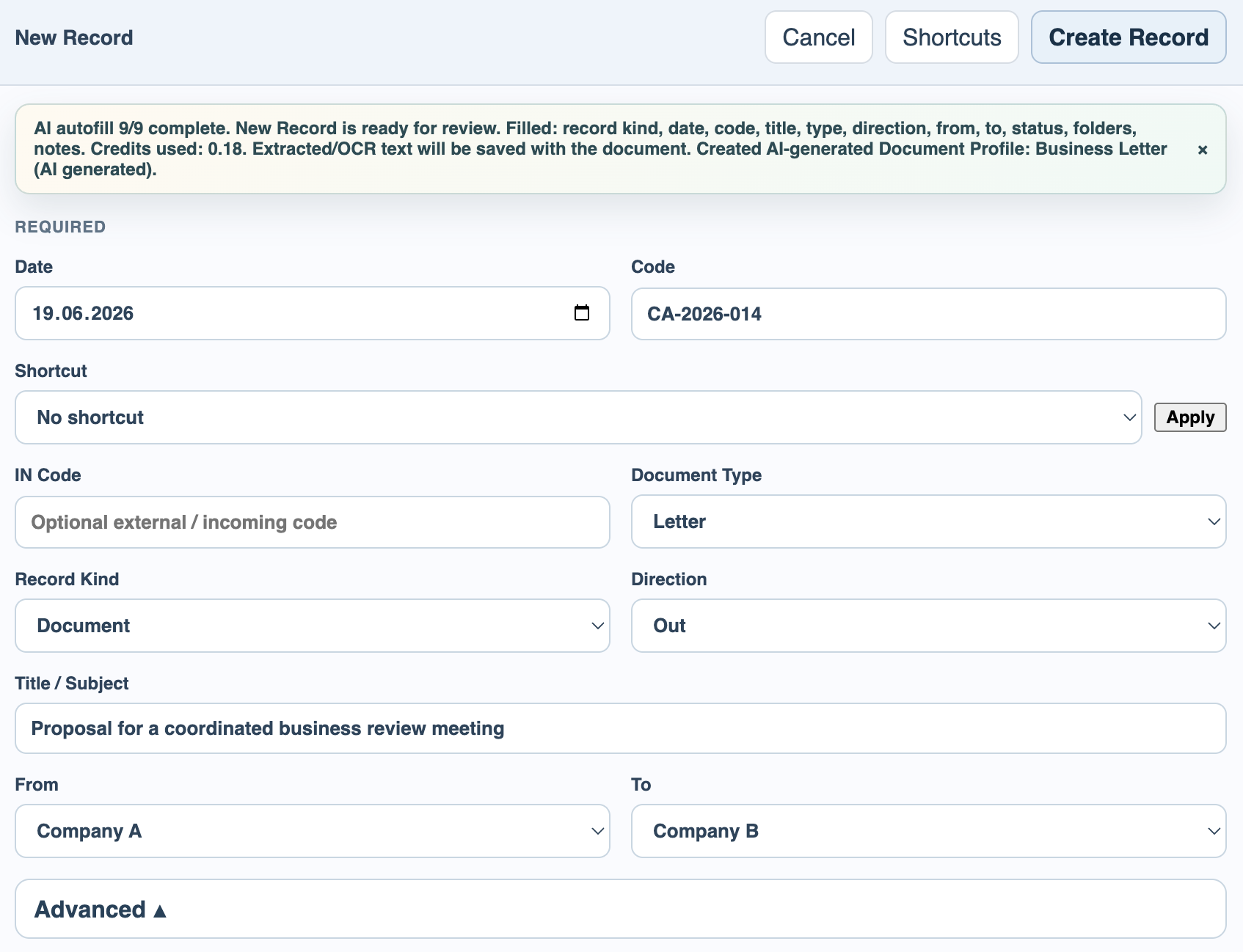
Review the filled New Record form
The AI result opens New Record with suggested values. Check code, IN Code, title, date, parties, status, folder, tags, flags, notes, extracted text, summary, and credits before saving.
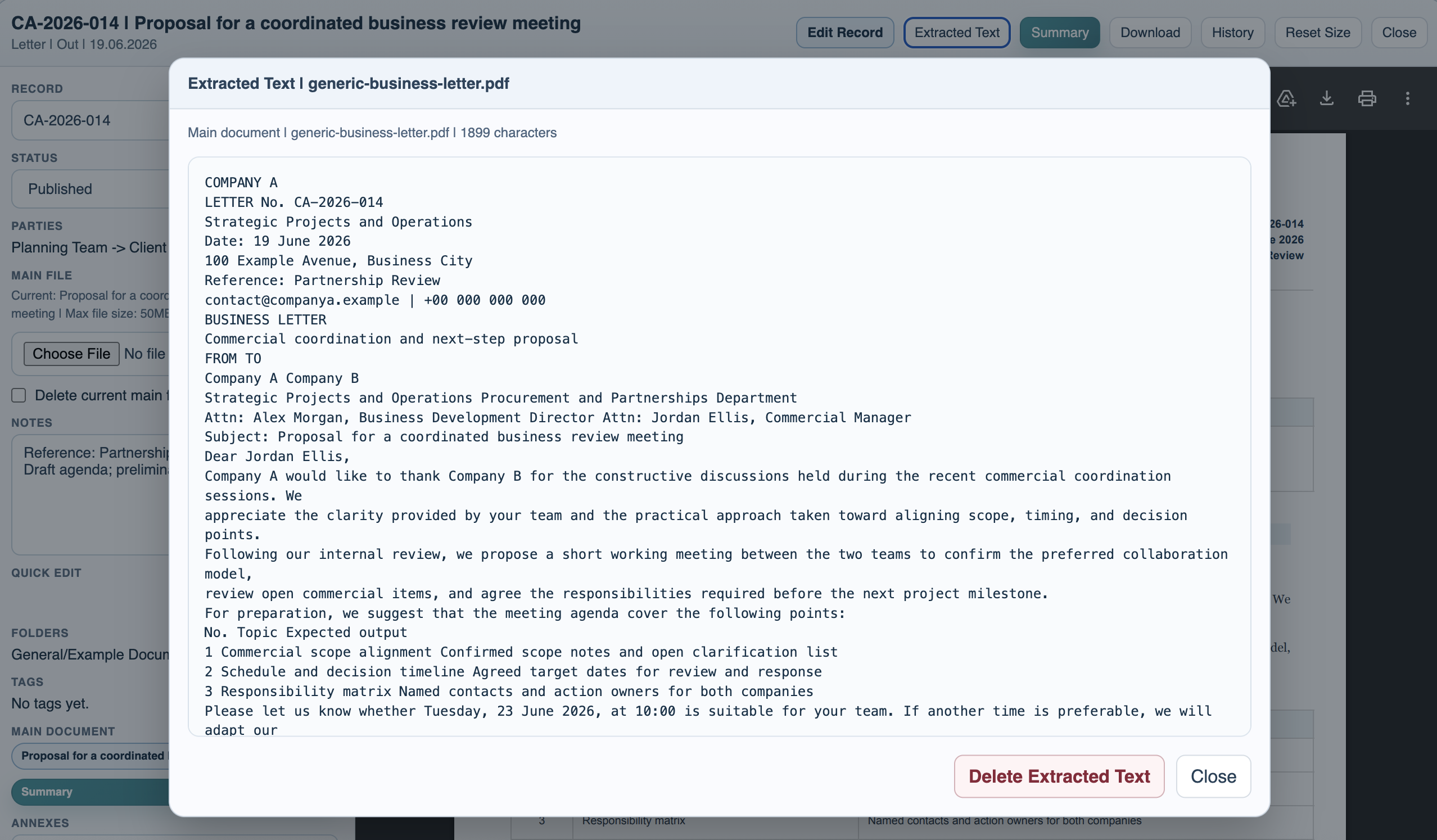
Open saved summary or extracted text
After saving, open the document viewer. Use Summary or Extracted Text to review the saved AI-generated summary or OCR text.
Enable JavaScript to use reading progress and usefulness ratings.